Showing posts with label Troubleshooting. Show all posts

Analyse Your WiFi Environment Objectively #2

When you have a WiFi LAN, and want to find out why it doesn't perform as well as you'd expect to, the first thing most folks will instruct you is

Do a WiFi site survey. Find out what your neighbours are doing.
When a site survey must be done, the best known procedure is to run NetStumbler.

But NetStumbler, for all its highlights of being easy to use, and well known, has shortcomings.
  • It doesn't support 802.11n client equipment.
  • It doesn't reliably detect 802.11n networks.
  • It doesn't run under Windows Vista.


Fortunately, there are new WiFi spectrum analysers, available now, that may provide help where NetStumbler fails. Two such products are InSSIDer (from MetaGeek), and the Xirrus Wi-Fi Monitor Gadget for Windows Vista.

>> Top

Producing a PathPing Log For Analysis

Many network problems that affect your access to the Internet, such as the currently obnoxious "Server Error 1-500", can be better understood, if we can understand how you are connecting to the servers in question. A pathping log, similar to a traceroute log, but easier to read, is very useful in this case.

  1. Open a command window.
  2. Type "pathping www.google.com >c:\pathping.txt" (less the "") at the command prompt.
  3. Type "notepad c:\pathping.txt" (less the "") at the command prompt.
  4. Copy, and paste, the entire log, as displayed in Notepad, into your email or forum post. Please don't munge, or disguise, any details.
It really is simple - when you know how. Just be generous - and precise (see the spaces in the commands?).

Here's a sample log.
C:\>pathping www.google.com

Tracing route to www.l.google.com [74.125.19.103]
over a maximum of 30 hops:
0 Dell1600.martinez.cacroll.net [192.168.203.101]
1 209-204-141-1.dsl.static.sonic.net [209.204.141.1]
2 111.at-4-0-0.gw4.200p-sf.sonic.net [208.106.28.177]
3 0.as0.gw3.200p-sf.sonic.net [64.142.0.225]
4 200.ge-1-2-0.gw2.equinix-sj.sonic.net [64.142.0.210]
5 eqixsj-google-gige.google.com [206.223.116.21]
6 209.85.252.2
7 209.85.251.94
8 74.125.19.103

Computing statistics for 200 seconds...
Source to Here This Node/Link
Hop RTT Lost/Sent = Pct Lost/Sent = Pct Address
0 Dell1600.martinez.cacroll.net [192.168.203.101]
3/ 100 = 3% |
1 37ms 3/ 100 = 3% 0/ 100 = 0% 209-204-141-1.dsl.static.sonic.net [209.204.141.1]
0/ 100 = 0% |
2 33ms 3/ 100 = 3% 0/ 100 = 0% 111.at-4-0-0.gw4.200p-sf.sonic.net [208.106.28.177]
0/ 100 = 0% |
3 40ms 3/ 100 = 3% 0/ 100 = 0% 0.as0.gw3.200p-sf.sonic.net [64.142.0.225]
0/ 100 = 0% |
4 42ms 5/ 100 = 5% 2/ 100 = 2% 200.ge-1-2-0.gw2.equinix-sj.sonic.net [64.142.0.210]
0/ 100 = 0% |
5 35ms 4/ 100 = 4% 1/ 100 = 1% eqixsj-google-gige.google.com [206.223.116.21]
0/ 100 = 0% |
6 41ms 3/ 100 = 3% 0/ 100 = 0% 209.85.252.2
3/ 100 = 3% |
7 42ms 7/ 100 = 7% 1/ 100 = 1% 209.85.251.94
0/ 100 = 0% |
8 45ms 6/ 100 = 6% 0/ 100 = 0% 74.125.19.103

Trace complete.


>> Top

Bundled AntiVirus and Personal Firewalls - A Windows Networking Challenge

For several years after antivirus and personal firewalls became typical (and highly recommended) components in personal computer protection, many computer owners would confuse the two. Typical comments

What do you mean my computer has a virus? I have a firewall.
or
How could my computer have been hacked? Norton AntiVirus says my protection is fine!
would be common in many help forums.

With Windows XP, Microsoft first gave us Internet Connection Firewall, later renamed as Windows Firewall. They then took Windows Firewall, paired it with their recently acquired Antivirus program, and called that Windows OneCare.

The name "OneCare" has always intrigued me. Any person of British personality might pronounce that, with an accent, as "WanKare". Please ask one of your British friends, if you have any, what "WanKare" implies.

So fast forward to the present, please. It appears that the firewall component in Windows OneCare doesn't integrate with Vista, as well as Windows Firewall does. With Windows Vista, when you change the Network Location Type to "Private", Windows Firewall automatically adjusts itself to permitting Windows Networking on that computer. Depending upon the state of NetBIOS Over TCP, Windows Firewall will open the correct TCP ports.

If you have Windows Vista with OneCare, and you can't get Windows Networking working, check the network NetBT, and firewall port, settings, carefully. Make sure that they are compatible, and make sure that the setup of your network, and all existing (and currently working) computers matches the Vista / OneCare settings.

It's possible that any third party firewall may work no better than OneCare, in terms of Network and Sharing integration. If you have a problem with Windows Networking (file / printer sharing), the most frequently seen cause of such problems is NetBT and / or personal firewall settings. This will apparently be true under Windows Vista, just as under any previous operating system.

>> Top

Producing a TraceRt Log For Analysis

Many network problems that affect your access to the Internet, such as the currently obnoxious "Server Error 1-500", can be better understood, if we can understand how you are connecting to the servers in question. A tracert log is very useful in this case.

  1. Open a command window.
  2. Type
    tracert www.google.com >c:\tracert.txt
    at the command prompt.
  3. Type "notepad c:\tracert.txt" (less the "") at the command prompt.
  4. Copy, and paste, the entire log, as displayed in Notepad, into your email or forum post. Please don't munge, or disguise, any details.
It really is simple - when you know how. Just be generous - and precise (see the spaces in the commands?). If you're having a problem with "www.yahoo.com", target that instead.
tracert www.yahoo.com >c:\tracert.txt
If you may be having a DNS problem, find out the IP address of the server, and target it, for comparison.
tracert 66.249.89.99 >c:\tracert.txt


Here's a sample log.

C:\>tracert www.google.com

Tracing route to www.l.google.com [66.249.89.99]
over a maximum of 30 hops:

1 1 ms 1 ms 1 ms 192.168.1.1
2 40 ms 43 ms 41 ms 10.122.84.253
3 42 ms 41 ms 43 ms 10.122.84.254
4 54 ms 55 ms 55 ms 10.121.20.1
5 * * * Request timed out.
6 51 ms 53 ms 51 ms 58.147.0.52
7 53 ms 51 ms 53 ms 58.147.0.46
8 268 ms 275 ms 271 ms 202.47.254.161
9 270 ms 269 ms 269 ms 202.47.253.148
10 280 ms 283 ms 283 ms 203.208.191.197
11 297 ms 299 ms 283 ms ge-0-1-0-0.sngtp-cr1.ix.singtel.com [203.208.149.201]
12 283 ms 339 ms 285 ms so-2-1-0-0.hkgcw-cr2.ix.singtel.com [203.208.154.38]

13 114 ms 115 ms 113 ms 72.14.196.5
14 118 ms 117 ms 117 ms 216.239.43.68
15 144 ms 137 ms 141 ms 66.249.95.198
16 142 ms 137 ms 139 ms 72.14.232.166
17 178 ms 171 ms 167 ms 72.14.236.236
18 175 ms 173 ms 175 ms 66.249.95.197
19 176 ms 181 ms 177 ms 216.239.47.54
20 176 ms 177 ms 175 ms jp-in-f99.google.com [66.249.89.99]

Trace complete.

You have two classes of information there. The list of IP addresses are very important, to understand the path that your traffic may take, between your computer and the Google server.

The timings (or lack of them, as in "Request timed out") are not always easy to interpret. A difference of 200+ ms (as in hops 7 and 8 above) may represent a real problem, or it may be the result of the two hops being on opposite ends of a busy or long communication line, as in a trans continental trunk line.

In many cases, a router (represented by one of the IP addresses in the list), though it will identify itself in the list, will prevent you from probing it for a timed response. The error "Request timed out" won't be as significant as the IP addresses.

Sometimes, the problem won't be immediately obvious from one traceroute log. If your problem comes and goes, a tool like PingPlotter will help you look for a problem over time.

>> Top

The Weak Point In Your Internet Service - The Power

If you have a typical Internet service, you likely (hopefully) have 2 mysterious network devices, connected between your computer and your ISP's service.

  • The modem (dialup, cable, or DSL) connects directly to the wire coming out of the wall.
  • The router connects between the modem, and your computer.
Both the modem and router have power supplies - also known as "wall warts", because they have big plugs - 3 - 4" cube shaped, that make it hard to find a power outlet with room to plug it in. If you have these, you should know what I mean.

Recently, I thought that my router was slightly faulty. Several times / week, I was losing Internet service, even though the diagnostic lights on my DSL modem, and the router, were normal. Restarting both the modem and router would restore my service, but only until the next time.

I bought a universal power supply at Radio Shack for $15 or so, and swapped it for the power supply for the router for a while, but saw no improvement in the symptom. Service was going out too frequently - first a couple times / week, then daily, and finally multiple times daily. I put the vendor power supply for the router back in service, took the replacement universal power supply, and tried it on the modem, and the problem was solved.

It's summer time here in North America, and I'll bet heat sensitivities are part of the problem. If your Internet service has been acting up on you for a few weeks, and you've been pestering your ISP with no results, check your equipment, and start with the power supplies.

In this situation, the "universal power supply" is a key item. Each different electronic device - modem, router, or what have you, will have differently designed power requirements. Plug size, polarity, and voltage will differ from device to device. In my case, my modem uses 6V DC +, and my router uses 12V DC +. Being able to try the same power supply on both units, by simply changing the switch on the wall wart, made it possible for me to solve my problem.

When you setup the power supply for your modem or router, read the instructions carefully. Plug size (6 choices) is obvious. Polarity and voltage are not obvious, but getting them right is essential. In most cases, the wall warts from the vendor will have clearly labeled requirements, with both polarity and voltage obviously described. Carefully following the instructions with the replacement power supply, you can swap units in a couple minutes.

>> Top

No WiFi Connectivity? Check The Power Settings

So you just got yourself a new laptop computer, and of course a WiFi router so you can use the new computer while lying in bed (no we won't discuss why you want that). And you followed all of the instructions, and you run the WiFi client setup where it lists networks for you to connect to, and you see

No wireless networks are within range.


Dohh! Guess you won't be surfing the web from the bed after all.

But before you give up, and take it all back to the store, check everything again. To start, check power. There are up to 4 power settings, and yes, I will describe the obvious ones too.
  • The laptop has a power switch.
  • The router should (but probably doesn't) have a switch. But check the power cord. Of course, since you just ran the router setup (connected by Ethernet cable), the router must be on. OK, move on.
  • If the laptop has built-in WiFi, it's got a power switch for the radio. The radio is the part of the WiFi device that uses the most power, so every laptop lets you turn the radio off. Most laptops ship with the radio turned off, so you won't use it without knowing that it's on. Read The Manual.
  • Check the router setup, and make sure that the radio there is on. Most WiFi routers ship with the radio turned off, so you don't set one up, with the radio on, without knowing that it's on. This keeps you from inadvertently providing free Internet service to your neighbours. Again, Read The Manual.

Always check the power, after you set everything up. Then check all of the physical issues again.

>> Top

Windows XP And Vista On The LAN Together

File and Printer Sharing in Windows Vista is not extremely different from File and Printer Sharing in Windows XP. There are new features, and wizard procedures, that work on top of Windows XP features and procedures. If you have a working network, with one or more computers that use Windows Networking, you probably know enough to get started.

There will be challenges though. One predictable challenge is the availability (or lack of availability) of drivers for devices that are operating system sensitive, like network adapters. This has inspired various attitudes, even rants, among the user community.

Computers running Windows Vista use the same layered network as previous versions of Windows, so start by reviewing the principles of layered network design and installation, and of layered network problem solving. And review various issues that affected Windows Networking on computers running Windows XP.

>> Top

System Updates Issues
With Windows Vista, as with Windows XP, Microsoft will issue periodic (and monthly) updates. Most updates are for security issues, and others for operability and / or stability. All updates are necessary, if recommended for your edition of Vista, and some may have a direct effect on your problem.

As an interim measure, possibly before an actual Service Pack, Microsoft has started issuing compatibility, performance, and reliability fixes, covering a variety of issues with Vista.

>> Top

Connectivity Issues
By default, computers running Vista will set the Broadcast flag, in the DHCP Discover packets, On. If your DHCP server (NAT router, or non-Microsoft dedicated server) doesn't support DHCP Broadcast, you'll have various problems - your computer may never get an IP address, or your IP connectivity may come and go unpredictably. To make your Vista computer compatible with Windows XP, (KB928233): turn the DHCP Broadcast flag Off. Besides the DHCP Broadcast difference, be aware of an interesting (KB931550): timing difference between the Windows Vista and XP DHCP clients.

One of the most interesting features in Vista (my opinion anyway) is the ability to dynamically determine Receive Window size for each individual Internet connection. Users of high speed broadband connections will be especially interested in this. Unfortunately, it appears that RWin AutoTuning may be a bit problematic. This setting has been observed to affect both LAN and WAN connectivity, and can cause instability, or lack of connectivity.

On laptop computers, and other computers with multiple network adapters, you'll see an inaccurate / inconsistent network status indicator, when the computer is first started.

Like every newer version of Windows, Windows Vista will use more resources on the host computer, and on any peripherally connected computers and routers. If your peripheral network equipment like routers are becoming aged, you'll be advised to upgrade or replace whatever you can.

The IPX/SPX Protocol is not provided in Windows Vista, though Novell does now provide a Netware client for Vista. NetBEUI, on the other hand, is now a part of history.

>> Top

Visibility Issues
One of the new features of Windows Vista is the Network Map, which runs at the Link Layer of the OSI Network Model, and offers functions similar to The Dude. The Network Map uses a discovery protocol called Link-Layer Topology Discovery (LLTD), which is not a normal part of Windows XP.

To be able to see a Windows XP server from a Vista client, using the Vista Network Map, you need to install (KB922120): the LLTD Responder on any Windows XP computers. The LLTD Responder isn't available for Windows 2000, so you won't be able to see a Windows 2000 server from a Vista client, using the Vista Network Map.

Even if you can't see a Windows XP or 2000 computer in the Network Map, though, you'll still be able to see it in Network Neighborhood / My Network Places, aka the Network window (Start - Network) in Windows Vista. And even if you can see a computer in the Network Map, you may still have to work on name resolution, or on sharing permissions, if you are going to actually access its resources.

The simplest visibility will be enjoyed with all computers in the same workgroup. By default, Windows Vista uses "Workgroup", while Windows XP uses "MSHome". If you leave workgroup names at default, the other computers will be visible in the Network (My Network Places aka Network Neighbourhood) wizard, but they won't be seen immediately, when you open the wizard. You may have to look under Entire Network - Microsoft Windows Network, for the different workgroups used by each set of computers. And with having multiple browse domains (workgroups), your browser infrastructure will be slightly more complex.

>> Top

Using A Windows Vista Client
Under Windows Vista, the personal storage (personal profile and other files and folders) container has been changed, from "C:\Documents and Settings", to "C:\Users". The folder "C:\Documents And Settings" will continue to exist, for backward compatibility, only as a junction point. On a mixed LAN, I would very carefully test sharing of either "C:\Documents and Settings" (with a Windows Vista client), or "C:\Users" (with a Windows XP client), before committing myself.

>> Top

Setting Up A Windows Vista Server
If you're adding a computer running Windows Vista to your network, you have to set it up as a server, so you can access it from your other computers. You do this using the Network and Sharing Center wizard, accessed by Start - right-click on Network, and select Properties. This is equivalent to running the Network Setup Wizard, in Windows XP.

  • Set the Network Location Type to "Private". This requires that your computers are secure, behind a perimeter firewall or a NAT router, and opens the standard Vista personal firewall to allow Server Message Blocks (SMBs) to pass between the computers. If your computer is directly connected to your Internet service, either get a NAT router, or leave the Network Location Type set to Public (which will prevent you from networking this computer).
  • Having set the NLT to "Private", you must now designate which services you wish for your server to provide or use. You should verify each setting before continuing, and change it if necessary.
    • File sharing.
    • Public folder sharing.
    • Printer sharing.
    • Password Protected Sharing (PPS) affects the above 3 services. Disabling PPS is the equivalent of enabling Simple File Sharing, in Windows XP.
  • Setup shared folders and printers. If you enabled PPS, you should setup access for individual users. If you disabled PPS, you setup access for "Guest" or "Everyone". Since Vista security is "deny by default (permit by demand)", "Everyone" doesn't automatically have access to newly created shares. Check the Security tab, for each share created, if you disable PPS.
  • Whether you setup the server with PPS Enabled (aka Advanced File Sharing, in Windows XP), or PPS Disabled, make sure that the account used for sharing is activated for network use.
    • If you Enable PPS, you can use either the Guest account, or a non-Guest account of your choice, but the chosen account has to be activated for network use.
    • If you Disable PPS, then the Guest account must be activated for network use. By default, Guest is disabled. If your server provides network access through the Guest account, be aware of its limitations.
    • Whether you use Guest, or a non-Guest account for access, the account used has to be added, explicitly, under Security, and under Sharing.
  • On a server running Windows Vista, the Administrative (Hidden) volume share of "C$ ("D$", etc) isn't defined, by default.

For an overview of the above, see Microsoft: File and Printer Sharing in Windows Vista

>> Top

Setting Up A Windows XP Server
If you have just one computer besides your computer running Vista, you may have to setup your first computer as a server too. On a computer running Windows XP, run the Network Setup Wizard. For a server connected behind a NAT router, select
This computer connects to the Internet through another computer on my network or through a residential gateway.
Running the NSW, and making that selection, is similar to setting the Vista NLT to "Private".

>> Top

Common Issues
Other than the network setup wizards used, Vista will be pretty similar to XP. You'll have the same challenges with Windows Networking.

>> Top

Editions Of Windows Vista and XP
There are 5 editions of Windows XP, which are basically 2 variants - Home and Pro.
  • XP Home is the equivalent of Vista Basic Home, with PPS permanently disabled.
  • XP Pro can use Advanced File Sharing (similar to PPS Enabled), or Simple File Sharing (similar to PPS Disabled).
  • The other 3 editions - Media Center, Tablet, and Pro x64 - are all variants of XP Pro, in terms of file sharing functionality.
  • With XP Pro, and with all editions of Vista, you can have Guest or non-Guest authentication. Note the limitations of Guest authentication carefully, some limitations aren't as obvious as they should be.
  • Whether you use the Guest account, or a non-Guest account, for authentication, make sure that the account used is properly prepared for network access.

There are also 5 well known editions of Windows Vista, plus several obscure ones which we probably won't encounter. The different editions of Windows Vista are completely different from Windows XP, in feature set differentation.

>> Top

Windows Vista and Older / Other Operating Systems
If you also have one or more computers running Windows 9x (95, 98, ME), you'll need to be aware of a significant difference between Windows XP and Vista, in Microsoft Windows And Authentication Protocols. But focus your mind on the future - Windows 95 / 98 / ME have a limited life span.

This will be a problem, too, if you have a Network Attached Storage (NAS) device. Many NAS devices, with unknown authentication abilities, will be a similar challenge. Some NAS devices will also try to act as a master browser on your network, and will cause master browser conflicts, and unreliable displays in Network (aka My Network Places).

>> Top

Windows Vista and Printers
If you are setting up your mixed LAN specifically to share a printer, note the additional challenges involved in sharing printers. Get file sharing working, first, then concentrate on getting working printer drivers that support Windows Vista. On a mixed network, the printer will have to support both Windows Vista, and Windows XP. And drivers for the client will probably differ from drivers for the server.

If you're having problems with printing from a computer running Vista, and the printer is shared by another computer, read Network Printing From A Windows Vista Computer.

>> Top

Windows Vista and Security
Depending upon what personal firewall you are using on your Windows Vista computer, you may have to set the firewall manually. It appears that Windows OneCare does not setup seamlessly, as Windows Firewall does, when you set the Network Location Type. And a recent change (September 2007) in Internet Explorer appears to affect Windows Networking access between computers.

>> Top

More References
For the above issues, and more, see

>> Top

Controlling, And Watching, The Services Running On Your Computer

The Services are the various low-level system processes, that all programs and applications depend upon. Services run independently of who is logged in to a computer; most services start when the computer is started, not after login.

While there are many services provided with the Operating System, all services are not essential on any given computer, and may not be running at any given time.

The essential services must be running, yet other services may have to be NOT running, on your computer. You must make the decision, based upon how your computer is to be used. You set each service in question appropriately.

You can start, stop, change startup status, and / or query the status of a service interactively (using the Services wizard), or from a command window (using the Services Controller CLI). You can use Process Explorer, to find out many details about any service, since (as I wrote above) services are the low level processes running on your computer.

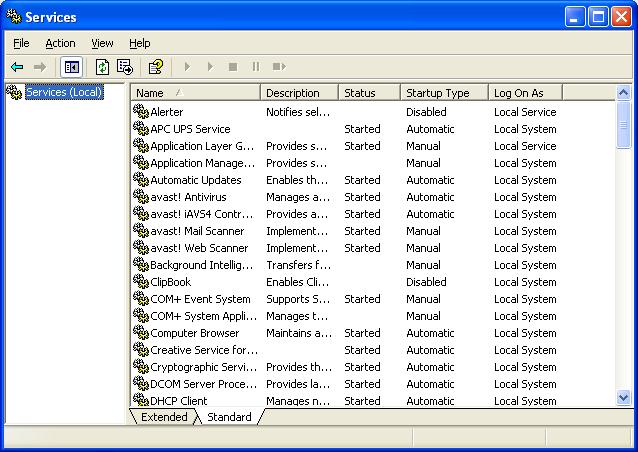
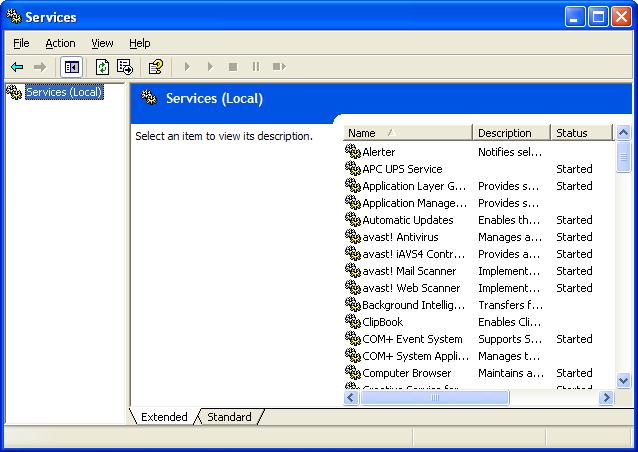
The Services Wizard
You start the Services wizard from Control Panel - Administrative Tools - Services.

You may use the Services wizard presented in Standard, or Extended, mode. The choice is yours.


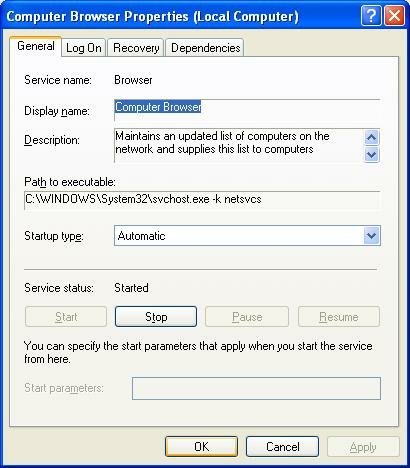
Find the service that concerns you, and double click on it (or right click, and select "Properties").


The Service name and Display name are two descriptors which are used, alternately, in various places. You should be aware of both values.

You may find Path to executable useful when you are researching an instance of "svchost.exe", using Process Explorer.

Startup type determines when, or if, it will ever be started.

Service status determines whether it is, or should be, running now.


  • If the service in question is running, and you want it stopped, hit "Stop", and wait while it stops.
  • If the service is not running, and you want it running, hit "Start" and wait.
  • If you want the service in question to start the next time the system starts, set Startup type to "Automatic".
  • If you want the service to be started the next time it is needed, set Startup type to "Manual".
  • If you want the service to never start, set the Startup type to "Disabled".

Dependencies shows other services that this service requires to be running, and other services that require this service to be running, before they themselves will start.
If the service wouldn't start, or if its Startup Type wouldn't change, it may have a dependency. Look on the Dependencies tab, under "This service depends upon the following system components". Make sure that everything there is present on the computer, and all services listed are Started. Also check the Event Viewer logs for clues. The Services Controller CLI You can also use the Services Controller, aka "SC", from a command window. Observe the spaces in the examples below; they are essential.
  • To find ot the status of the browser service, enter
    sc query browser
  • To stop the browser service, enter
    sc stop browser
  • To start the browser service, enter
    sc start browser
  • To disable the browser service at startup, enter
    sc config browser start= disable
  • To enable the browser service at startup, enter
    sc config browser start= auto
For more information about the Services Controller, see (KB166819): Using Sc.exe and Netsvc.exe to Control Services. If no help yet, check Event Viewer for additional clues. For more information about the many services, the Internet expert is BlackViper, and you can (currently) refer to his websites, Windows Vista Service Configurations, and / or Windows XP Service Configurations. Note that each service has TWO identities. Some utilities and wizards might use one identity to refer to a service, others might use the other. The Browser Service has, for instance,
  1. Service Name: Browser.
  2. Display Name: Computer Browser.
The Workstation Service has,
  1. Service Name: lanmanworkstation.
  2. Display Name: Workstation.
Don't be confused if you can't find a particular service in a list, or if the SC command doesn't seem to work. Make sure that you know both identities for the service that you're interested in. >> Top

NetCheck Source

Besides using network monitoring tools like The Dude, sometimes you need detailed information. Occasionally, having the same detailed information, for all computers on the network, is useful. If you need to extract that same bit of information, repeatedly, scripting the extract is the only thing to do.

This is where NetCheck comes into use.

NOTE: Using NetCheck successfully requires that you have a working administrative account setup, and in use, on your LAN. Make sure that you have the authority, before wasting your time.

Take the following code (everything INSIDE the "#####" lines). Please DO NOT include ANY portion of the "#####" lines. Follow instructions below, precisely.


  1. Create folder C:\Utility on your computer, and make that folder part of the Path.
  2. Download PSTools (free) From SysInternals. Copy all components of PSTools, unzipped, into C:\Utility.
  3. Open Notepad. Ensure that Format - Word Wrap is not checked. Highlight then Copy the code (Ctrl-C), precisely as it is presented below, and Paste (Ctrl-V) into Notepad.
  4. Add a list of your computers - substituted for "pc1 pc2 pc3" - into the third command. Note: This list is case insensitive - "PC1" is the same as "pc1".
  5. Save the Notepad file as "netcheck.cmd", as type "All Files", into C:\Utility.
  6. Run it by Start - Run - "netcheck".
  7. Wait patiently.
  8. When Notepad opens up displaying c:\netcheck.txt, first check Format and ensure that Word Wrap is NOT checked! Then, copy the entire contents (Ctrl-A Ctrl-C) and paste (Ctrl-V) into your next post. Or, examine the file yourself.


Do this from each computer, please, with all computers powered up and online. Running this code from each computer will give us a more complete picture of how each computer is setup, and what each computer can see from the others. On a completely working LAN, the multiple copies produced should be symmetrical. Running this, repeatedly, would be redundant. Since you're here, it probably won't be for you.

##### Start NetCheck Base Code

@echo off
@echo NetCheck V1.00 >c:\NetCheck.txt
for %%a in (pc1 pc2 pc3) do (call :Loop1 %%a)
notepad c:\netcheck.txt
goto :End

:Loop1
set NetCheckCmd=psexec \\%1
if /i %1!==%computername%! set NetCheckCmd=
@echo.
@echo NetCheck %1
@echo. >>c:\NetCheck.txt
@echo NetCheck %1 >>c:\NetCheck.txt
@echo. >>c:\NetCheck.txt
%NetCheckCmd% ipconfig /all >>c:\NetCheck.txt
@echo. >>c:\NetCheck.txt
%NetCheckCmd% net config server >>c:\NetCheck.txt
@echo. >>c:\NetCheck.txt
%NetCheckCmd% browstat status >>c:\NetCheck.txt

:End

##### End NetCheck Base Code

>> Top

Know Who's Accessing The Server

Most computers in a workgroup will run as a server, and some computers in a domain will too. Servers do not have unlimited capacity to serve you, and occasionally, they run out of available connections. You'll be trying to access another computer, and you'll see a message that you don't want to see

No more connections can be made to this remote computer at this time because there are already as many connections as the computer can accept.


And this can also be an issue, when you need to know, in general, what your computer is doing.

So what do you do now? Do you run around, turning off some computers, just so another computer can connect, or just to see if this computer will stop doing what you're wondering about? Sometimes, that's the only diagnostic left to us, but just maybe you can be a bit more methodical, this time.

You can start by identifying who's accessing the server right now. And you can use either one of two tools.

Computer Management
Computer Management is a tool in the Administrative Tools section of Control Panel.

Under Computer Management, you find System Tools, then Shared Folders.


Shares enumerates each share on the server, and the number of connections that are in use for each share. This is where you start, when the server has exceeded its connection limit.


Sessions enumerates the accounts being used for access, and the remote computers, by IP address.


Open Files enumerates the open files and folders, and what accounts are being used for access.


The command window based Net command, with 3 of its sub commands, will provide information similar to the Shared Folders wizard.

Net Shares enumerates the shares on the server.

C:\>net share

Share name Resource Remark

-------------------------------------------------------------------------------
E$ E:\ Default share
IPC$ Remote IPC
D$ D:\ Default share
ADMIN$ C:\WINDOWS Remote Admin
C$ C:\ Default share
CDrive C:\
DDrive D:\
EDrive E:\
Quarantine E:\Quarantine
System Resources
E:\System Resources
Utility C:\Utility
The command completed successfully.


Net Sessions enumerates the remote computers (by IP address) and the accounts being used for access.

C:\>net sessions

Computer User name Client Type Opens Idle time

-------------------------------------------------------------------------------
\\192.168.203.100 CCROLL_ADMIN Windows 2000 2195 1 00:42:48
The command completed successfully.


Net Files enumerates the shared files or folders being accessed, and the accounts being used for access.

C:\>net file

ID Path User name # Locks

-------------------------------------------------------------------------------
3 E:\Temp\20060925 CCROLL_ADMIN 0
The command completed successfully.


>> Top

Diagnosing Network Problems Using PingPlotter

Many network problems, given enough test cases, can be diagnosd by simple observation and comparison. If you can access Computer C from Computers A and B, but you can't from Computer D, better look at Computer D. If Computer A can access Websites 1 and 2, but can't access Website 3, what's different about Website 3?

What if the problem comes and goes - now you can access with no problem, and now you can't? Maybe Computer A doesn't work now, but it's working later when Computer B stops working? Or if Website 1 is accessible, but Website 2 isn't, how do you identify the problem? How do you even track the problem, without having assistants to help you watch all of the computer involved?

I start with PingPlotter. PingPlotter combines a traceroute (traditionally a single timed ping of all addressed hosts between one computer and another) with repetitious pinging, and an interactive GUI display. PingPlotter lets you look for geographical problems (showing that you have connectivity between your computer and the first router, but not the second), or for repetitous problems (showing when you lose connectivity, whether chronic, cyclical, or randomly).

Let's say that you are losing connection with the Internet, on all computers on your LAN, periodically. By running PingPlotter on your computers, you can note whether the problem is with your router (if all computers show loss of connectivity with that router), with your ISP (if all computers show loss of connectivity with your ISPs gateway, but no problem with your router), or with a given server on the Internet. If the problem is intermittent, the PingPlotter display will show when the problem happens - and if its a chronic problem which includes loss of connectivity with your ISP, having a PingPlotter display may be worth a thousand words.

Since PingPlotter shows ping times for every host between you and your target, when there is a break in connectivity somewhere, it will show the break. You will see a red ping display for any hosts that do not respond at all, and the host that is causing the problem will probably be the closest one showing as red.

A PingPlotter display is interactive too. If there are a dozen hosts between you and a given website, maybe you only want to examine connectivity details with 4 hosts - yours, your ISPs gateway, your ISPs border, and the target server. You can selectively configure PingPlotter to show only those hosts, saving valuable screen space for other tasks. At any time, you can add any of the other hosts to the display, and the past history for those hosts will be visible too.

You can also vary the time scope of the display. You can look at an entire 48 hours in a 6 inch horizontal display, or zoom in on any 5 minutes, and look at those 5 minutes in detail. Or you can select any of 8 other scales in the display.

The paid version of PingPlotter can even be set to trigger alerts when certain definable network conditions occur, and to contact you by text messaging, or by email. So you need not be at your desk, watching the display, to be notified of a chronic problem.

All in all, PingPlotter is one network diagnostic that has a place in my toolbox. The paid version, PingPlotter Pro, is well worth the expense.

>> Top

Process Explorer

Microsoft Windows gives us the ability to run multiple processes simultaneously - it's called multitasking. Some processes we start intentionally - we call them applications or programs. Other processes are started by the system - we call them services. Keeping track of all of the processes running, at any time, is a major activity.

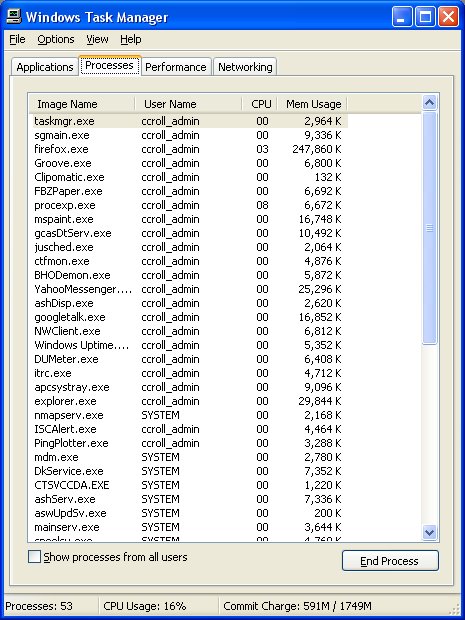
Microsoft gives us Task Manager, to track the processes. Task Manager lets us choose a total of 25 items that we can learn about each process. This is the original tool that you might use, in watching what your computer is doing.

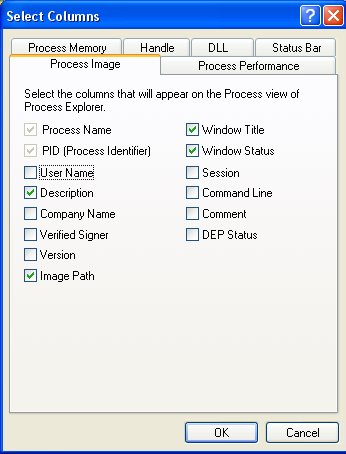
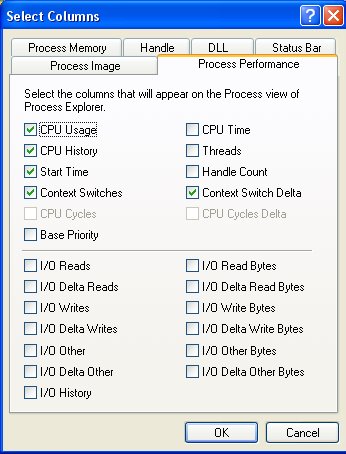
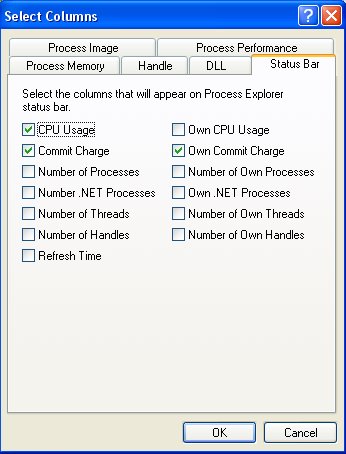
SysInternals (now another division of Microsoft, but that's another story) gives us Process Explorer, which lets us choose, in a tabbed menu

  • DLL - 15 items.
  • Handle - 6 items.
  • Process Image - 14 items.
  • Process Memory - 14 items.
  • Process Performance - 24 items.
  • Status Bar - 13 items.

There are 3 Process (Image, Memory, and Performance) tabs. The complement of 52 items selectable there is comparable to the complement of 25 items selectable for Task Manager.

Task Manager


This is how I use Task Manager.


You can choose any of 25 items here for display.


Process Explorer


This is how I use Process Explorer.


You can choose from 14 items in Process Image.


You can choose from 14 items in Process Memory.


You can choose from 24 items in Process Performance.


You can choose from 13 items in Status Bar.


You can choose from 15 items in DLL.


You can choose from 6 items in Handle.


>> Top

What Is A CrossOver Cable, and Why Do I Need One

In any conversation between two people or computers, you speak and the other listens. Or it speaks, and your computer listens. This means that your mouth has to connect to the ear on the other end. This is called cross-over.

If you look at any hub / switch / router 10 years ago, you would probably see the various ports labeled "X-1", "X-2", "X-3"... This meant those were cross-over ports. Your computer would speak (transmit) thru a pair of wires in the Ethernet cable. When the connection went into the router port at the other end, the cross-over function connected the transmit wire pair from your computer to the receive port at the other end, and the receive pair from your computer to the transmit pair at the other end.

If you had to connect a pair of routers directly to each other, you would have a cross-over port at one end connecting to a cross-over port at the other end. This would cause a cancellation of the cross-over function, so you would use a cross-over cable.

If you connected a pair of computers directly, you would similarly need a cross-over cable.

This meant that everybody with a computer network had to have cross-over cables handy.

To eliminate the need for using cross-over cables, router manufacturers developed Auto-MDIX. A router port with Auto-MDIX will listen to see if it is connected to another cross-over port, and switch itself to non-cross-over mode if necessary. Some computers, likewise, have Auto-MDIX. If you connect a pair of computers directly, and one (or both) have Auto-MDIX, you can use a straight-thru (aka patch) cable, and they will connect just fine.

Auto-MDIX is a significant development, in the networking world. Having said that, I don't believe that Auto-MDIX can be relied upon, as a complete solution. I will still advise you to have a cross-over cable, or connector, handy for diagnosing network problems.

>> Top

If You Have Windows XP, Without SP2, Please Upgrade Today!

One of the problems with Windows, in general, is its stability and security problems. One of the causes of stability and security problems is the need for Windows to support various versions of different software, its own as well as third party products.

Periodically, Microsoft issues rollup updates, which give it a baseline to work from when supporting their own product. SP2 was one of those rollups. By continuing to use Windows SP1, and by possibly encouraging others to do so, you are requiring useless complexity in Windows.

Now, any pretty good knowledge of computer security is a good start, but any real knowledge will tell you that keeping your computer up to date is essential.

XP SP2 has been out for an extremely long time. Its time to put SP1 to bed, and prepare for SP3 or Vista, which ever comes first. As Windows customers move to SP3 or Vista, support for SP2 will continue. But support for SP1 should not.

Move to SP2. Windows is bad enough with it - its worse without it.

Having applied SP2, proceed directly to malware analysis. If you've been running with SP1 this long, you probably have something you're not aware of.

Now if you're reading this specifically because your computer has problems, but you already did malware analysis, yet you can't find the source of the problem, your computer may be now part of a botnet. In this case, the only solution is for you to "flatten and pave".

  • Immediately, disconnect from the network.
  • Repartition, and reformat the drive.
  • Re install Windows XP.
  • Upgrade to SP2, and all security patches.
  • Reconnect to the network.


I'm aware that this is brutal, and maybe rude, advice. But if you're advised any less, we're essentially saying
Look, you can solve your computer problems without upgrading to XP SP2. It's OK to run XP SP1.

But, it's not OK. Windows XP SP1 isn't supported by Microsoft, as of October 2006. Period.

>> Top

Finding, and Tracking, Computers On Your Network

Many people (and most of those who read these articles) have more than one computer. After a while, some of us even forget what computers we have. I know I do - my memory escapes me sometimes. So what can we do?

The most obvious answer is to make a list. But what if you forget to update the list?

So the next answer is to let your computer track your computers. If you can find one computer (and if you can't, your problem exceeds the scope of PChuck's Network for help), you can run one of these free utilities, and find the others.


Angry IP Scanner, and SoftPerfect Network Scanner, provide quick, one time IP scans of the local network, and give you a neat tabulation of all addressable devices, that respond to pings, on that network.

The Dude, on the other hand, will do an auto discovery scan of any subnet of interest, using multiple protocols - IMAP4, IP, and SNMP. And it will monitor connectivity, on an ongoing basis, of all discovered (or manually defined) devices, using those protocols and more - DNS, HTTP, IMAP4, IP, and NetBIOS. If you're tired of checking your server every couple of hours, to see if it's up, use The Dude, with its customisable polling intervals, to watch your server for you, and notify you when it doesn't respond to polling on any relevant protocol.

Maybe a couple of years ago, you would use tools like these at work, and pay well for them. These tools are free, and your home network can probably benefit from their use.

All three of these tools have a permanent place in my toolbox.

>> Top

Identifying The Cause Of STOP Errors Using Pstat & Excel

Microsoft Windows NT in general, and Windows 2000, XP , and now Vista in particular, are increasingly more "user friendly". Continually, Microsoft adds wizards to help us do things, or to help us figure out why something didn't work the way that it should have. But all the wizards imaginable can not cover every possible problem; and occasionally our computer will encounter a problem that leaves no recourse other than for it to simply shut down.

This shut down condition is commonly referred to as a STOP error, or a Black (Blue) Screen of Death, aka BSOD.

Many times, looking at the contents of the STOP error message will show the address where the error occurred. First look up the detailed information about the specific STOP code in order to determine if the address is included, and if, so where in the error message might the address be found.

You can identify the meaning of each of the parameters for your specific STOP code, using the Microsoft Developer Network: Bug Check Codes as a reference. For an example, we might look at the 0xA: IRQL_NOT_LESS_OR_EQUAL STOP, which tells us that the address of the offending module can be found in the fourth parameter. Note this address, for later reference.

Having noted the address of the offending module, now list the addresses at which each active process is being loaded. The Pstat utility will provide this information. On some systems the Pstat utility may already be present. Check this by opening a Command Prompt window, and entering the following command:

C:\>pstat /?


If Pstat is not on your computer, you can download it free from Microsoft, as part of the
Microsoft Windows XP Service Pack 2 Support Tools.

With Pstat installed on your computer, next open a Command Prompt window, and generate a report. Because you need only a part of the information from this report, it is best to create the report as a text file. In the Command Prompt window enter the following command:
C:\>pstat > C:\temp\pstat.txt


You may change c:\temp to whatever drive and folder that you want to save the report into.

Now open the saved file in Notepad.
C:\>notepad c:\temp\pstat.txt


Scroll down the file, about 80% of the way to the end of the file and you will find a header line:

ModuleName Load Addr Code Data Paged LinkDate


Delete everything above the header line. Save this file under a different name. I use pstat2.txt, and put it into the same c:\temp folder.

Now launch Microsoft Excel, and do File - Open, to bring the pstat2.txt file into Excel. Excel will parse the file into columns. Once this is done, do Data - Sort, and sort the entire spreadsheet based on the value in Column B (Load Addr).

Now, simply read Column B, until you find the highest value that is less than the address noted above. That module name, in column A, is the prime suspect for the cause of your error.

Instructions courtesy of Ron Martell, MVP.

>> Top

Layered Testing In Windows Networking

When you're working in Windows Networking - that is, the ability to share files, using named resources, between computers - you'll find sometimes that you can't access the files on one computer. Sometimes, you can't even see the files on another computer.

The challenge here is that the inability to see the files on another computer might be something as simple as your having kicked the network cable loose - or it might come from your having given a different workgroup name to the other computer. But how are you going to diagnose the problem?

Some folks will tell you, immediately

If you don't see the other computer in My Network Places, go to Entire Network - Microsoft Windows Network, and look there.


Now, if your physical network is solid, and the Internet Protocol is properly configured, then checking in Entire Network for a missing computer name is one of the next logical steps. But be aware of the lower layers, and check them, at least briefly. Maybe your network cable is broken, AND your computers are in different workgroups.

As I point out in Solving Network Problems - A Tutorial, Windows Networking is based on the OSI Network Model.

  • Windows Networking, in its default state, uses an application interface called NetBIOS Over TCP.
  • NetBIOS Over TCP, aka NetBT, uses TCP/IP for the logical network.
  • And in your home or small office, you'll likely have either Ethernet or WiFi. TCP/IP uses Ethernet, WiFi, and similar transports for physical connectivity.

When you test, observe those layers. Test from the bottom up.

  • Test Layers 1 & 2 - Physical & Data Link. If you have Ethernet, you'll have an Ethernet cable connecting either 2 computers, or one computer and a hub / switch / router. If you have WiFi, you'll have a computer connected to another computer, or to a similar WiFi hub / switch. Physical devices like Ethernet adapters, WiFi adapters, and hubs / switches / routers have diagnostics. Most have multi-colour lights. Find out about the diagnostics for each device. Learn what each colour means, and how it tells you that it detects a connection (or not).

  • Test Layer 3 - Network. If you verify that your computer is physically connected to another computer, or to the hub / switch / router, next check your IP settings. First, verify that the settings are good, using "ipconfig /all". Next, ping the other computer, or the router, and make sure that you get a consistent reply. If you get a partial reply (with some dropped packets), or if the reply time from the other device varies widely, do some more research. Here's where PingPlotter may come in handy.

  • Test Layer 7 - Application. If IPConfig and Ping indicate a good, solid, logical connection, look in My Network Places. If you don't see what you're hoping for, a combination of "browstat status" and "net config server" / "net config workstation" is a good diagnostic here. Coupled with "ipconfig /all", and compared against the same from the other computers involved, you can figure out just about any network problem.

  • Finally, if neither "ipconfig /all", "browstat status", "net config server", nor "net config workstation" indicates a problem, then do relational analysis using CDiag and CPSServ.

I'm aware that this just scratches the surface. But it's a start.

>> Top

Solving Problems - A Lightweight Tutorial

Everybody with a computer has experienced this - sometimes regularly.

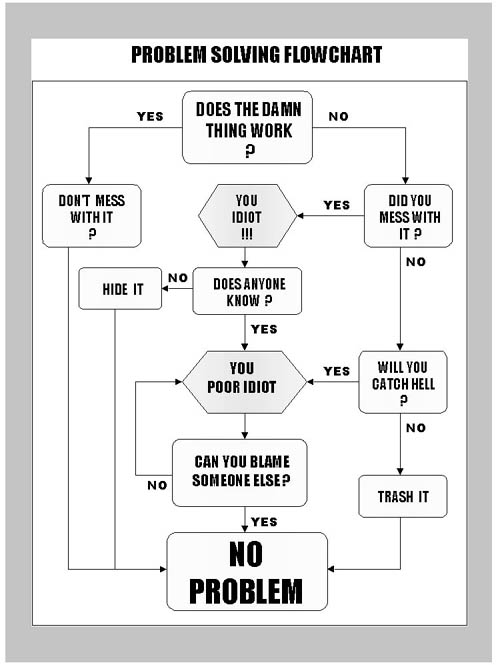
It doesn't work today. It did yesterday. What now?


Is this funny? I think so; if you have any sense of humour, or are experienced in troubleshooting, you'll probably agree. That doesn't make it totally irrelevant. Sometimes, humour is based on truth.


Experience is a hard way to learn, but sometimes, it's the best way. If you need more insightful instruction, see Solving Network Problems - A Tutorial

If you make mistakes with your computer, you're using your computer. If you don't make mistakes, you have a computer.

>> Top

Analyse Your WiFi Environment Objectively

When you setup a network of computers, in your home or small office, a mass of Ethernet cables running everywhere can be a problem. WiFi, or Wireless networking, can provide relief from the mass of cables. But WiFi is not an effortless replacement for Ethernet. Installing a WiFi network takes careful preparation.

There are many reasons why you won't get the expected bandwidth from any WiFi network. Some of them you can correct, others you can't. And sometimes, even without you making any changes, you'll have problems. All the planning you do is useless when your neighbours install a WiFi LAN next door.

With all of that in mind, you need to evaluate your WiFi environment objectively, both before setting up a WiFi LAN, and after. When "it stops working", find out why. When your Ethernet network stops working, you can start with a simple IP scan of the subnet. With a WiFi network, you have to go a level deeper than Internet Protocol (sometimes, IP may not even be relevant).

There are many tools to objectively analyse your WiFi network; some are free, others cost good money. Here are but two.

Netstumbler makes a free, lightweight WiFi spectrum analyser from your computer and WiFi adapter of your choice. Netstumbler continuously scans the WiFi spectrum covered by your WiFi adapter, identifying each WiFi network device (whether access point / router, or client), and recording a dozen or so metrics about each network device found.

NetStumbler has two displays, both very useful. The display that you see immediately is the AP inventory, which enumerates each AP observed, and includes over a dozen very useful details about each. But you can discover more.

If you identify an interesting AP from the main list, you can find the MAC address for that AP. From a tree entry in the left column, you select a specific MAC address, and you can observe a running signal to noise graph for that network device.

Netstumbler, though free, and easy to use, has disadvantages.

  • It does not work with every known WiFi adapter.
  • It does not analyse non WiFi signals. If you have a cordless phone, microwave oven, or nearby ham radio operator, NetStumbler will show those merely as "noise", as part of the signal to noise ratio for any WiFi network device.
  • NetStumbler binds to the WiFi adapter just like any other WiFi client. If you run NetStumbler while you're attached normally to your network, using WiFi, you'll experience the same instabilities as when when you run multiple WiFi client managers.
  • It's not compatible with Windows Vista.


The Wi-Spy Spectrum Analyzer overcomes some of the disadvantages of Netstumbler. The Wi-Spy is a USB dongle / WiFi receiver, that will receive and analyse signals in the WiFi spectrum.
  • It does not require an add-on WiFi adapter, and has no compatibility problems like NetStumbler.
  • It provides the same sort of analyses about all detectable WiFi network devices, as NetStumbler. Also, it analyses the noise (signals from non-WiFi devices) in the spectrum, and attempts to identify the device producing the noise, from a database of known interference sources.
  • It works with Linux, Mac, and Windows (Windows 2000 or XP, and yes, Vista).
  • It is not inexpensive, but it is worth the price.


Note that NetStumbler has its shortcomings, in lack of support for new technology. Fortunately, alternative products are available.

>> Top