Showing posts with label File Sharing. Show all posts

Windows 7 And "Not enough storage is available to process this command. "

Long ago, owners of computers running Windows XP, trying to copy files across the network to another computer, would see a cryptic message

Not enough server storage is available to process this command.
It appears that, under Windows 7, this message continues, now phrased as
Not enough storage is available to process this command.
In some cases, the file copying may involve just one computer - or maybe one obvious computer, connected to a digital camera.

This message is connected to an obscure registry setting in Windows Networking, IRPStackSize. It looks like Microsoft, as an attempt to make Windows 7 less mysterious, removed the word "server" from the message.

Unfortunately, Googling for "not enough storage is available to process this command. windows 7" turns up a few search hits - but many discussions seem to fumble around a bit, before arriving at the original article KB177078 from Microsoft Support.

>> Top

Computers Running "Advanced" and "Simple" File Sharing On The LAN Together

If your computer runs Windows XP or Vista, and you're accessing a similar "server" running Windows XP or Vista, with Simple File Sharing / Password Protect Sharing Disabled, you're going to depend upon the status of the Guest account on the server. Occasionally, you'll see a familiar error

File not accessible. You might not have permission to use this network resource. Contact the administratior of this server to find out if you have access permissions. Access is denied.
Your first reaction will be to check the status of the Guest account. When you find that Guest is enabled, and with all security components properly setup, you're going to wonder
OK, now what?


The next thing that you need to do is examine the Sharing Properties of the file or folder in question. It's possible that you'll find that it now needs to be permissioned to "Everyone", and that's despite the fact that you know that you permissioned the parent folder to "Everyone", long ago.

By default, a new file or folder is owned by the account used for setting it up. If you're logged in to your server using a Full access account (equivalent to "Administrator" under Advanced File Sharing / Password Protected Sharing Enabled), that new file or folder won't be permissioned to "Everyone", but to the account that you're logged into. When you try to access the server from the network, and using the Guest account, the file or folders setup without permissions to "Everyone" won't be accessible to Guest, and you'll see the above error (or one similar).

So, besides the security benefit provided by using a limited access account, on a server with SFS / PPS disabled, you'll need to use a limited access account for setting up any files or folders that you'll be sharing. Unless you intend to manually check permissions for every new file or folder, that is.

Be consistent, and balance your file sharing / permissions setup. With just one computer running Simple File Sharing / Password Protected Sharing disabled, you'll be better off running all computers that way. And, always run under a limited access (non administrator) account on every computer, except when installing software or tweaking the system configuration.

>> Top

Event ID 2021 Caused By IRPStackSize Problem

Microsoft, in their article (KB317249): How to troubleshoot Event ID 2021 and Event ID 2022, provides a fairly robust assortment of diagnostics, for us to run when we see an "Event ID 2021" or "Event ID 2022" in our System Event Log.

The KnowledgeBase article advises us

Event 2021 is logged when there is accumulation of work items in the server service. But you must understand that the most common cause of the accumulation of work items in the server service is because the disk subsystem does not keep up with the number of requests.


Nowhere, however, does the article mention a very commonly known problem in Windows Networking, the IRPStackSize error. Yet, in one case presented in Windows XP Networking and the Web: Mapped file share unavailable within seconds, the problem mentioned was resolved in that well known way
I solved this problem by further increasing IRPStackSize, to 45 decimal ...


We should note that the KnowledgeBase article mentioned above was purposed for server operating systems, not stated to include Windows XP Home. But in this case, the client found the content of the article sufficiently interesting that he was motivated to increase IRPStackSize, and thus reached his solution.

>> Top

Windows Vista - Which Edition Should I Choose?

The choice of whether to choose Windows Vista Home or Business, or any other edition, or any similar edition of Windows XP, varies - and not always strictly according to network environment, or to intended use. Some business people claim to be using Vista Home (Basic, in some cases), in their operations.

Based on help requests, I'd guess that the most relevant distinctions, between the various editions of Vista (and XP), are:

  • Backup solutions. Vista Business, Enterprise, and Ultimate include integrated "Complete PC Backup". Vista Home only allows for data backup.
  • Choice of file sharing. A computer running XP Home will only use Simple File Sharing. All editions of Vista will let you select Password Protected Sharing On, or Off. This was a significant issue in XP, that isn't relevant in Vista.
  • Domain membership. A computer running Vista Home (Basic or Premium), cannot join a domain.
  • Number of simultaneous incoming connections. Vista Home Basic limits you to 5 simultaneous incoming connections, while Vista Home Premium, Business, Enterprise, and Ultimate will limit you to 10.
  • Remote access to the desktop. Vista Business, Enterprise, and Ultimate, provide Remote Desktop, which integrates tightly into the Windows structure. For Vista Home, and for other operating systems, you will need VNC, or a similar product.
  • Remote access to the operating system. A computer running XP or Vista Home can't be managed remotely, nor can its problems be diagnosed remotely.
  • Token based access. A computer running Vista Business, Enterprise, or Ultimate, will use token based access. You'll authenticate once (possibly automatically) to a server, the client will setup a token, and use that token in the future. With Vista Home (Basic or Premium), you'll authenticate each time that you create a connection to a server.


As always, Your Mileage May Vary.

Identify Your Edition Of Windows Vista
Windows Vista has 5 significant editions. The 5 are not directly comparable to the 5 editions of Windows XP. A sixth edition, Vista Starter, is available only in developing countries, and has rather limited networking capabilities.
  • Vista Home Basic.
  • Vista Home Premium.
  • Vista Business.
  • Vista Enterprise.
  • Vista Ultimate.


If you want to make a detailed comparison, and look at other decision making possibilities, you may want to read additional articles:


>> Top

Windows Vista And Personal Storage Space

Except for the flashy new GUI, Windows Vista is similar to Windows XP and earlier versions of Windows. This allows people who are used to Windows to adjust to Windows Vista. But there are subtle differences, such as where personal data is stored.

In Windows XP and earlier versions of Windows, your personal storage would be part of your user profile. Your documents might be stored in a folder in "C:\Documents and Settings\(Your AccountName)\My Documents".

In Windows Vista, "C:\Documents and Settings\" has been reorganised, and your personal storage will now be part of "C:\Users\(Your AccountName)\". To provide backward compatibility with older versions of Windows, Vista still will recognise the path "C:\Documents and Settings\(Your AccountName)\", but will retain it as what it calls a "junction point". A junction point is the Vista term for an object that doesn't exist, except virtually.

When you use Windows Explorer (or its Vista equivalent), and try to open "C:\Documents and Settings\(Your AccountName)\My Documents\", you should get "C:\Users\(Your AccountName)\My Documents\", labeled as "C:\Documents and Settings\(Your AccountName)\My Documents\", assuming that you have permissions properly setup.

This is more complicated, when a computer running Windows Vista is a client, and a computer running Windows XP is a server. If the client reports getting "access denied" when trying to open a file in "C:\Documents and Settings\(Your AccountName)\My Documents\", it may be referring to "C:\Users\(Your AccountName)\My Documents\" on the server. "C:\Users\" doesn't exist in Windows XP.

Windows Vista, And Administrative Shares

Under Windows XP and earlier versions of Windows, any administrator of a server could gain access to any portion of any drive on the server, through the network. Even if no share was defined, any drive was always available, in its entirety, to anybody with administrative access.

This ability was known as an administrative share. Besides any explicitly defined shares, every server would have a "C$" share (and a "D$", etc, for additional drives). The shares weren't browsable - they wouldn't show up in Network Neighbourhood, and a server with no explicitly defined shares would even show up, at all, under Windows XP. But anybody with administrative access could map a share to "C$" and have access to the entire C drive, instantly.

Windows Vista has removed the administrative share from the default server configuration. Fortunately for many, this ability can be restored, with a simple registry entry.

For registry key [HKLM\ Software\ Microsoft\ Windows\ CurrentVersion\ Policies\ system], add a DWord value LocalAccountTokenFilterPolicy of "1". Then restart the computer.

>> Top

File Sharing And Printer Sharing Are Not The Same Thing

If you have a computer, you probably use it to access the Internet. You are, quite likely, reading this article from your computer. If you have more than one computer, you probably have connected them together to share the Internet connection, plus you may be sharing files and / or a printer between them.

You share files, and printers, using two important network components in Windows Networking.

  • Client For Microsoft Networks goes on any computer accessing another computer.
  • File And Printer Sharing For Microsoft Networks goes on any computer being accessed by another computer.
  • Most computers using Windows Networking will need both components, as most Windows computers function in both ways.


Both file sharing, and printer sharing, require authentication and authorisation, which is how you prove to the operating system that you have the right to access a given file or printer. Once you get past the authentication and authorisation issues, you should have file sharing working. File sharing works as an integral component of the operating system.

Printer sharing, however, involves another layer of challenges. Every printer that you might connect to your computer requires its own set of drivers. The drivers are specific both to the printer model and to the operating system. You will need the right drivers on both the server (where you connect the printer), and on the clients (where you use the printer).

The drivers are written by the printer vendor, and subject to their limitations.
  • Newer printers may only be supported for newer operating systems, and older printers my not be supported at all. If the vendor doesn't have drivers that support the operating system on your computer, you're out of luck.
  • Not all printers are designed for network use. If the drivers don't support network use, you're out of luck.
  • You do know to always check directly with the vendor for updated drivers and firmware, whenever installing a new printer? This especially applies if one of the computers is running the latest model of Windows (currently Vista).
  • And consider how you address the printer, when setting up the client.


If you have a typical $100 desktop printer, note another detail. Less expensive printers will use more resources on the server. Printer serving is a graphic process, and can use significant amounts of CPU and memory (both physical and virtual) in printing a document of any complexity. You may want to host the printer on your newer computer, because that's the computer that you'll be using the most.

If you host the printer on an older computer, you'll probably be using the network more from your newer computer. With Ethernet and a switch (NAT router) connecting the two computers, network use will be a minor issue. With WiFi, which is half duplex, if both the client and server are connected wirelessly, you'll get a possible network conflict.

The client computer will be sending to the WiFi router / Access Point, and the router will be sending to the server computer, and both on the same WiFi channel. Printing thru a WiFi network can take more than twice as long as printing thru an Ethernet network, as the router has to constantly switch between receiving from the client, and sending to the server.

Since you can only test the printer on a properly setup client and server relationship, it's a good idea to get file sharing working first. Get the sharing issues out of the way, then concentrate on the drivers issue. This is a basic layered troubleshooting technique.

>> Top

Windows XP And Vista On The LAN Together

File and Printer Sharing in Windows Vista is not extremely different from File and Printer Sharing in Windows XP. There are new features, and wizard procedures, that work on top of Windows XP features and procedures. If you have a working network, with one or more computers that use Windows Networking, you probably know enough to get started.

There will be challenges though. One predictable challenge is the availability (or lack of availability) of drivers for devices that are operating system sensitive, like network adapters. This has inspired various attitudes, even rants, among the user community.

Computers running Windows Vista use the same layered network as previous versions of Windows, so start by reviewing the principles of layered network design and installation, and of layered network problem solving. And review various issues that affected Windows Networking on computers running Windows XP.

>> Top

System Updates Issues
With Windows Vista, as with Windows XP, Microsoft will issue periodic (and monthly) updates. Most updates are for security issues, and others for operability and / or stability. All updates are necessary, if recommended for your edition of Vista, and some may have a direct effect on your problem.

As an interim measure, possibly before an actual Service Pack, Microsoft has started issuing compatibility, performance, and reliability fixes, covering a variety of issues with Vista.

>> Top

Connectivity Issues
By default, computers running Vista will set the Broadcast flag, in the DHCP Discover packets, On. If your DHCP server (NAT router, or non-Microsoft dedicated server) doesn't support DHCP Broadcast, you'll have various problems - your computer may never get an IP address, or your IP connectivity may come and go unpredictably. To make your Vista computer compatible with Windows XP, (KB928233): turn the DHCP Broadcast flag Off. Besides the DHCP Broadcast difference, be aware of an interesting (KB931550): timing difference between the Windows Vista and XP DHCP clients.

One of the most interesting features in Vista (my opinion anyway) is the ability to dynamically determine Receive Window size for each individual Internet connection. Users of high speed broadband connections will be especially interested in this. Unfortunately, it appears that RWin AutoTuning may be a bit problematic. This setting has been observed to affect both LAN and WAN connectivity, and can cause instability, or lack of connectivity.

On laptop computers, and other computers with multiple network adapters, you'll see an inaccurate / inconsistent network status indicator, when the computer is first started.

Like every newer version of Windows, Windows Vista will use more resources on the host computer, and on any peripherally connected computers and routers. If your peripheral network equipment like routers are becoming aged, you'll be advised to upgrade or replace whatever you can.

The IPX/SPX Protocol is not provided in Windows Vista, though Novell does now provide a Netware client for Vista. NetBEUI, on the other hand, is now a part of history.

>> Top

Visibility Issues
One of the new features of Windows Vista is the Network Map, which runs at the Link Layer of the OSI Network Model, and offers functions similar to The Dude. The Network Map uses a discovery protocol called Link-Layer Topology Discovery (LLTD), which is not a normal part of Windows XP.

To be able to see a Windows XP server from a Vista client, using the Vista Network Map, you need to install (KB922120): the LLTD Responder on any Windows XP computers. The LLTD Responder isn't available for Windows 2000, so you won't be able to see a Windows 2000 server from a Vista client, using the Vista Network Map.

Even if you can't see a Windows XP or 2000 computer in the Network Map, though, you'll still be able to see it in Network Neighborhood / My Network Places, aka the Network window (Start - Network) in Windows Vista. And even if you can see a computer in the Network Map, you may still have to work on name resolution, or on sharing permissions, if you are going to actually access its resources.

The simplest visibility will be enjoyed with all computers in the same workgroup. By default, Windows Vista uses "Workgroup", while Windows XP uses "MSHome". If you leave workgroup names at default, the other computers will be visible in the Network (My Network Places aka Network Neighbourhood) wizard, but they won't be seen immediately, when you open the wizard. You may have to look under Entire Network - Microsoft Windows Network, for the different workgroups used by each set of computers. And with having multiple browse domains (workgroups), your browser infrastructure will be slightly more complex.

>> Top

Using A Windows Vista Client
Under Windows Vista, the personal storage (personal profile and other files and folders) container has been changed, from "C:\Documents and Settings", to "C:\Users". The folder "C:\Documents And Settings" will continue to exist, for backward compatibility, only as a junction point. On a mixed LAN, I would very carefully test sharing of either "C:\Documents and Settings" (with a Windows Vista client), or "C:\Users" (with a Windows XP client), before committing myself.

>> Top

Setting Up A Windows Vista Server
If you're adding a computer running Windows Vista to your network, you have to set it up as a server, so you can access it from your other computers. You do this using the Network and Sharing Center wizard, accessed by Start - right-click on Network, and select Properties. This is equivalent to running the Network Setup Wizard, in Windows XP.

  • Set the Network Location Type to "Private". This requires that your computers are secure, behind a perimeter firewall or a NAT router, and opens the standard Vista personal firewall to allow Server Message Blocks (SMBs) to pass between the computers. If your computer is directly connected to your Internet service, either get a NAT router, or leave the Network Location Type set to Public (which will prevent you from networking this computer).
  • Having set the NLT to "Private", you must now designate which services you wish for your server to provide or use. You should verify each setting before continuing, and change it if necessary.
    • File sharing.
    • Public folder sharing.
    • Printer sharing.
    • Password Protected Sharing (PPS) affects the above 3 services. Disabling PPS is the equivalent of enabling Simple File Sharing, in Windows XP.
  • Setup shared folders and printers. If you enabled PPS, you should setup access for individual users. If you disabled PPS, you setup access for "Guest" or "Everyone". Since Vista security is "deny by default (permit by demand)", "Everyone" doesn't automatically have access to newly created shares. Check the Security tab, for each share created, if you disable PPS.
  • Whether you setup the server with PPS Enabled (aka Advanced File Sharing, in Windows XP), or PPS Disabled, make sure that the account used for sharing is activated for network use.
    • If you Enable PPS, you can use either the Guest account, or a non-Guest account of your choice, but the chosen account has to be activated for network use.
    • If you Disable PPS, then the Guest account must be activated for network use. By default, Guest is disabled. If your server provides network access through the Guest account, be aware of its limitations.
    • Whether you use Guest, or a non-Guest account for access, the account used has to be added, explicitly, under Security, and under Sharing.
  • On a server running Windows Vista, the Administrative (Hidden) volume share of "C$ ("D$", etc) isn't defined, by default.

For an overview of the above, see Microsoft: File and Printer Sharing in Windows Vista

>> Top

Setting Up A Windows XP Server
If you have just one computer besides your computer running Vista, you may have to setup your first computer as a server too. On a computer running Windows XP, run the Network Setup Wizard. For a server connected behind a NAT router, select
This computer connects to the Internet through another computer on my network or through a residential gateway.
Running the NSW, and making that selection, is similar to setting the Vista NLT to "Private".

>> Top

Common Issues
Other than the network setup wizards used, Vista will be pretty similar to XP. You'll have the same challenges with Windows Networking.

>> Top

Editions Of Windows Vista and XP
There are 5 editions of Windows XP, which are basically 2 variants - Home and Pro.
  • XP Home is the equivalent of Vista Basic Home, with PPS permanently disabled.
  • XP Pro can use Advanced File Sharing (similar to PPS Enabled), or Simple File Sharing (similar to PPS Disabled).
  • The other 3 editions - Media Center, Tablet, and Pro x64 - are all variants of XP Pro, in terms of file sharing functionality.
  • With XP Pro, and with all editions of Vista, you can have Guest or non-Guest authentication. Note the limitations of Guest authentication carefully, some limitations aren't as obvious as they should be.
  • Whether you use the Guest account, or a non-Guest account, for authentication, make sure that the account used is properly prepared for network access.

There are also 5 well known editions of Windows Vista, plus several obscure ones which we probably won't encounter. The different editions of Windows Vista are completely different from Windows XP, in feature set differentation.

>> Top

Windows Vista and Older / Other Operating Systems
If you also have one or more computers running Windows 9x (95, 98, ME), you'll need to be aware of a significant difference between Windows XP and Vista, in Microsoft Windows And Authentication Protocols. But focus your mind on the future - Windows 95 / 98 / ME have a limited life span.

This will be a problem, too, if you have a Network Attached Storage (NAS) device. Many NAS devices, with unknown authentication abilities, will be a similar challenge. Some NAS devices will also try to act as a master browser on your network, and will cause master browser conflicts, and unreliable displays in Network (aka My Network Places).

>> Top

Windows Vista and Printers
If you are setting up your mixed LAN specifically to share a printer, note the additional challenges involved in sharing printers. Get file sharing working, first, then concentrate on getting working printer drivers that support Windows Vista. On a mixed network, the printer will have to support both Windows Vista, and Windows XP. And drivers for the client will probably differ from drivers for the server.

If you're having problems with printing from a computer running Vista, and the printer is shared by another computer, read Network Printing From A Windows Vista Computer.

>> Top

Windows Vista and Security
Depending upon what personal firewall you are using on your Windows Vista computer, you may have to set the firewall manually. It appears that Windows OneCare does not setup seamlessly, as Windows Firewall does, when you set the Network Location Type. And a recent change (September 2007) in Internet Explorer appears to affect Windows Networking access between computers.

>> Top

More References
For the above issues, and more, see

>> Top

Controlling, And Watching, The Services Running On Your Computer

The Services are the various low-level system processes, that all programs and applications depend upon. Services run independently of who is logged in to a computer; most services start when the computer is started, not after login.

While there are many services provided with the Operating System, all services are not essential on any given computer, and may not be running at any given time.

The essential services must be running, yet other services may have to be NOT running, on your computer. You must make the decision, based upon how your computer is to be used. You set each service in question appropriately.

You can start, stop, change startup status, and / or query the status of a service interactively (using the Services wizard), or from a command window (using the Services Controller CLI). You can use Process Explorer, to find out many details about any service, since (as I wrote above) services are the low level processes running on your computer.

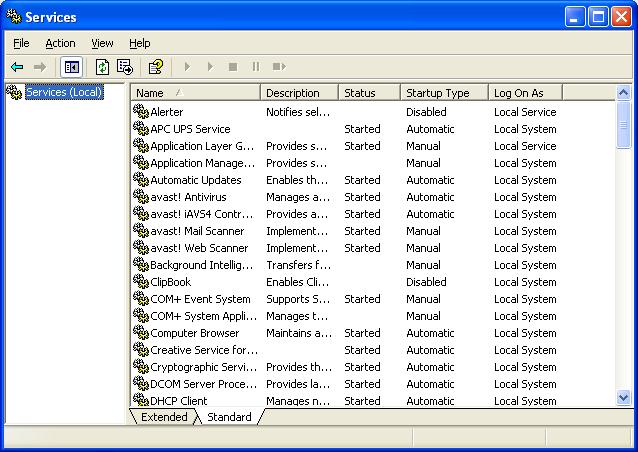
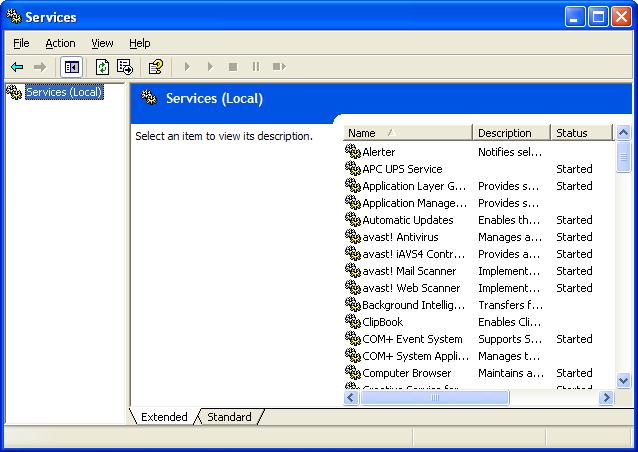
The Services Wizard
You start the Services wizard from Control Panel - Administrative Tools - Services.

You may use the Services wizard presented in Standard, or Extended, mode. The choice is yours.


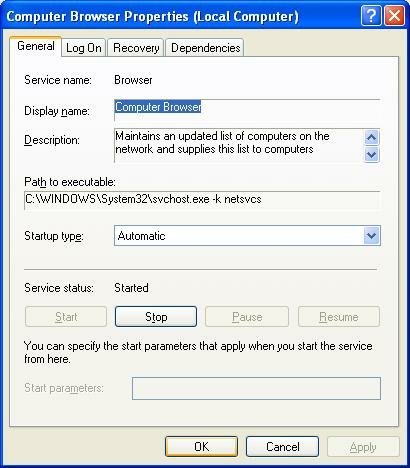
Find the service that concerns you, and double click on it (or right click, and select "Properties").


The Service name and Display name are two descriptors which are used, alternately, in various places. You should be aware of both values.

You may find Path to executable useful when you are researching an instance of "svchost.exe", using Process Explorer.

Startup type determines when, or if, it will ever be started.

Service status determines whether it is, or should be, running now.


  • If the service in question is running, and you want it stopped, hit "Stop", and wait while it stops.
  • If the service is not running, and you want it running, hit "Start" and wait.
  • If you want the service in question to start the next time the system starts, set Startup type to "Automatic".
  • If you want the service to be started the next time it is needed, set Startup type to "Manual".
  • If you want the service to never start, set the Startup type to "Disabled".

Dependencies shows other services that this service requires to be running, and other services that require this service to be running, before they themselves will start.
If the service wouldn't start, or if its Startup Type wouldn't change, it may have a dependency. Look on the Dependencies tab, under "This service depends upon the following system components". Make sure that everything there is present on the computer, and all services listed are Started. Also check the Event Viewer logs for clues. The Services Controller CLI You can also use the Services Controller, aka "SC", from a command window. Observe the spaces in the examples below; they are essential.
  • To find ot the status of the browser service, enter
    sc query browser
  • To stop the browser service, enter
    sc stop browser
  • To start the browser service, enter
    sc start browser
  • To disable the browser service at startup, enter
    sc config browser start= disable
  • To enable the browser service at startup, enter
    sc config browser start= auto
For more information about the Services Controller, see (KB166819): Using Sc.exe and Netsvc.exe to Control Services. If no help yet, check Event Viewer for additional clues. For more information about the many services, the Internet expert is BlackViper, and you can (currently) refer to his websites, Windows Vista Service Configurations, and / or Windows XP Service Configurations. Note that each service has TWO identities. Some utilities and wizards might use one identity to refer to a service, others might use the other. The Browser Service has, for instance,
  1. Service Name: Browser.
  2. Display Name: Computer Browser.
The Workstation Service has,
  1. Service Name: lanmanworkstation.
  2. Display Name: Workstation.
Don't be confused if you can't find a particular service in a list, or if the SC command doesn't seem to work. Make sure that you know both identities for the service that you're interested in. >> Top

The File And Settings Transfer Wizard

One of the many benefits of having a domain is the ease in managing user accounts and profiles. The user accounts, and profiles, start on the domain controller, and are replicated onto the client computers as necessary. The domain controller is updated, with any changes to the profile, from the client computer. When you move to a new computer, the updated profile is copied from the domain controller.

When you're in a workgroup, managing accounts and profiles is not so simple. Next time you have Windows Explorer open, look at "C:\Documents and Settings". Look at your personal profile folder structure in there. How do you find and copy all of the settings, and personal files, in there? Doing that, file by file, could take forever.

So we have the File and Settings Transfer Wizard, to export all personal settings, and profile files, for installation on another workgroup computer. To run the wizard, go to All Programs - Accessories - System Tools.

When you run the wizard, you have 2 main choices.

  • Export
    This is the computer I want to transfer files and settings from.
  • Import
    This is the computer I want to transfer files and settings to.


Should you choose to Export, you must then choose what media to use.
  • Direct (serial) cable.
  • Network.
  • Removable media ("Floppy" drive or similar).
  • Removable drive or network drive.


Should you choose to Import, you are asked about how you ran (or intend to run) the wizard on the old computer.
  • Create a wizard disk in removable media.
  • You already created a wizard disk.
  • You will use the XP CD wizard.
  • You already ran the wizard on the old computer, and have exported everything.


>> Top

Know Who's Accessing The Server

Most computers in a workgroup will run as a server, and some computers in a domain will too. Servers do not have unlimited capacity to serve you, and occasionally, they run out of available connections. You'll be trying to access another computer, and you'll see a message that you don't want to see

No more connections can be made to this remote computer at this time because there are already as many connections as the computer can accept.


And this can also be an issue, when you need to know, in general, what your computer is doing.

So what do you do now? Do you run around, turning off some computers, just so another computer can connect, or just to see if this computer will stop doing what you're wondering about? Sometimes, that's the only diagnostic left to us, but just maybe you can be a bit more methodical, this time.

You can start by identifying who's accessing the server right now. And you can use either one of two tools.

Computer Management
Computer Management is a tool in the Administrative Tools section of Control Panel.

Under Computer Management, you find System Tools, then Shared Folders.


Shares enumerates each share on the server, and the number of connections that are in use for each share. This is where you start, when the server has exceeded its connection limit.


Sessions enumerates the accounts being used for access, and the remote computers, by IP address.


Open Files enumerates the open files and folders, and what accounts are being used for access.


The command window based Net command, with 3 of its sub commands, will provide information similar to the Shared Folders wizard.

Net Shares enumerates the shares on the server.

C:\>net share

Share name Resource Remark

-------------------------------------------------------------------------------
E$ E:\ Default share
IPC$ Remote IPC
D$ D:\ Default share
ADMIN$ C:\WINDOWS Remote Admin
C$ C:\ Default share
CDrive C:\
DDrive D:\
EDrive E:\
Quarantine E:\Quarantine
System Resources
E:\System Resources
Utility C:\Utility
The command completed successfully.


Net Sessions enumerates the remote computers (by IP address) and the accounts being used for access.

C:\>net sessions

Computer User name Client Type Opens Idle time

-------------------------------------------------------------------------------
\\192.168.203.100 CCROLL_ADMIN Windows 2000 2195 1 00:42:48
The command completed successfully.


Net Files enumerates the shared files or folders being accessed, and the accounts being used for access.

C:\>net file

ID Path User name # Locks

-------------------------------------------------------------------------------
3 E:\Temp\20060925 CCROLL_ADMIN 0
The command completed successfully.


>> Top

Firewall Behaviour - And Windows Networking

The classical personal firewalls, which would be installed on most personal computers in a typical Small Office / Home Office environment, block only specific network traffic. By default, they are open, and pass all traffic.

Modern firewalls, used by more cautious network experts, permit only specific network traffic. By default, they are closed, and pass no traffic. After installing this type of firewall, you must run a manager and configure the firewall to pass your desired traffic.

My suspicion is that the nVidia nForce hardware firewall falls in the latter category. If you don't run the firewall manager, it will pass only a minimum of traffic, probably just enough for you to surf to the nVidia website and get software upgrades. This intentionally blocks SMBs (whether NetBT hosted, or directly hosted), and protects against the dangers offered by Windows Networking. If you're going to use Windows Networking over TCP/IP, you must run the firewall manager, and intentionally configure it for Windows Networking.

Short of configuring the firewall for Windows Networking over TCP/IP, you have no choice but to install an alternate transport such as IPX/SPX or NetBEUI, which bypasses the firewall completely.

For ongoing discussion about this issue, see these threads in the Microsoft Public WindowsXP Network_Web forum:


  • Selling my soul to the devil is the next step...
  • NVIDIA "hidden firewall" causes networking problem, by the Original Poster in the previous thread
    If you have the NVIDIA nforce networking controller with onboard LAN, you may have a "hidden firewall" interfering with your network connection. I'll describe my own situation and how I resolved the problem. I owe great gratitude to Chuck, frequent poster in this group, who worked with me for about a week, and had suggested the possibility of the NVIDIA "hidden firewall", but I was reluctant to accept that because, well, it really was hidden and I couldn't find it (and still can't). But it was there. (For those who want to review the original thread, it was posted in this group under the title "networking only works one way" on 08/04/06.)

  • Networking only works "one way", with only my part of the thread provided, because the Other Poster's content was not archived.


>> Top

Advanced Windows Networking Using Internet Protocol

Windows Networking is the subsystem that lets you share files and printers, between computers running the various versions of Windows. Server Message Blocks, also called SMBs, are the foundation of Windows Networking. SMBs provide several crucial functions.


(Note): If you're not familiar with the concept of network layers, take a few moments and read about the OSI Network Model.

SMBs are not transported directly over the various physical networking components, as Layer 1 or 2 traffic. SMBs may be transported over Internet Protocol (IP), as well as alternate protocols like IPX/SPX or NetBEUI.

Windows Networking has historically used NetBIOS Over TCP/IP (NetBT) as an intermediate transport for SMBs over IP. Windows 2000, XP, and Vista however, will transport SMBs over IP, without NetBT, using directly hosted SMBs.

To remain compatible with the older versions of Windows, a Windows Networking client, running Windows 2000, Windows XP, or Windows Vista, can use either directly hosted SMBs, or it can use NetBT. If any server supports directly hosted SMBs, the client computer in question will bypass NetBT, when communicating with that specific server.

This dual compatibility, which allows Windows 2000 / XP / Vista clients to communicate with computers running other editions of Windows, is not without cost. Trying for two communications channels, when establishing a connection with any server, increases program complexity and network traffic. In some cases, it may increase latency.

We need to resolve one major misconception. It may appear that when you Disable NetBT, you are disabling Windows Networking over IP. This is not correct. When you Disable NetBT, you are merely disabling hosting of SMBs over NetBT. You then end up with SMBs hosted directly over IP. But look at address resolution on your LAN, before trying this. Don't make this change blindly.

If your LAN
  • Has a domain.
  • Has computers running only Windows 2000, Windows 2002 (aka Windows XP), Windows 2003 (aka Server 2003), Windows 2006 (aka Vista), and Windows 2009 (aka Windows 7).
  • Uses DNS, properly setup, for name resolution.
then you may wish to Disable NetBT, and (KB204279): use directly hosted SMBs. If any of the above are not true, you should Enable NetBIOS Over TCP/IP. Be consistent on all computers.

In the TCP/IP Properties - Advanced wizard, WINS, select Disable NetBIOS Over TCP/IP. Alternately, if you have the Default NetBIOS setting selected (instead of "Disable" or "Enable") on your client computers, and you have a DHCP server (not a NAT router with DHCP), you can disable NetBT from a DHCP server setting.

If you use directly hosted SMBs, whether alternately or exclusively, be aware of the security implications.
  • NetBT uses TCP and UDP ports 137 - 139.
  • Direct hosted SMBs use TCP port 445.

Be sure that all personal firewalls have the proper ports opened.

Here are the relevant ports used by SMBs over NetBT, per IANA port number allocation:

netbios-ns 137/tcp NETBIOS Name Service
netbios-ns 137/udp NETBIOS Name Service
netbios-dgm 138/tcp NETBIOS Datagram Service
netbios-dgm 138/udp NETBIOS Datagram Service
netbios-ssn 139/tcp NETBIOS Session Service
netbios-ssn 139/udp NETBIOS Session Service

And the relevant ports used by directly hosted SMBs:

microsoft-ds 445/tcp Microsoft-DS
microsoft-ds 445/udp Microsoft-DS


Similar to the effect of a personal firewall, SMBs can be setup to use secure channel communication, by using SMB Authentication and Encryption. If you ever see
The account is not authorized to log in from this station.

then check SMB Encryption and Signing settings.

And, if you have an integrated security suite (previously sold as anti-virus protection), you may have an anti-worm component protecting you. Anti-worm protection, if not correctly configured, may interfere with any or all of the above NetBT traffic. Different brands of products will cause different problems.

For more information:

>> Top

Layered Testing In Windows Networking

When you're working in Windows Networking - that is, the ability to share files, using named resources, between computers - you'll find sometimes that you can't access the files on one computer. Sometimes, you can't even see the files on another computer.

The challenge here is that the inability to see the files on another computer might be something as simple as your having kicked the network cable loose - or it might come from your having given a different workgroup name to the other computer. But how are you going to diagnose the problem?

Some folks will tell you, immediately

If you don't see the other computer in My Network Places, go to Entire Network - Microsoft Windows Network, and look there.


Now, if your physical network is solid, and the Internet Protocol is properly configured, then checking in Entire Network for a missing computer name is one of the next logical steps. But be aware of the lower layers, and check them, at least briefly. Maybe your network cable is broken, AND your computers are in different workgroups.

As I point out in Solving Network Problems - A Tutorial, Windows Networking is based on the OSI Network Model.

  • Windows Networking, in its default state, uses an application interface called NetBIOS Over TCP.
  • NetBIOS Over TCP, aka NetBT, uses TCP/IP for the logical network.
  • And in your home or small office, you'll likely have either Ethernet or WiFi. TCP/IP uses Ethernet, WiFi, and similar transports for physical connectivity.

When you test, observe those layers. Test from the bottom up.

  • Test Layers 1 & 2 - Physical & Data Link. If you have Ethernet, you'll have an Ethernet cable connecting either 2 computers, or one computer and a hub / switch / router. If you have WiFi, you'll have a computer connected to another computer, or to a similar WiFi hub / switch. Physical devices like Ethernet adapters, WiFi adapters, and hubs / switches / routers have diagnostics. Most have multi-colour lights. Find out about the diagnostics for each device. Learn what each colour means, and how it tells you that it detects a connection (or not).

  • Test Layer 3 - Network. If you verify that your computer is physically connected to another computer, or to the hub / switch / router, next check your IP settings. First, verify that the settings are good, using "ipconfig /all". Next, ping the other computer, or the router, and make sure that you get a consistent reply. If you get a partial reply (with some dropped packets), or if the reply time from the other device varies widely, do some more research. Here's where PingPlotter may come in handy.

  • Test Layer 7 - Application. If IPConfig and Ping indicate a good, solid, logical connection, look in My Network Places. If you don't see what you're hoping for, a combination of "browstat status" and "net config server" / "net config workstation" is a good diagnostic here. Coupled with "ipconfig /all", and compared against the same from the other computers involved, you can figure out just about any network problem.

  • Finally, if neither "ipconfig /all", "browstat status", "net config server", nor "net config workstation" indicates a problem, then do relational analysis using CDiag and CPSServ.

I'm aware that this just scratches the surface. But it's a start.

>> Top

Older Operating Systems - Windows 98, Windows ME, Windows NT

Even though 99% of the patrons of PChuck's Network are looking for help with networking between computers running Windows 2000 or Windows XP, there will always be those with older operating systems. Even though you'd be much better off (on a computer that will support it) upgrading to Windows XP, I will always advise you to only upgrade from a working system.

Do not expect to get rid of problems by upgrading. Fix your problems first. That being an issue, how do you network Windows XP with older operating systems? What are the issues between Windows XP and older operating systems?


  • The browser. The browser provides the contents of Network Neighborhood. For all computers to see the same computers displayed in Network Neighborhood, there can be only one authoritative computer - the master browser. Selection of a master browser works best when all computers play by the same rules. If you have 2 computers on your LAN - one running Windows 98, and the other running Windows XP - a computer running Windows XP should always be elected as the master browser.
    • The Windows XP operating system is more reliable. It manages resources better, and will provide more diagnostics.
    • A computer running Windows XP is probably newer than one running Windows 98. The hardware will probably be more reliable, and have more power.
    • Since it's newer, you'll probably use a computer running Windows XP more. The browser infrastructure is much more stable, when using a computer that's online constantly.

    Since Windows XP is the preferred authority, on any network with mixed population, the browser election process should always favour a Windows XP computer for master browser. The Windows XP browser process uses this reasoning. Unfortunately, the Windows 98 browse master does not do this, reliably.

  • File sharing. Once you get past the issue of seeing what's available on the LAN, you'll want to access what's available.
    • Computers running Windows 98 can share files using share level access (one password used by all), or user level access (similar to local accounts in Windows XP). Other older operating systems have other possibilities. This subject is covered in detail in the referential Microsoft white paper File and Printer Sharing with Microsoft� Windows.
    • If you're using a client computer running Windows 98, trying to access a server running Windows XP, and you're asked for the IPC$ password, the server needs the Guest account activated for network use.
    • A computer running Windows 9x will use either Guest authentication, or it will use non-Guest authentication, at your discretion. But understand the differences.
    • Windows 95 / 98 clients will have a problem with (KB160843): share names with more than 12 characters.
    • Computers running Windows 95 / 98, and computers running Windows 2000 / XP, will happily use LM Authentication when starting a sharing session. Unfortunately, LM Authentication is not as secure as its successors, NTLM and NTLM V2. If you involve Windows Vista, you'll have a problem, since Windows Vista, by default, only uses NTLM V2.

  • More information:


>> Top

A Hidden Personal Firewall - The nVidia nForce Network Adapter

The nVidia corporation, probably best known for their industry leading video cards like the GeForce, is now marketing a hardware based personal firewall. The nForce comes in two forms - an Ethernet adapter PCI card, and a motherboard with an embedded Ethernet adapter.

The nForce is an ICSA certified firewall, with full firewall functionality, that sits inside your computer.

If you're having a Windows Networking, or file sharing, problem, and you have an nForce component in your computer, you need to know this. During January and February 2006, I assisted in diagnosing several network issues that involved the nForce. In at least one case, the person with the computer had no idea what he had purchased, and innocently installed.

Run an "ipconfig /all" on your computer. If you see something like


Windows IP Configuration

Host Name . . . . . . . . . . . . : PChuck1
Primary Dns Suffix . . . . . . . :
Node Type . . . . . . . . . . . . : Unknown
IP Routing Enabled. . . . . . . . : No
WINS Proxy Enabled. . . . . . . . : No

Ethernet adapter Local Area Connection:

Connection-specific DNS Suffix . :
Description . . . . . . . . . . . : NVIDIA nforce Networking Controller

and you're having any type of problem pinging that computer, seeing it in Network Neighborhood, or otherwise accessing that computer thru the network, take a few minutes and read the manual. Or peruse the nVidia Support Forum, and in particular, POST HERE, Problems with nvidia network port. And my latest effort, Firewall Behaviour - And Windows Networking.

And be aware - the drivers for the nVidia nForce Versions 2, 3, and 4 contain shared components. And the installable component in the firewall, the nVidia Access Manager, has been reported to fail open. That is, if you don't install NAM, or don't activate it, the firewall blocks traffic, and not necessarily all traffic.

Be aware of what you're buying, please.

Disenchanted nVidia Customers
Here are some individual discussions and / or threads from folks who have experienced this problem first hand:
  • 2006/09/16: Even WikiPedia is involved now. Markus, in Updating Firewall rules for ActiveArmor Network Access Manager provides the link to WikiPedia: NForce4: Flaws, which contains an interesting summary of the problem.
  • 2006/08/13: NVIDIA "hidden firewall" causes networking problem, which makes immediate reference to a very long thread in the forum. Usenet technical details require that I archive the end of the thread here, since all posts by the person experiencing the problem are being removed:

  • >>>>>Good Morning, Chuck. And for the twentieth time, I appeciate your
    >>>>>tenacity and effort in trying to help me solve this frustrating
    >>>>>problem.

    >>>>>Update:
    >>>>>I think I followed your suggestions properly. Here's what I did:
    >>>>>1. Established a new account on all three (ASUS-AMD is back up!)
    >>>>>computers. They are adminstrative accounts with identical passwords.
    >>>>>2. Simple file sharing disabled on all three.
    >>>>>3. Created a test folder on AMD64, with full permissions for everyone
    >>>>>under "sharing" tab, and with "read" permissions for each user and
    >>>>>group under the "security" tab. (Some were greyed out).
    >>>>>4. Activated this user name on each computer with "net user name
    >>>>>/active:yes"
    >>>>>5. Checked TCP/IP for correct settings and did "repair" to flush.
    >>>>>6. Put remote registry service on automatic. There are very few
    >>>>>services now disabled (alerter, messenger, clip book)
    >>>>>6. Rebooted.
    >>>>>7. Tested system...Result --->No change. Working from amd64, I can
    >>>>>easily see and copy files from the other two computers. Working from
    >>>>>either asus-amd or mbx-notebook, I can see files and folders on amd64,
    >>>>>but I cannot open them. Tried again with all firewalls disabled. No
    >>>>>change.

    >>>>>

    >>>
    >>>***********************************************************
    >>>Soooo, Chuck, I guess I am essentially out of luck, and if my
    >>>persistent search for a "hidden" firewall proves to be fruitless, I
    >>>guess I must accept defeat. Or reinstall Windows.

    >>>Nothing came of the NVIDIA forum post except the one reply I quoted,
    >>>and there is nothing there which applies to my situation, although
    >>>they've had lots of firewall and driver problems, but not this kind.

    >>>I sincerely appreciate all your time and effort.
    >>>I will post a followup.
    >>>Of course if you have any other suggestions (please!), I'll be most
    >>>eager to pursue them

    >>>Jack

    >>Hello Chuck,
    >>Well, finally some good news. Success! You were right all along in
    >>suspecting a "hidden firewall" in the NVIDIA system. Apparently when I
    >>installed the latest drivers, a network manager was installed. This
    >>was acting as a firewall despite not having the actual NVIDIA firewall
    >>installed and despite not activating the firewall software (Active
    >>Armor or Armor On or something like that.) Fortunately, I was able to
    >>uninstall this manager without uninstalling the "NVIDIA drivers" which
    >>was a separate entity in the "Add-Remove programs". When I rebooted
    >>and went into Device Manager, I could see that there was now an older
    >>date on the driver for the NVIDIA network controller, which Windows
    >>must have silently installed.
    >>Caveat Emptor!
    >>My mind is so muddled now that I can't remember the exact name of the
    >>function I deleted.
    >>But I get easy access to the "server" now from the two secondary
    >>computers. Amen!
    >>Can't thank you enough for all the work you put in on this with me. I
    >>hope others may learn from this. If I have the energy (a bit burnt out
    >>now), I may go through this process again and make some notes to post
    >>for those who may be faced with this problem in the future. No help
    >>from NVIDIA or their forum, sadly.
    >>Sincere appreciation,
    >>Jack

    >All right, Jack!! Way to go!!

    >YOU will be the help to nVidia customers. Please write up what you can, and
    >whatever you write up will go into my article, and you will be able to help
    >other folks like you.

    Hi Chuck.
    I went through the process of reinstalling and uninstalling the
    troublesome NVIDIA network access manager, just so I could plan a post
    with some specific instructions for some unfortunate individual like
    me and try to save that person some time and frustration. So I plan to
    post it as a new topic under the heading

    "NVIDIA "hidden firewall" causes networking problem"

    I thought it might be more retrievable for someone with a similar
    problem if I put NVIDIA in the title of the topic.
    Many thanks again!

    Jack


>> Top

Windows Firewall and Windows Networking

Windows Firewall, first provided with Windows XP SP2, is provided so systems running Windows XP will be secure, when setup out of the box. One of the features of Windows Firewall is default blocking of file shares, so the bad guys on the Internet can't see the shared data on your computer.

Unfortunately, a secure system set up out of the box, and plugged in to your network, won't be able to provide shared data to the other computers on your network either. So you may have to configure Windows Firewall, to allow your computer to be accessed by the other computers on your network.


  • Open Security Center from Control Panel.
  • Select Windows Firewall.
  • On the General tab, sake sure Windows Firewall is ON, and clear the selection for "Don't allow exceptions".
  • On the Exceptions tab, enable File and Printer Sharing.
  • With File and Printer Sharing highlighted, select Edit. If the Scope does not show as "Subnet", hit "Change scope" and select "My network (subnet) only".
  • Hit OK as necessary.

If problems persist, continue with Your Personal Firewall..., and then Irregularities In Workgroup Visibility.

>> Top

Windows XP - Which Edition Should I Choose?

The choice of whether to choose Windows XP Home or Professional, or any other edition, or any similar edition of Windows Vista, varies - and not always strictly according to network environment, or to intended use. Many small businesses can get by quite well with XP Home, yet many professionals wouldn't have anything less than XP Pro in their home LAN.

Based on help requests, I'd guess that the most relevant distinctions, between the various editions of XP are:

  • Choice of file sharing. A computer running XP Home will only use Simple File Sharing.
  • Domain membership. A computer running XP Home cannot join a domain.
  • Number of simultaneous incoming connections. XP Home limits you to 5 simultaneous incoming connections, while XP Pro will limit you to 10.
  • Remote access to the desktop. XP Pro provides Remote Desktop, which integrates tightly into the Windows structure. For XP Home, and for other operating systems, you will need VNC, or a similar product.
  • Remote access to the operating system. A computer running XP or Vista Home can't be managed remotely, nor can its problems be diagnosed remotely.
  • Token based access. A computer running XP Pro will use token based access. You'll authenticate once (possibly automatically) to a server, the client will setup a token, and use that token in the future. With XP Home, you'll authenticate each time that you create a connection to a server.


As always, Your Mileage May Vary.

NOTE: There is a third, odd member of the Windows XP trio. XP Media Center Edition has the XP Pro kernel. The early versions of MCE had all of the functionality of XP Pro, plus the multimedia capabilities. Starting with the 2005 version, XP MCE (KB887212): lost the ability to join a domain, though it still has many other components of XP Pro.

If you have a computer with either XP Home or XP MCE 2005, and you need it to access domain resources, please read File Sharing Under Windows XP - Windows XP In A Domain.

If you want to make a detailed comparison, and look at other decision making possibilities, you may want to read additional articles:


Identify Your Edition Of Windows XP
  • Right click on My Computer.
  • Select Properties.
  • On the General tab, look under System:. If you have Windows XP, it will say either:
    • XP Home.
    • XP Media Center (which has the file sharing abilities of XP Professional).
    • XP Professional.
    • XP Tablet (which has the file sharing abilities of XP Professional).
    • XP Professional x64.


>> Top

Irregularities In Workgroup Visibility

Let's say you connect 2 computers, running any of the many versions and editions of Windows, with default configurations, in a network. To find each computer from the other, you open Windows Explorer (don't confuse this with Internet Explorer, please), and look in My Network Places (aka Network Neighborhood). On a fully working LAN, this will work just fine. In your case, it may not.

In your case, Computer A shows both Computers A and B, as it should, and files on Computer B are accessible. On Computer B, either you don't see Computer A, or when you try to access Computer A, you get an error. You may, or it may not, see Computer B. This visibility problem may be observed constantly, or it may come and go.

This visibility problem is possible on LANs with Windows 2000, Windows XP, and / or Windows Vista, in any combination.

Now before you start, you should be aware that you will enjoy this more, and frequently will be more successful, when you work on a properly designed and setup network. After you review that tutorial, I recommend that you tackle the task at hand in this order.


Basic Diagnostics

  1. Check for a personal firewall problem. A misconfigured or malfunctioning personal firewall, on either computer, can block browser access. Do you have antivirus protection? Make sure that your antivirus is not part of a package that contains a personal firewall, and does not contain a component that acts as a firewall.

  2. Look carefully for a hardware firewall, sitting inside your computer. The nVidia nForce is probably the first, but surely not the last, device of this type.

  3. Some newer, WiFi routers, have a complete firewall between ALL client computers, connected wired or wireless. Look for an "Isolation Mode" setting, if no computers are visible to each other. Each vendor uses a different name for this feature, so read your user guide carefully, if you suspect that this is a problem.

  4. Make sure that NetBIOS Over TCP is consistently set, in TCP/IP Properties for each computer in your network.

  5. Does your LAN include any computers running Windows Vista? If so, be aware of the additional issues involved in Windows Vista and Windows Networking.

  6. Do you have a share setup on each computer? With Windows XP / Vista, only computers with non-administrative shares (not ending in "$") will be visible in My Network Places (aka Network Neighborhood).

  7. Make sure that all computers are in the same workgroup, if you expect to see them in the root of Network Neighborhood (My Network Places).

  8. Check for several well known and lesser known registry settings, which will affect visibility of, and access to, your server.

  9. Look at the content of the error message. Do you see either "error = 5" (aka "access denied"), or "error = 53" (aka "name not found")? Read the appropriate article.

  10. Look again at the complete and exact text in any observed error messages. Some very obscure errors have very simple resolutions.

  11. Run, and examine output from, "browstat status", "ipconfig /all", and "net config server" and "net config workstation", for each computer.

  12. Post output from the above step for expert interpretation and advice. Include relevant background details in your post. When including diagnostic logs, such as "browstat status", "ipconfig /all", or background details, format them properly when you post them.


Intermediate Diagnostics

  1. Make any changes in your network per the advice of the helpers in the forums. Retest as advised.

  2. Run, and examine, CDiag output for each computer. If you have more than 3 computers, post diagnostics for at least 3, and try and include some computers which show no symptoms of the problem (if any exist), as a control. The more data here the better.

  3. Post output from the above step for expert interpretation and advice. Again, format CDiag logs properly when you post them.

  4. Check that all necessary network components and services are provided. The necessary protocols and transports must be loaded and activated. The necessary services should be Started and Automatic.

  5. Run, and examine, CPSServ output for each computer. Try and do this on the same computers that you ran CDiag (above) on, to make the diagnostics more effective.

  6. Post output from the above step for expert interpretation and advice. Again, format CPSServ logs properly when you post them.

  7. Check for, and remove, unnecessary protocols and transports, like IPV6, IPX/SPX, and NetBEUI. Unnecessary protocols and transports can block Server Message Blocks, and cause problems. Check "browstat status" logs for evidence of IPX/SPX or NetBEUI. Check "ipconfig /all" logs for evidence of IPV6. Remove any protocols found. If you solve your immediate problems, you can re in stall any protocols removed, later.

  8. Check for LSP / Winsock / TCP/IP corruption. The LSP / Winsock layer in the network, on either computer, can malfunction, and drop SMBs. If you have more than 2 computers, the computer causing your problems may not be immediately apparent. Use CDiag to identify the computers to work on first.


Advanced Diagnostics

  1. Learn how to solve network problems.

  2. Try my comprehensive troubleshooting guide, Troubleshooting Network Neighborhood Problems. Use CDiag and / or CPSServ logs, to identify the computers to work on first.

  3. Read about The NT Browser and Windows Networking.

  4. Read about File Sharing Under Windows XP.


NOTE: The comprehensive troubleshooting guides, referenced in Advanced Diagnostics, contain all of the other sections and more, sequenced by network design (ie, physical connectivity issues first, and file sharing permissioning last). The last article talks about problems specific to File Sharing, such as authentication and authorisation, and it is most useful when all other problems (such as are discussed in the previous step) are resolved. This article, as a whole, emphasises the most productive procedures for resolving your symptoms. You are free to try any of the above steps, in any order which pleases you - it is, after all, your network.

These are simply the procedures which currently seem to produce the best results. So become familiar with them, because, if you ask for help and I am involved, I will likely ask you for the diagnostics discussed above. And, if we don't get immediate results here or elsewhere, I'll ask you to repeat each step above, one by one, as I examine the results. Read each linked article.

Now I'm a Networking and Security advisor, and I don't provide advice on security issues casually. Using the Internet, without considering the privacy and security implications, makes trouble for a lot of innocent people. When you're considering the necessity of providing requested details about your computer network, in an open Internet forum, please read this brief Privacy Statement. Help us to help you.

Server Access Authorisation

Authorisation for network access, to shared data on any Windows server, requires you to make appropriate permissioning entries in two distinctly separate Access Control Lists. Both lists are accessed, as indicated, from Folder Properties.


  • Share Permissions ("Sharing - Permissions").
  • NTFS Permissions ("Security").


Note that the term Windows server can refer to a computer running any actual server Operating System, such as:

  • Windows NT Server
  • Windows 2000 Server
  • Windows Server 2003

or it can refer to a computer running any desktop operating system, and working as a server. Any Windows desktop operating system will run as a server, unless otherwise configured.

  • Windows NT Workstation
  • Windows 2000 Professional
  • Windows XP Home
  • Windows XP Professional

Also note that, while XP Home uses ACLs, you cannot generally view or edit them without special procedures.

Share Permissions are explicitly for network access, and NTFS permissions are for local access. Network access requires the sum of the two. You need either Everyone, a relevant Local Group, or the specific account, setup with sufficient rights in BOTH lists.

A simple procedure is to grant Full rights to Everyone, on the share permissions, then grant restrictive rights to the individual accounts or groups, on the NTFS permissions. A more complex procedure is to set both share permissions, and NTFS permissions, precisely as required (and no higher than required) for each specific account or group.

The resulting network rights are the more restrictive of the two lists, if different.

  • If Everyone has Full Control for Share Permissions, and an individual account has Read for NTFS Permissions, network access, for the individual account, will be Read. The owner of that account will have read-only access, whether accessing network shares, or when using the server from its desktop.
  • If Everyone has Read Access for Share Permissions, and an individual account has Full Control for NTFS Permissions, network access, for the individual account, will still be Read. The owner of the account will have write access when using the server from its desktop, but like everybody else, will have read access when accessing network shares.


In cases where some files or folders are accessible, but not others, the NTFS permissions may be corrupt. You have various possible remedies here.

  • Correct the problem from the Security tab.
  • Correct the problem using the CACLS utility. CACLS is a simple solution, when you need all files and folders permissioned identically.

    • Open a command window.
    • Position yourself ("cd ...") in the folder corresponding to the share in question (maybe C:, for instance).
    • Identify the account or group to which you wish permissions be granted (In this example, the group Everyone), and the type of permission to be granted (in this example, Full permission).
    • Enter:

      cacls *.* /t /g Everyone:F

      Note carefully the words (sequence of non-blank characters), separated by spaces, in the example above. The spaces in the example are essential. There are 5 words in this example: "cacls", "*.*", "/t", "/g", and "Everyone:F". Don't omit the spaces between the words!

    This is a simple example; the CACLS command has many options. Read the article linked above, or enter "cacls /?" in the command window for details.
  • Correct the problem using alternate techniques.


>> Top