Showing posts with label KBnnnnnn. Show all posts

Windows Vista and Scalable Networking

Over a year ago, I explored an issue of Windows Vista and its problems with using default networking settings relevant to Windows Scaling. The first known problem with Windows Scaling was an exciting networking option called Receive Window AutoTuning, which became a problem when an older router was in use.

Besides AutoTuning, which is a problem with older routers, there are two additional networking options - TCP Offload ("Chimney") and Receive-side Scaling ("RSS"), which are a similar problem with older networking adapters. If your computer suffers from symptoms similar to the well known MTU setting problem, and you get no relief from disabling RWin AutoTuning, consider disabling TCP Offload and Receive-side Scaling.

In a Vista command window (Run as Admin), enter

netsh interface tcp set global chimney=disabled
netsh interface tcp set global rss=disabled


TCP Chimney Offload takes a portion of the TCP/IP network stack, currently run on your computer as part of the Windows operating system, and runs it in a dedicated processor on a TOE capable network adapter. Less work for the operating system + processing as part of the physical networking adapter = better performance.

Receive-side Scaling allows processing of incoming network traffic to be properly run on a multi-processor computer, by ensuring that all packets from a single TCP network connection are consistently processed by the same processor. All incoming packets for each TCP connection processed by the same processor = packets never getting out of sequence, which can be a problem otherwise with multiple processors. Obviously, you'll need a multiple processor system, to get any benefit here.

Try Internet access with TCP Offload and Receive-side Scaling disabled, and see if network performance improves. If it does, see if you can upgrade or replace your network card with one that is TOE capable, which was stated to cost $25 - $50 earlier this year. Once you have the right network hardware, or if the above change doesn't provide any relief from your symptoms, you can re enable TCP Offload and Receive-side Scaling
netsh interface tcp set global chimney=enable
netsh interface tcp set global rss=enable


If you do see a bandwidth improvement and / or network utilisation drop after enabling chimney and / or rss, restart the system. You may see still more improvement after restarting. Use of proper tools for objective measurement of bandwidth and network utilisation, access to high speed Internet service, and use of high bandwidth network applications like streaming video, will make the success of this change a bit easier to assess.

Besides Scalable Networking, look at other possible problems with Windows Vista Networking Innovations, in Windows Vista and Explicit Congestion Notification.

For more details about this issue, see

Windows Vista, and Network Location Awareness, With Multiple Network Adapters

Some owners of laptop computers, running Windows Vista, are reporting an inaccurate network status indicator when the computer is first started, and connected to the network.

When a Vista computer is started, the network status indicator - the little globe icon in the tooltray - will indicate "Local Only" status. If you go ahead and start a browser, or other Internet client component, you'll get a connection, but it may be very slow for a while. Eventually, the network status indicator will change to show "Local and Internet", and connectivity will return to normal.

This is a problem with the Network Connectivity Status Indicator (NCSI) component of the Network Location Awareness (NLA) service, and how it determines Internet connectivity when there is no active network traffic. Even if the NLA is able to verify Internet connectivity, when there is more than one network adapter on the computer, NLA can't determine which adapter has connectivity, so NCSI shows all adapters as being connected locally only. This is a problem when connectivity is through a router, and a DNS probe is used to determine connectivity.

Many late model (which is what you would want running Vista, after all) computers have an IEEE 1394 (Firewire) port. Similar in function to USB (but receiving less consumer support), a 1394 Firewire port is supported as a network adapter in many desktop and laptop computers. If your desktop or laptop computer has the problem with "Local Only", and it has only one network adapter, run "IPConfig /all", and examine the log.

If you see an entry for "IEEE 1394", this could be a problem. You can disable this device from the Network wizard (called in Windows XP, "Network Connections"), or using the Device Manager under System Properties, if you don't intend to use a 1394 network. Not a lot of us use (or intend to use) 1394 networking.

Firewire is the best known alternative networking adapter, which is part of what is being called Personal Area Networking (PAN). Two other possibilities include InfraRed and USB.

Another possible contribution to the problem would be the IPV6 Tunnel adapters. You may get relief from the problem by (KB929852): disabling IPV6.

Microsoft Help and Support: (KB947041): The network connectivity status incorrectly appears as "Local only" on a Windows Server 2008-based or Windows Vista-based computer that has more than one network adapter describes the problem in more detail, and should eventually identify a solution.

>> Top

Event ID 2021 Caused By IRPStackSize Problem

Microsoft, in their article (KB317249): How to troubleshoot Event ID 2021 and Event ID 2022, provides a fairly robust assortment of diagnostics, for us to run when we see an "Event ID 2021" or "Event ID 2022" in our System Event Log.

The KnowledgeBase article advises us

Event 2021 is logged when there is accumulation of work items in the server service. But you must understand that the most common cause of the accumulation of work items in the server service is because the disk subsystem does not keep up with the number of requests.


Nowhere, however, does the article mention a very commonly known problem in Windows Networking, the IRPStackSize error. Yet, in one case presented in Windows XP Networking and the Web: Mapped file share unavailable within seconds, the problem mentioned was resolved in that well known way
I solved this problem by further increasing IRPStackSize, to 45 decimal ...


We should note that the KnowledgeBase article mentioned above was purposed for server operating systems, not stated to include Windows XP Home. But in this case, the client found the content of the article sufficiently interesting that he was motivated to increase IRPStackSize, and thus reached his solution.

>> Top

Windows Vista And The Network Map

Most of us who have computers in our homes also have Internet service (what else is the computer for anyway?). Many of us who have computers have more than one computer, and some of us who have more than one computer need a network management product, like The Dude (what a name for something priced so nicely) to keep track of our computers.

Auto discovery, which automatically generates a graphical display and inventory of the computers on the network, is an expected feature in many network management products like The Dude. Now Auto Discovery is a built in feature of our favourite new operating system, Windows Vista. One of the shiniest features of Windows Vista is The Network Map - its ability to show you a semi graphical display of all of the computers, routers, and switches on the network.

The Network Map uses a new protocol - Link-Layer Topology Discovery (LLTD). Regardless of what firewalls, or other hardware or software protective devices we have on our network, LLTD discovers all devices connected. LLTD has basically the same strengths and weaknesses as other well known alternate protocols IPX/SPX and NetBEUI (neither of which are available for Vista).

  • Regardless of what Windows Networking protocol you're using - IP, IPX/SPX, or NetBEUI, LLTD will show you a map of all computers running Windows Vista and Windows XP (when equipped).
  • Regardless of what firewalls or routers you may have setup to segment your network, and protect some computers from others, LLTD will pass through to each segment, and will inventory all computers on the segment.
  • Regardless of whether LLTD shows you a computer, you won't necessarily have the ability to access that computer, or even determine its network address, for Windows Networking.


The Network Map presents additional challenges.
  • It is only available on Windows Vista (and Windows XP, with (KB922120): the optional LLTD Responder).
  • Its availability, and the fact that "it simply works", can cause confusion among computer owners, who can't get Windows Networking to work, when a Windows Vista computer is installed.
  • People confuse the Network Map with the "Network" wizard (previously known as Windows Explorer in Windows XP and previous Windows editions), which provides a similar functionality, but will display different information.


It's a great tool, but you need to be aware of its limitations.

>> Top

Windows Vista Is Maturing

Windows Vista is maturing, and based upon various complaints about different issues, Microsoft has started issuing comprehensive updates.

In September, Microsoft issued (KB938979): An update is available that improves the performance and reliability of Windows Vista. Last week, Microsoft updated that update, with (KB941649): An update is available that improves the compatibility, reliability, and stability of Windows Vista.

Among the issues hoped to be mitigated by this update are the Vista Printing problems of various symptoms. We'll be watching the effects of this update, closely.

>> Top

AutoTuning In Vista Maybe Not Ready For Prime Time

As you surf the web, you will be in conversation with dozens of web servers, and each conversation might have different latency and stability issues. On a less stable (or low bandwidth) connection, a small Receive Window would be a good idea; on a more stable (or high bandwidth) connection, a larger window gives much better performance. With Windows XP and previous, you were limited to a single Receive Window setting, which would apply to all Internet connections, all of the time.

One of the long awaited features in Windows Vista was the ability for it to dynamically determine the Receive Window size, by individual connection. Receive Window Auto-Tuning is one of the many significant improvements in Windows Vista, in my opinion.

For a few owners of computers running Windows Vista, connectivity to the local network, or the Internet, may be problematic. Symptoms are very like the well known MTU Setting problem - some servers, some of the time, can't be contacted, or give poor performance. Copying files locally, from one computer to another, may be fast in one direction, and agonizingly slow in another.

But we know that your local network isn't running through a router, so how would an MTU setting affect your local connection?

The MTU isn't always the culprit in this case. If you have an older firewall or router, that doesn't support Windows Scaling (an essential component in Receive Window Auto-Tuning), you may have this problem. Apparently the lack of Windows Scaling can affect local performance too.

If you are faced by symptoms like an MTU setting problem, that involve a computer running Windows Vista, first try disabling Auto-Tuning. In a Vista command window (Run as Admin), enter

netsh interface tcp set global autotuning=disabled
or
netsh interface tcp set global autotuninglevel=disabled

Then shutdown and restart.

Try Internet access with Auto-Tuning shut off, and see if things stabilise. If they do, see if you can upgrade or replace your router. Check with the vendor, and see if a firmware update is available; if not, consider replacing the router. If your router is incapable of supporting Windows Scaling, it may lack other features that you will also enjoy.

Besides RWin AutoTuning, look at other possible problems with Windows Scaling, in Windows Vista and Scalable Networking.

If you see no improvement in your symptoms, turn Auto-Tuning back on before making other changes. Layered Troubleshooting principles suggest one change at a time.
netsh interface tcp set global autotuning=normal
or
netsh interface tcp set global autotuninglevel=normal


Note the lexicographical variations expressed, above. Some experts state that the relevant keyword is "autotuning", others state "autotuninglevel". There is also a confusion about the value for "autotuning" / "autotuninglevel", which may be either "enabled" or "normal". I suspect that there are two possibilities, "autotuning=enabled" and "autotuninglevel=normal", but I haven't found an authoritative reference, discussing the possibilities.

For more information, see

>> Top

Microsoft Windows And Authentication Protocols

How many of you use an ATM (here we're discussing an Automated Teller Machine, not an Asychronous Transfer Mode network) in public, casually? If someone is waiting in line behind you, to use the machine next, do you let him (her) stand immediately behind you, and possibly shoulder surf your PIN, as you enter it?

Not if you're smart.

Long ago, in the beginning of computer use, you'd use a simple password to protect your secrets. Entering the password would use a protocol called Challenge Handshake Authentication Protocol.

  • Who are you?
  • What's your password?
  • Thank you, you may Enter the secret chamber now.


But CHAP was insecure, similar to using your ATM PIN in public, casually. So more secure protocols were developed. Kereberos was an initial attempt at surpassing CHAP. For an allegorical (easy to read) discussion about Kereberos, see Designing an Authentication System.

From the early days of Windows, LAN Manager, the key network component on your Windows computer, eventually developed into a portion of Windows Networking. With LAN Manager, Microsoft developed LAN Manager challenge / response, aka LM Authentication. LM Authentication became part of Windows 95 and 98 ("Windows 9x").

With Windows NT, which was the first Business Class Operating System, Microsoft developed NTLM ("New Technology LAN Manager") Authentication, and added Kereberos. And with NT V4.0 SP4, they developed VTLM V2 Authentication. Computers running Windows 2000, and Windows XP, will negotiate individually with every other computer, and use either LM, NTLM, or NTLM V2 Authentication, the best protocol that's mutually usable, in all conversations with that computer.

Vista, by default, only uses NTLM V2 Authentication. If you have Windows 9x computers, this won't work out of the box, since Windows 9x is limited, in default, to LM authentication. If you're networking Windows 2000 and XP with Vista, they will all use NTLM V2, with no problem. If you add a computer running Windows 9x, or an NAS device with an unknown operating system, into the discussion, you have 2 choices.
  • Downgrade Vista. Let it use LM Authentication, when necessary. Microsoft doesn't recommend this. To do this, edit the registry, and set value LmCompatibilityLevel, in [ HKEY_LOCAL_MACHINE \SYSTEM \CurrentControlSet \Control \Lsa ] to "1". If you're having a problem with your NAS device, this may be your only solution, since not all NAS devices can be easily upgraded.
  • Upgrade your Windows 95 / 98 computer, to (KB239869): use NTLM V2. Microsoft recommends this solution.

Choice of which workaround to use must center around your personal plans, and details of your network. If you have more computers running Windows 9x than Vista, downgrading Vista (to that of Windows XP and 2000) would be the obvious choice. If your long term picture involves getting more computers running Vista, and retiring the Windows 9x computers (which would make a lot of sense for several reasons), then upgrading Windows 9x makes more sense. Of course, with Windows 9x as it is, I'd not be too anxious to disturb its configuration any more than necessary. Maybe learning repetitively how to tweak Windows Vista isn't a bad idea.

For more details, see Microsoft: File and Printer Sharing in Windows Vista: Cannot Authenticate to a Shared Folder....

>> Top

SMB Protection Requires Careful Setup

Server Message Blocks, or SMBs, are the life blood of Windows Networking. On high security networks, you can create secure channels between the server and client, to ensure security of SMBs. You can provide authentication (digital signing) and / or encryption (digital encryption) of SMBs, similar in nature to WPA, as used in WiFi security.

However, just as WiFi connectivity being prevented by improper setup of WPA, necessary use of Windows Networking can be prevented by by improper setup of SMB protection. Both SMB Encryption and Signing must be setup consistently on your network. If any of your clients don't support either protection, it's best that you don't require it on your servers.

When you try to connect a Windows client computer to a server, you may see

The account is not authorized to log in from this station.


If a server requires SMB encryption or signing, all workstations must provide it, if they are going to connect to that server. SMB Signing has been supported since Windows 98 and NT V4.0. Non-Windows operating systems, such as Apple and Linux / Unix, may or may not support SMB Signing. Be consistent in your LAN, however you choose to set it up.

For computers in a workgroup, you configure SMB Encryption and Signing using the Local Security Policy editor. For computers in a domain, the Local Security Policy editor is available, but settings may be overridden by Group Policy.

You will have settings for both the server (incoming SMBs) and the workstation (outgoing SMBs), and settings for encryption (to prevent snooping) and signing (to prevent spoofing). You'll find settings under Local Policies - Security Options. Domain member, Microsoft network client, and Microsoft network server Policy Categories all contain relevant settings.

Note both server and workstation services, and thus these settings, apply to most Windows computers. And note the difference between Enabling SMB Signing (where both computers that enable SMB Signing, and those that don't, will be able to connect to each other) and Requiring SMB Signing (where only computers that enable SMB Signing will be able to connect to each other).

For more detail, see:

>> Top

Windows XP And Vista On The LAN Together

File and Printer Sharing in Windows Vista is not extremely different from File and Printer Sharing in Windows XP. There are new features, and wizard procedures, that work on top of Windows XP features and procedures. If you have a working network, with one or more computers that use Windows Networking, you probably know enough to get started.

There will be challenges though. One predictable challenge is the availability (or lack of availability) of drivers for devices that are operating system sensitive, like network adapters. This has inspired various attitudes, even rants, among the user community.

Computers running Windows Vista use the same layered network as previous versions of Windows, so start by reviewing the principles of layered network design and installation, and of layered network problem solving. And review various issues that affected Windows Networking on computers running Windows XP.

>> Top

System Updates Issues
With Windows Vista, as with Windows XP, Microsoft will issue periodic (and monthly) updates. Most updates are for security issues, and others for operability and / or stability. All updates are necessary, if recommended for your edition of Vista, and some may have a direct effect on your problem.

As an interim measure, possibly before an actual Service Pack, Microsoft has started issuing compatibility, performance, and reliability fixes, covering a variety of issues with Vista.

>> Top

Connectivity Issues
By default, computers running Vista will set the Broadcast flag, in the DHCP Discover packets, On. If your DHCP server (NAT router, or non-Microsoft dedicated server) doesn't support DHCP Broadcast, you'll have various problems - your computer may never get an IP address, or your IP connectivity may come and go unpredictably. To make your Vista computer compatible with Windows XP, (KB928233): turn the DHCP Broadcast flag Off. Besides the DHCP Broadcast difference, be aware of an interesting (KB931550): timing difference between the Windows Vista and XP DHCP clients.

One of the most interesting features in Vista (my opinion anyway) is the ability to dynamically determine Receive Window size for each individual Internet connection. Users of high speed broadband connections will be especially interested in this. Unfortunately, it appears that RWin AutoTuning may be a bit problematic. This setting has been observed to affect both LAN and WAN connectivity, and can cause instability, or lack of connectivity.

On laptop computers, and other computers with multiple network adapters, you'll see an inaccurate / inconsistent network status indicator, when the computer is first started.

Like every newer version of Windows, Windows Vista will use more resources on the host computer, and on any peripherally connected computers and routers. If your peripheral network equipment like routers are becoming aged, you'll be advised to upgrade or replace whatever you can.

The IPX/SPX Protocol is not provided in Windows Vista, though Novell does now provide a Netware client for Vista. NetBEUI, on the other hand, is now a part of history.

>> Top

Visibility Issues
One of the new features of Windows Vista is the Network Map, which runs at the Link Layer of the OSI Network Model, and offers functions similar to The Dude. The Network Map uses a discovery protocol called Link-Layer Topology Discovery (LLTD), which is not a normal part of Windows XP.

To be able to see a Windows XP server from a Vista client, using the Vista Network Map, you need to install (KB922120): the LLTD Responder on any Windows XP computers. The LLTD Responder isn't available for Windows 2000, so you won't be able to see a Windows 2000 server from a Vista client, using the Vista Network Map.

Even if you can't see a Windows XP or 2000 computer in the Network Map, though, you'll still be able to see it in Network Neighborhood / My Network Places, aka the Network window (Start - Network) in Windows Vista. And even if you can see a computer in the Network Map, you may still have to work on name resolution, or on sharing permissions, if you are going to actually access its resources.

The simplest visibility will be enjoyed with all computers in the same workgroup. By default, Windows Vista uses "Workgroup", while Windows XP uses "MSHome". If you leave workgroup names at default, the other computers will be visible in the Network (My Network Places aka Network Neighbourhood) wizard, but they won't be seen immediately, when you open the wizard. You may have to look under Entire Network - Microsoft Windows Network, for the different workgroups used by each set of computers. And with having multiple browse domains (workgroups), your browser infrastructure will be slightly more complex.

>> Top

Using A Windows Vista Client
Under Windows Vista, the personal storage (personal profile and other files and folders) container has been changed, from "C:\Documents and Settings", to "C:\Users". The folder "C:\Documents And Settings" will continue to exist, for backward compatibility, only as a junction point. On a mixed LAN, I would very carefully test sharing of either "C:\Documents and Settings" (with a Windows Vista client), or "C:\Users" (with a Windows XP client), before committing myself.

>> Top

Setting Up A Windows Vista Server
If you're adding a computer running Windows Vista to your network, you have to set it up as a server, so you can access it from your other computers. You do this using the Network and Sharing Center wizard, accessed by Start - right-click on Network, and select Properties. This is equivalent to running the Network Setup Wizard, in Windows XP.

  • Set the Network Location Type to "Private". This requires that your computers are secure, behind a perimeter firewall or a NAT router, and opens the standard Vista personal firewall to allow Server Message Blocks (SMBs) to pass between the computers. If your computer is directly connected to your Internet service, either get a NAT router, or leave the Network Location Type set to Public (which will prevent you from networking this computer).
  • Having set the NLT to "Private", you must now designate which services you wish for your server to provide or use. You should verify each setting before continuing, and change it if necessary.
    • File sharing.
    • Public folder sharing.
    • Printer sharing.
    • Password Protected Sharing (PPS) affects the above 3 services. Disabling PPS is the equivalent of enabling Simple File Sharing, in Windows XP.
  • Setup shared folders and printers. If you enabled PPS, you should setup access for individual users. If you disabled PPS, you setup access for "Guest" or "Everyone". Since Vista security is "deny by default (permit by demand)", "Everyone" doesn't automatically have access to newly created shares. Check the Security tab, for each share created, if you disable PPS.
  • Whether you setup the server with PPS Enabled (aka Advanced File Sharing, in Windows XP), or PPS Disabled, make sure that the account used for sharing is activated for network use.
    • If you Enable PPS, you can use either the Guest account, or a non-Guest account of your choice, but the chosen account has to be activated for network use.
    • If you Disable PPS, then the Guest account must be activated for network use. By default, Guest is disabled. If your server provides network access through the Guest account, be aware of its limitations.
    • Whether you use Guest, or a non-Guest account for access, the account used has to be added, explicitly, under Security, and under Sharing.
  • On a server running Windows Vista, the Administrative (Hidden) volume share of "C$ ("D$", etc) isn't defined, by default.

For an overview of the above, see Microsoft: File and Printer Sharing in Windows Vista

>> Top

Setting Up A Windows XP Server
If you have just one computer besides your computer running Vista, you may have to setup your first computer as a server too. On a computer running Windows XP, run the Network Setup Wizard. For a server connected behind a NAT router, select
This computer connects to the Internet through another computer on my network or through a residential gateway.
Running the NSW, and making that selection, is similar to setting the Vista NLT to "Private".

>> Top

Common Issues
Other than the network setup wizards used, Vista will be pretty similar to XP. You'll have the same challenges with Windows Networking.

>> Top

Editions Of Windows Vista and XP
There are 5 editions of Windows XP, which are basically 2 variants - Home and Pro.
  • XP Home is the equivalent of Vista Basic Home, with PPS permanently disabled.
  • XP Pro can use Advanced File Sharing (similar to PPS Enabled), or Simple File Sharing (similar to PPS Disabled).
  • The other 3 editions - Media Center, Tablet, and Pro x64 - are all variants of XP Pro, in terms of file sharing functionality.
  • With XP Pro, and with all editions of Vista, you can have Guest or non-Guest authentication. Note the limitations of Guest authentication carefully, some limitations aren't as obvious as they should be.
  • Whether you use the Guest account, or a non-Guest account, for authentication, make sure that the account used is properly prepared for network access.

There are also 5 well known editions of Windows Vista, plus several obscure ones which we probably won't encounter. The different editions of Windows Vista are completely different from Windows XP, in feature set differentation.

>> Top

Windows Vista and Older / Other Operating Systems
If you also have one or more computers running Windows 9x (95, 98, ME), you'll need to be aware of a significant difference between Windows XP and Vista, in Microsoft Windows And Authentication Protocols. But focus your mind on the future - Windows 95 / 98 / ME have a limited life span.

This will be a problem, too, if you have a Network Attached Storage (NAS) device. Many NAS devices, with unknown authentication abilities, will be a similar challenge. Some NAS devices will also try to act as a master browser on your network, and will cause master browser conflicts, and unreliable displays in Network (aka My Network Places).

>> Top

Windows Vista and Printers
If you are setting up your mixed LAN specifically to share a printer, note the additional challenges involved in sharing printers. Get file sharing working, first, then concentrate on getting working printer drivers that support Windows Vista. On a mixed network, the printer will have to support both Windows Vista, and Windows XP. And drivers for the client will probably differ from drivers for the server.

If you're having problems with printing from a computer running Vista, and the printer is shared by another computer, read Network Printing From A Windows Vista Computer.

>> Top

Windows Vista and Security
Depending upon what personal firewall you are using on your Windows Vista computer, you may have to set the firewall manually. It appears that Windows OneCare does not setup seamlessly, as Windows Firewall does, when you set the Network Location Type. And a recent change (September 2007) in Internet Explorer appears to affect Windows Networking access between computers.

>> Top

More References
For the above issues, and more, see

>> Top

Controlling, And Watching, The Services Running On Your Computer

The Services are the various low-level system processes, that all programs and applications depend upon. Services run independently of who is logged in to a computer; most services start when the computer is started, not after login.

While there are many services provided with the Operating System, all services are not essential on any given computer, and may not be running at any given time.

The essential services must be running, yet other services may have to be NOT running, on your computer. You must make the decision, based upon how your computer is to be used. You set each service in question appropriately.

You can start, stop, change startup status, and / or query the status of a service interactively (using the Services wizard), or from a command window (using the Services Controller CLI). You can use Process Explorer, to find out many details about any service, since (as I wrote above) services are the low level processes running on your computer.

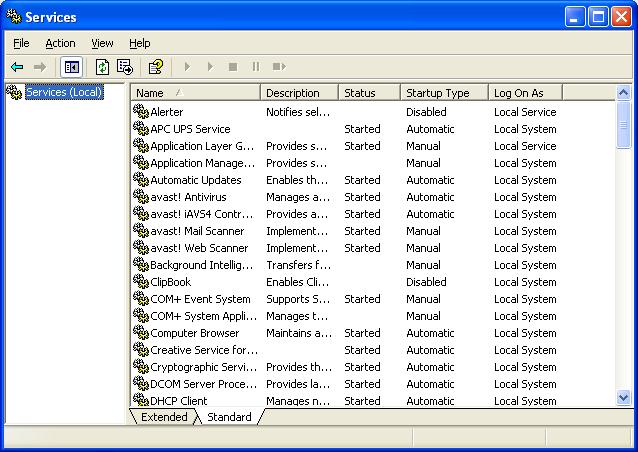
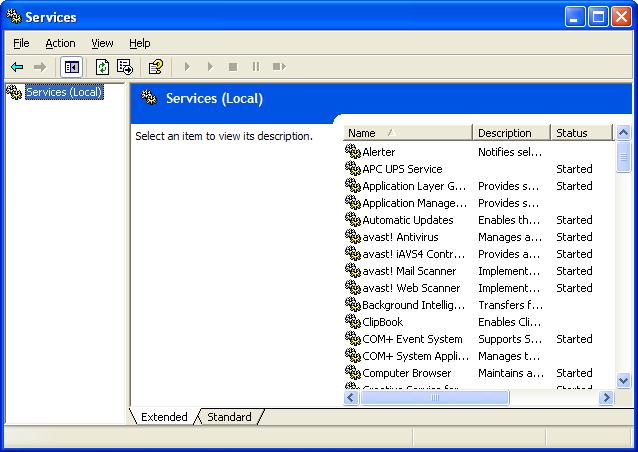
The Services Wizard
You start the Services wizard from Control Panel - Administrative Tools - Services.

You may use the Services wizard presented in Standard, or Extended, mode. The choice is yours.


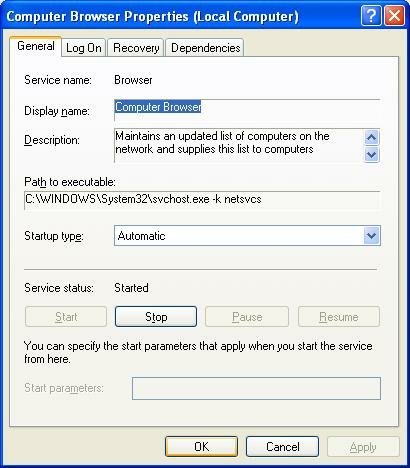
Find the service that concerns you, and double click on it (or right click, and select "Properties").


The Service name and Display name are two descriptors which are used, alternately, in various places. You should be aware of both values.

You may find Path to executable useful when you are researching an instance of "svchost.exe", using Process Explorer.

Startup type determines when, or if, it will ever be started.

Service status determines whether it is, or should be, running now.


  • If the service in question is running, and you want it stopped, hit "Stop", and wait while it stops.
  • If the service is not running, and you want it running, hit "Start" and wait.
  • If you want the service in question to start the next time the system starts, set Startup type to "Automatic".
  • If you want the service to be started the next time it is needed, set Startup type to "Manual".
  • If you want the service to never start, set the Startup type to "Disabled".

Dependencies shows other services that this service requires to be running, and other services that require this service to be running, before they themselves will start.
If the service wouldn't start, or if its Startup Type wouldn't change, it may have a dependency. Look on the Dependencies tab, under "This service depends upon the following system components". Make sure that everything there is present on the computer, and all services listed are Started. Also check the Event Viewer logs for clues. The Services Controller CLI You can also use the Services Controller, aka "SC", from a command window. Observe the spaces in the examples below; they are essential.
  • To find ot the status of the browser service, enter
    sc query browser
  • To stop the browser service, enter
    sc stop browser
  • To start the browser service, enter
    sc start browser
  • To disable the browser service at startup, enter
    sc config browser start= disable
  • To enable the browser service at startup, enter
    sc config browser start= auto
For more information about the Services Controller, see (KB166819): Using Sc.exe and Netsvc.exe to Control Services. If no help yet, check Event Viewer for additional clues. For more information about the many services, the Internet expert is BlackViper, and you can (currently) refer to his websites, Windows Vista Service Configurations, and / or Windows XP Service Configurations. Note that each service has TWO identities. Some utilities and wizards might use one identity to refer to a service, others might use the other. The Browser Service has, for instance,
  1. Service Name: Browser.
  2. Display Name: Computer Browser.
The Workstation Service has,
  1. Service Name: lanmanworkstation.
  2. Display Name: Workstation.
Don't be confused if you can't find a particular service in a list, or if the SC command doesn't seem to work. Make sure that you know both identities for the service that you're interested in. >> Top

Advanced Windows Networking Using Internet Protocol

Windows Networking is the subsystem that lets you share files and printers, between computers running the various versions of Windows. Server Message Blocks, also called SMBs, are the foundation of Windows Networking. SMBs provide several crucial functions.


(Note): If you're not familiar with the concept of network layers, take a few moments and read about the OSI Network Model.

SMBs are not transported directly over the various physical networking components, as Layer 1 or 2 traffic. SMBs may be transported over Internet Protocol (IP), as well as alternate protocols like IPX/SPX or NetBEUI.

Windows Networking has historically used NetBIOS Over TCP/IP (NetBT) as an intermediate transport for SMBs over IP. Windows 2000, XP, and Vista however, will transport SMBs over IP, without NetBT, using directly hosted SMBs.

To remain compatible with the older versions of Windows, a Windows Networking client, running Windows 2000, Windows XP, or Windows Vista, can use either directly hosted SMBs, or it can use NetBT. If any server supports directly hosted SMBs, the client computer in question will bypass NetBT, when communicating with that specific server.

This dual compatibility, which allows Windows 2000 / XP / Vista clients to communicate with computers running other editions of Windows, is not without cost. Trying for two communications channels, when establishing a connection with any server, increases program complexity and network traffic. In some cases, it may increase latency.

We need to resolve one major misconception. It may appear that when you Disable NetBT, you are disabling Windows Networking over IP. This is not correct. When you Disable NetBT, you are merely disabling hosting of SMBs over NetBT. You then end up with SMBs hosted directly over IP. But look at address resolution on your LAN, before trying this. Don't make this change blindly.

If your LAN
  • Has a domain.
  • Has computers running only Windows 2000, Windows 2002 (aka Windows XP), Windows 2003 (aka Server 2003), Windows 2006 (aka Vista), and Windows 2009 (aka Windows 7).
  • Uses DNS, properly setup, for name resolution.
then you may wish to Disable NetBT, and (KB204279): use directly hosted SMBs. If any of the above are not true, you should Enable NetBIOS Over TCP/IP. Be consistent on all computers.

In the TCP/IP Properties - Advanced wizard, WINS, select Disable NetBIOS Over TCP/IP. Alternately, if you have the Default NetBIOS setting selected (instead of "Disable" or "Enable") on your client computers, and you have a DHCP server (not a NAT router with DHCP), you can disable NetBT from a DHCP server setting.

If you use directly hosted SMBs, whether alternately or exclusively, be aware of the security implications.
  • NetBT uses TCP and UDP ports 137 - 139.
  • Direct hosted SMBs use TCP port 445.

Be sure that all personal firewalls have the proper ports opened.

Here are the relevant ports used by SMBs over NetBT, per IANA port number allocation:

netbios-ns 137/tcp NETBIOS Name Service
netbios-ns 137/udp NETBIOS Name Service
netbios-dgm 138/tcp NETBIOS Datagram Service
netbios-dgm 138/udp NETBIOS Datagram Service
netbios-ssn 139/tcp NETBIOS Session Service
netbios-ssn 139/udp NETBIOS Session Service

And the relevant ports used by directly hosted SMBs:

microsoft-ds 445/tcp Microsoft-DS
microsoft-ds 445/udp Microsoft-DS


Similar to the effect of a personal firewall, SMBs can be setup to use secure channel communication, by using SMB Authentication and Encryption. If you ever see
The account is not authorized to log in from this station.

then check SMB Encryption and Signing settings.

And, if you have an integrated security suite (previously sold as anti-virus protection), you may have an anti-worm component protecting you. Anti-worm protection, if not correctly configured, may interfere with any or all of the above NetBT traffic. Different brands of products will cause different problems.

For more information:

>> Top

Sharing Files With The XBox 360

The XBox 360 is a gaming computer, and more. As a computer, it's perfectly capable of sharing files, music, movies, what have you, with any computer on the LAN.

Since the XBox 360 is built on the Windows Media Center Edition platform, (KB887212): it can't join a domain. You'll do better having your computers in a workgroup.

You'll need either Windows Media Connect or Windows Media Center Extender. You may find additional information in:


>> Top

Older Operating Systems - Windows 98, Windows ME, Windows NT

Even though 99% of the patrons of PChuck's Network are looking for help with networking between computers running Windows 2000 or Windows XP, there will always be those with older operating systems. Even though you'd be much better off (on a computer that will support it) upgrading to Windows XP, I will always advise you to only upgrade from a working system.

Do not expect to get rid of problems by upgrading. Fix your problems first. That being an issue, how do you network Windows XP with older operating systems? What are the issues between Windows XP and older operating systems?


  • The browser. The browser provides the contents of Network Neighborhood. For all computers to see the same computers displayed in Network Neighborhood, there can be only one authoritative computer - the master browser. Selection of a master browser works best when all computers play by the same rules. If you have 2 computers on your LAN - one running Windows 98, and the other running Windows XP - a computer running Windows XP should always be elected as the master browser.
    • The Windows XP operating system is more reliable. It manages resources better, and will provide more diagnostics.
    • A computer running Windows XP is probably newer than one running Windows 98. The hardware will probably be more reliable, and have more power.
    • Since it's newer, you'll probably use a computer running Windows XP more. The browser infrastructure is much more stable, when using a computer that's online constantly.

    Since Windows XP is the preferred authority, on any network with mixed population, the browser election process should always favour a Windows XP computer for master browser. The Windows XP browser process uses this reasoning. Unfortunately, the Windows 98 browse master does not do this, reliably.

  • File sharing. Once you get past the issue of seeing what's available on the LAN, you'll want to access what's available.
    • Computers running Windows 98 can share files using share level access (one password used by all), or user level access (similar to local accounts in Windows XP). Other older operating systems have other possibilities. This subject is covered in detail in the referential Microsoft white paper File and Printer Sharing with Microsoft� Windows.
    • If you're using a client computer running Windows 98, trying to access a server running Windows XP, and you're asked for the IPC$ password, the server needs the Guest account activated for network use.
    • A computer running Windows 9x will use either Guest authentication, or it will use non-Guest authentication, at your discretion. But understand the differences.
    • Windows 95 / 98 clients will have a problem with (KB160843): share names with more than 12 characters.
    • Computers running Windows 95 / 98, and computers running Windows 2000 / XP, will happily use LM Authentication when starting a sharing session. Unfortunately, LM Authentication is not as secure as its successors, NTLM and NTLM V2. If you involve Windows Vista, you'll have a problem, since Windows Vista, by default, only uses NTLM V2.

  • More information:


>> Top

Windows XP System Restore

With Windows XP, Microsoft included a feature that keeps a copy of key system settings. In case you make a mistake configuring a system setting, or some basic application setting, you may be able to, conveniently, recover the system to a previous state before the mistake.

Windows XP automatically makes periodic copies, which it calls System Checkpoints. You can manually make copies too. Windows XP includes the System Restore wizard, which you can run from All Programs - Accessories - System Tools - System Restore.

When presented the System Restore wizard initial menu, you have 2 choices.


  • Restore system settings ("Restore my computer...").
  • Create a restore point.

Recover To A Restore Point
If you need to recover system settings to a previous time, and System Restore was enabled some time previous, you will be presented a calendar which will identify System Restore points previously created. Upon your selection of a restore point, the system will recover itself to that point. You should plan to restart the computer, so closing all open applications first would be a good idea.

  • Close all open applications.
  • Start the System Restore wizard.
  • Select "Restore my computer...".
  • Select a restore point, from the calendar, then from the restore point inventory.
  • Hit Next, and follow instructions.


Remember that when you restore to a given past point, all affected changes made after that point will have to be repeated. And remember that System Restore has a limited scope:

  • You should not plan to go back too far. The farther back you go, the more desired system changes will be wiped out, and will have to be repeated.
  • Don't plan on too many application changes being covered by System Restore.
  • Don't plan on ANY data files - Windows or third party - being covered.

Create A Restore Point
If you plan to make some system configuration changes, or reload key system files, it's a good idea to create a System Restore point. Just don't go overboard - note the limitations described above.

  • Start the System Restore wizard.
  • Select "Create a restore point".
  • Give a name to your restore point (remembering to make the name unique and descriptive) (note that the name you pick can't be changed).
  • Hit Next, and follow instructions.


Note The Limitations
System Restore is NOT a backup and recovery tool. Don't count on System Restore for system backups in general. For more information about System Restore, see (KB306084): How to restore the operating system to a previous state in Windows XP.

Enable System Restore First
To be used, System Restore has to be enabled. It may have been enabled by system setup, but it's not a bad idea to make sure it's active. In the System Properties wizard, select the System Restore tab. You enable System Restore for each partition that you wish it to be active on.

Since I, personally, separate my hard drive into 3 partitions (System, Applications, and Data), I enable System Restore on two partitions: C: (System) and D: (Applications). I don't need the overhead, which would not be productive, on my Data partition, so I leave my E: drive not monitored. This decision is entirely up to you.

Also up to you is the Disk Space usage. For each partition monitored, select that partition, and hit Settings. This will give you a control that will let you adjust how much space you wish to be used, by multiple System Restore checkpoints.

Windows XP - Which Edition Should I Choose?

The choice of whether to choose Windows XP Home or Professional, or any other edition, or any similar edition of Windows Vista, varies - and not always strictly according to network environment, or to intended use. Many small businesses can get by quite well with XP Home, yet many professionals wouldn't have anything less than XP Pro in their home LAN.

Based on help requests, I'd guess that the most relevant distinctions, between the various editions of XP are:

  • Choice of file sharing. A computer running XP Home will only use Simple File Sharing.
  • Domain membership. A computer running XP Home cannot join a domain.
  • Number of simultaneous incoming connections. XP Home limits you to 5 simultaneous incoming connections, while XP Pro will limit you to 10.
  • Remote access to the desktop. XP Pro provides Remote Desktop, which integrates tightly into the Windows structure. For XP Home, and for other operating systems, you will need VNC, or a similar product.
  • Remote access to the operating system. A computer running XP or Vista Home can't be managed remotely, nor can its problems be diagnosed remotely.
  • Token based access. A computer running XP Pro will use token based access. You'll authenticate once (possibly automatically) to a server, the client will setup a token, and use that token in the future. With XP Home, you'll authenticate each time that you create a connection to a server.


As always, Your Mileage May Vary.

NOTE: There is a third, odd member of the Windows XP trio. XP Media Center Edition has the XP Pro kernel. The early versions of MCE had all of the functionality of XP Pro, plus the multimedia capabilities. Starting with the 2005 version, XP MCE (KB887212): lost the ability to join a domain, though it still has many other components of XP Pro.

If you have a computer with either XP Home or XP MCE 2005, and you need it to access domain resources, please read File Sharing Under Windows XP - Windows XP In A Domain.

If you want to make a detailed comparison, and look at other decision making possibilities, you may want to read additional articles:


Identify Your Edition Of Windows XP
  • Right click on My Computer.
  • Select Properties.
  • On the General tab, look under System:. If you have Windows XP, it will say either:
    • XP Home.
    • XP Media Center (which has the file sharing abilities of XP Professional).
    • XP Professional.
    • XP Tablet (which has the file sharing abilities of XP Professional).
    • XP Professional x64.


>> Top

Irregularities In Individual Share Accessibility

When I talk about strategies for diagnosing network problems, one of the principles that I recommend is Relational Pattern Analysis. Look for computers that have the same problem, and other computers that don't. When you have problems that can't be solved easily, when you use one of my troubleshooting guides like Irregularities In Workgroup Visibility, the larger your network, the better. You need computers that don't have the problem, and computers that do, so you can identify the common thread between each set of computers, and then identify the problem itself.

Sometimes, though, your problem may be more complex. Instead of all shared folders on your server being invisible or inaccesible, maybe some are accessible, but others aren't. Maybe only some are even visible. Now what do you do?

Visibility, and accessibility, of individual shared files and folders are controlled by Access Control Lists, or ACLs. The RestrictNullSessAccess setting can affect access to individual shares, if your server is authenticating with the Guest account.

The easiest way for your shares to differ in visibility is to have improperly differing ACLs. The easiest way to resolve this is to identify, and correct, the differences between the ACLs.

With Windows 2000, and Windows XP Pro, the solution here is simple. Edit the ACLs. Your can do this by the obvious (but more time consuming) way, by using the GUI in Windows Explorer. Or you can do this by the less obvious, but more efficient scriptable way of using CACLS. Both procedures are discussed in Server Access Authorisation techniques.

With Windows XP Home, you can't use the GUI in Windows Explorer. Windows XP Home, and Simple File Sharing, set all permissions the same (supposedly). They don't give you any way of changing any permissions, short of global settings where you identify each share, and allow (or disallow) network users to change the contents. With XP Home (or with XP Pro, if you prefer), you may use alternate Server Access Authorisation techniques.

But, having identified the above possibilities, and carefully read and followed all instructions, sometimes you still can't get things working just right. There are known problems which can't be solved by simple ACL editing.

If you want to provide a secure computer, one of the recommendations is to keep the operating system updated, religiously. Microsoft issues monthly operating system updates, with patches of varying criticality. In most cases, it is beneficial to apply all critical patches. In some cases, like yours, it isn't.

In this case, patch KB885250, as referenced in bulletin MS05-011, has been recently identified as the culprit in odd file sharing scenarios. The Microsoft article (KB895900): You cannot save a file from your Windows XP-based or Windows 2000-based computer..., and a subsequent article (KB896427): After you install security update 885250, both describe the symptoms of this problem. Symptoms caused by application of patch 885250 can, and have been known to, cause file sharing scenarios of varying complexity.

  • "Error = 5", aka "Access denied".
  • "Error = 58", aka "Bad network response".
  • Access to some folders, but not to others.
  • Apparently empty folders, when you know there are files in there.
  • "File not found".


In your case, there are 2 possible solutions:

Problems With WindowsUpdate

When it comes to keeping your computer stable and secure, one of the most necessary utilities available is WindowsUpdate. Whether you run WindowsUpdate manually, or let your computer download and update automatically as updates are offered by Microsoft, WindowsUpdate just has to run.

What do you do if it doesn't run successfully? Well, you don't have to accept its failings blindly; you can interrogate the Windowsupdate.log file. In (KB902093): How to read the Windowsupdate.log file, you can see how to diagnose problems with WindowsUpdate.

There is one immediately possible cause for a problem here. If you are the victim of a DNS problem, whether an actual DNS server issue, or a Hosts file problem, WindowsUpdate access can be blocked. This could be due to either your error in configuration, or a DNS hijack by malicious code (aka hacking).

Networking Your Computers

Setting up a computer network, whether to share files, or Internet service, can be a lot of fun. It's more fun, though, if you set it up properly, from the start. I'll try and make that possible, if you work with me.


>> Top

With the basic issues out of the way, you can get detailed instruction from plenty of websites, that will give you illustrated instructions. Here are but five, listed in alphabetical order.

If you have properly chosen and setup your equipment, advice from any one of the above should get your network in order. The various guides are written by different organisations, and each has a different style, so check them all out if possible. Find the one which works best for you.

>> Top

Solving Problems
If you're here because you have problems, please start by reading Solving Network Problems.

Now, what is your specific problem? Is it accessing the Internet? Then read Troubleshooting Internet Connectivity. Or is the problem with File Sharing? Then read Troubleshooting Network Neighborhood (Windows Networking).

One major issue that the websites listed above won't help you with, if your problem is with file sharing, is the browser. Now when I mention the browser, don't start with "My Internet access is not a problem". The browser is the program that provides the contents of Network Neighborhood on your LAN. It's frequently involved in problems when "I can't see the other computers", or "I get access denied when I try to access another computer". Please read my article Windows NT (NT/2000/XP/2003) and the Browser.

Do you have a LAN with both Windows 9x (95, 98, ME) computers and Windows NT (NT, 2000, XP) computers? Then you should read Windows 9x (95/98/ME) and the Browser.

>> Top

In Conclusion
All of the above articles link to dozens of other articles, so read carefully. And be patient with me, as I add to this blog occasionally. Check back here periodically. Or write to my Guestbook.

>> Top

Server Availability Affected By Maximum Simultaneous Connections

With Windows 2000, XP, and Vista, you are subject to a limitation on the (KB314882): number of simultaneous connections that a server can provide. If you have more than 5 connections to a server running a Home edition, or 10 connections to a server running a Business or Professional edition, you may observe various symptoms:


  • The error "No more connections can be made to this remote computer at this time because there are already as many connections as the computer can accept."
  • The error "Server is not accessible...".
  • As connections time out from disuse, they will become disconnected. Attempts to reconnect will either result in the above errors, or will force the disconnection of another, less active computer.

The good news is, you can't use up all of your connections on any server from any one client, with multiple sessions on that server. Generally, one account on one client with multiple sessions = 1 connection. A session started by a user, and another session started by the system account, from one client, will count as 2 connections, though. And multiple protocols, for instance NetBEUI and TCP/IP, if both are used for file sharing, will count as 2 connections by a single client.

Check the connections in use on your server, using one of two tools - the GUI Shared Folders wizard, or the command window Net commands.

As a client becomes inactive on a server, its connection will timeout, and become available to another client. The default period for inactivity to trigger a disconnection is 15 minutes.

If you need many more client connections than the server can provide, you can lower the timeout period, by tuning the server. Microsoft (KB314882): Inbound connections limit in Windows XP tells us how to change the timeout period to 10 minutes, for instance. Into a command window, enter:

net config server /autodisconnect:10

But beware. Changing the timeout period, by using "net config", may affect server functionality, permanently.

The Windows Server service is self-tuning; normally the server configuration parameters are autoconfigured (calculated and set) each time you start Windows XP. If you run net config server in conjunction with the /autodisconnect, /servcomment or /hidden options, the current values for the automatically tuned parameters are displayed and written to the registry. After these parameters are written to the registry, you cannot tune the Server service by using the Networks tool in Control Panel. If you change any of the Server service settings, Windows XP can no longer automatically tune the Server service for your new configuration. To avoid losing the Server service's automatic self-tuning capability, make the change through Registry Editor instead from a command line or Control Panel Network.


You may want to use the Local Security Policy Editor (for XP Pro only) instead. Under Security Options, you should find "Microsoft network server: Amount of idle time required before suspending session". Or, you may prefer to edit the registry directly, and change Registry Value [HKLM\SYSTEM\CurrentControlSet\Services\LanmanServer\Parameters\autodisconnect]. Change either the LSP entry (for XP Pro), or the registry value, to an appropriate setting.

Now, knowing that there is a limitation is slightly easier to deal with when you have some way of monitoring use, so you can prevent exceeding the limitation, or at least know when you have exceeded it. See Know Who's Accessing The Server, for discussion about the GUI Computer Management - Shared Folders wizard, and for the Command Windows utility Net command.

You may find additional information of interest in the Microsoft articles

>> Top

Limited Or No Connectivity

With XP SP2, Microsoft wants you to be aware when your computer, although configured for automatic address assignment, does not in fact get service from a DHCP server. Your computer, and maybe one or more other computers, will have (KB220874): APIPA addresses.

This is simply a new message - it is not a new problem, and the APIPA address is a symptom of the problem, not the problem itself. You have to solve the problem, not the symptom. Manually assigning an IP address, subnet mask, etc won't solve anything.

There are 2 possible reasons for not getting DHCP service.


No Connectivity
If your computer has no connectivity, whether you leave the APIPA address, or use a manually assigned address, you will gain nothing. You will have to diagnose and fix the physical connectivity problem.

A case of LSP / Winsock corruption can cause No Connectivity, so if you can't easily find a physical connectivity problem, check that next.

Connectivity, but no DHCP server
If your computer has limited connectivity, it has an APIPA address, and it may have connectivity to other computers on the local network. APIPA addresses don't pass thru routers though, so you'll at best have connectivity only with other computers, also with APIPA addreses, and also on your local network.

There is one case where this is not at all a problem. If you have 2 or more computers - either 2 computers connected directly with a cross-over cable, or 2 or more computers connected thru a hub or switch, you may have a LAN with no DHCP server, and no gateway.

In this case, each computer will self-assign an IP address, per APIPA design. If your only need to connect the computers is to let them share files with each other, then you're fine.

If you have a gateway on your LAN, and intend for the computers to communicate outside the LAN, however, you have a problem. Manually assigning normal addresses, such as 192.168.n.n, to match the rest of the computers on the LAN, will accomplsh nothing.

If you manually assign an IP address that will communicate with the outside world, you'll have to do this for every computer on your network with an APIPA address. You'll be better off finding and fixing the problem.

Make sure that the DHCP Client service is running - Started and Automatic.

If the client computer is running Windows Vista, check for a couple connectivity issues which are unique to that operating system.

If your DHCP Client is running, and none of the above help, the problem is probably not with your computer. Either you have no device on your local network that can provide DHCP services, or the DHCP server is ignoring the requests from your computer. The latter condition can either be caused by a MAC address filter, or by an exhausted DHCP scope (all available IP addresses having been issued).

Do you have a DHCP server on the LAN, or are your computers behind a NAT router? If either is the case, check the log on the server, or the router, for clues.

More Analysis
If none of the above scenarios apply to you, or if you can't work as above, then continue by asking for help for basic Internet Connectivity. Or troubleshoot the Internet Connectivity problem yourself, methodically.

>> Top