Showing posts with label Security. Show all posts

Web Sites Increasing Vigilance Against Malware

These days, if you're publishing a web site - or surfing the web - you have to watch your back, constantly. Merely publishing a secure site - or only surfing to secure sites - may not be enough. Any link on any web site might link to another web site, with malware. Worse, any link on any web site might not link to a web site with malware, but to a web site that links to another web site, with malware. And so on ...

How do you draw the line how far to look? You can use a browser add-on which monitors your surfing, and tells you which web sites are safe, or aren't safe - but that add-on better go beyond just checking the immediate web site.

This month, we see progress in that direction. Just yesterday, I was asked, in Blogger Help Forum: Something Is Broken

I see that Blogger says "Blog Unavailable"
Upon further investigation, I found interesting reports from "safebrowsing.clients.google.com", which appears to be a database fed by Google and StopBadware.org.


The top level reports simply says that "earnovertheinternet.blogspot.com" is a dodgy web site. Here I won't comment on the name, more commentary will be found elsewhere.


We click on the "Why was this site blocked" button, and see the report for "earnovertheinternet.blogspot.com". "earnovertheinternet.blogspot.com" is clean, but it links to "popuptraffic.com".


We click on the link for "popuptraffic.com", and see the report for "popuptraffic.com". "popuptraffic.com" is clean, but it links to "javapo.t35.com", "downner.blogspot.com", and "lpspain.galeon.com".


We click on the link for "javapo.t35.com", and see the report for "javapo.t35.com". "javapo.t35.com" is not clean. Reports for "downner.blogspot.com", and "lpspain.galeon.com" contained similar warnings.


I'll note here the stated dangers from "javapo.t35.com"
25 page(s) resulted in malicious software being downloaded and installed without user consent ...

Malicious software includes 26 exploit(s), 2 trojan(s), 1 scripting exploit(s). Successful infection resulted in an average of 5 new process(es) on the target machine ... Malicious software is hosted on 12 domain(s), including velassin.com/, rmbclick.com/, 39m.net/.

11 domain(s) appear to be functioning as intermediaries for distributing malware to visitors of this site, including popuptraffic.com/, adtrak.net/, hele.t35.com/.
We see evidence that the web site monitoring process is persistently cyclic.
The last time Google visited this site was on 2009-09-04, and the last time suspicious content was found on this site was on 2009-09-04.
And, it describes details about the degree of danger.
Malicious software includes 26 exploit(s), 2 trojan(s), 1 scripting exploit(s). Successful infection resulted in an average of 5 new process(es) on the target machine.


"earnovertheinternet.blogspot.com" and "popuptraffic.com" had apparently been visited that same day, 2009/09/17.
What is the current listing status for earnovertheinternet.blogspot.com?
Site is listed as suspicious - visiting this web site may harm your computer.

Part of this site was listed for suspicious activity 1 time(s) over the past 90 days.
What happened when Google visited this site?
Of the 1 pages we tested on the site over the past 90 days, 1 page(s) resulted in malicious software being downloaded and installed without user consent. The last time Google visited this site was on 2009-09-17, and the last time suspicious content was found on this site was on 2009-09-17.


The owner of "earnovertheinternet.blogspot.com" (you'll note that I won't be linking there) states his intention to clean up his act, and to convince at least one other web site to do likewise.
I will remove those popups ... I asked the admin of popuptrafic


This is a start. Get the responsible web sites to remove their links to dodgy web sites. Enough action here, and one day, maybe no more dodgy web sites.

We can dream, can't we?

>> Top

Newer Networking Features - Virtual LANs

One of the shinest features in WiFi networking, this year, is routers with dual LANs. One LAN provides access to the Internet, and all computers to each other, like a normal router. The second LAN provides access only to the Internet.

You connect all of your personal computers to the first LAN. When you have guests, they can bring their personal computers, connect to the second LAN, and surf the Internet without having any access to your personal computers.

You can even lower the security level on the "Guest LAN" to accommodate your guests, without exposing your personal computers to abuse by possibly malicious neighbours. Or possibly, to your guests computers themselves - which may not be secured to satisfy your personal standards, and may have malware infestations.

Virtual LANs, or "VLANs", used to be features available only on advanced, enterprise grade networks. With computers being a common item in the home, simple VLANs (multiple LANs provided by a single router) are now available to Small Office / Home Office ("SOHO") networks.

Last year, if you wanted equivalent protection for your home computers, you'd be advised to buy 3 routers. You would connect one router directly to the modem, and connect the other 2 routers to the first router as peers. One of the secondary routers would provide your "Personal", secure LAN; the other, the "Guest", less secure LAN. This arrangement, while providing more security for your computers, will have disadvantages.

  • Complexity. Three routers will require more cabling, and more physical space than one router.
  • Cost. Three routers are going to cost more than one router.
  • Networking side effects. Look up discussions about "double NATting", for more about this problem.


A modern, dual LAN router has none of the latter disadvantages, just improved security for you, and increased convenience for your guests.

>> Top

How To Break A CAPTCHA

A CAPTCHA, or Completely Automated Public Turing test to tell Computers and Humans Apart, is what the many online services like email, forums, and free web site hosts use to prevent their services from being misused. Were it not for CAPTCHAS and similar controls, various known and unknown criminals could otherwise easily setup thousands of email accounts, forum memberships, and personal web sites for themselves, and send millions of bits of email spam, post millions of forum spam messages, and publish millions of spam web sites, all in the amount of time that it will take me to write this article. And in March 2009, we see a new frontier in spamming - comment spam.

So thank heavens for the CAPTCHA (from pioneers like Luis Von Ahn), which protects us from the hacking, porn, and spam that would otherwise overwhelm the Internet.

Oh crap. The Internet is already overwhelmed. Maybe CAPTCHAS, actually, aren't accomplishing a thing - except stopping us, the honest Internet user, from setting up an email account, a forum membership, or a free web site, without raising our blood pressure another 20 points in 10 minutes.

No, CAPTCHAS do not work, Luis. Allegedly.

So, Chuck, how do you break a CAPTCHA? Well, I can think of 3 ways.

  1. Expensive high tech automated, CPU intensive, CAPTCHA breaking software. Right. I don't know about you, but my CAPTCHA solving skills are maybe .500 on my best day. How is a computer program going to break CAPTCHAs, reliably?
  2. Semi expensive hiring of personnel intensive CAPTCHA breaking staff (workers, supervisors, managers, communications lines, technology??) in third world countries (5:00). Staff that does nothing but look at CAPTCHAs, over and over, all day? Is that going to be reliable?
  3. Relatively cheap acquiring of volunteer labour, gathered through the Internet, completely ignorant of their role, who just want to look at the dancing pigs. Each volunteer collaborates with 2 or more other volunteers for one CAPTCHA, then is done, and never knows what he just did. Any porn merchant can get all of the volunteers that he needs.


Which is it? Door 1, 2, or 3?

For my money, it's got to be Door 3 - volunteer labour (5:45). Watch the video, and despair.


»http://www.youtube.com/v/tx082gDwGcM
Human Computation (Luis Von Ahn: July 26, 2006)


No, Luis, this isn't allegedly happening (6:10).

Hacking, porn, and spam distribution is big business (6:20). Hackers, porn merchants, and spammers are making big bucks. Door 3 is the only possibility that makes any business sense. Volunteer labour - that's the trick (6:30).

So, yes, Luis, you could use these games to break the CAPTCHAs (51:10).

>> Top

Online Analysis Of Suspicious Websites

One of the neatest ways to distribute malware nowadays is by serving it from a web site. Why push malware by files to the victims computer - just put the bad stuff on your web site, and entice the victim to surf there. If he does so, intentionally, he's more likely to trust you, and badda bing, download your malware to his computer.

The classic way of protecting us from malicious web sites was stopping us from surfing there, generally using Hosts file based web site blocking.

Besides web site blocking, and malware protection (both active and passive) on your computer, you need malware scanning of any web site that you access. And what better way to do this than by using the power of the web?

  • AVG / Exploit Prevention Labs provides LinkScanner, which can be accessed as a browser add-on or queried online. LinkScanner does a live scan on Google, Yahoo and MSN search results, rather than querying a database of previous scan results.
  • FireTrust provides SiteHound, which can be accessed as a Firefox or Internet Explorer toolbar.
  • McAfee provides Site Advisor, which can be accessed as a Firefox add-on, or queried online. SiteAdvisor has an accumulated database, a web site popularity meter ("nitecruzr.net" shows a 2 of 4 - "some users"), plus does real-time evaluation when requested. They also accept comments from site readers, and from site owners.
  • A partnership between top academic institutions, technology industry leaders, and volunteers provides StopBadware.org, which feeds the Google search engine results pages. Google uses the StopBadware database, and accepts input by site owners through Google Webmaster Tools.
  • Symantec provides Norton SafeWeb, which appears to be intended as a plugin to a Norton security suite, though it does provide for web based queries. SafeWeb accepts comments from site readers.
So there are choices. Try them, and see which one suits your needs to the best degree.


(Update 2009/09/18): Today, we note a significant increase in vigilance.


>> Top

Windows Vista And The Network Map

Most of us who have computers in our homes also have Internet service (what else is the computer for anyway?). Many of us who have computers have more than one computer, and some of us who have more than one computer need a network management product, like The Dude (what a name for something priced so nicely) to keep track of our computers.

Auto discovery, which automatically generates a graphical display and inventory of the computers on the network, is an expected feature in many network management products like The Dude. Now Auto Discovery is a built in feature of our favourite new operating system, Windows Vista. One of the shiniest features of Windows Vista is The Network Map - its ability to show you a semi graphical display of all of the computers, routers, and switches on the network.

The Network Map uses a new protocol - Link-Layer Topology Discovery (LLTD). Regardless of what firewalls, or other hardware or software protective devices we have on our network, LLTD discovers all devices connected. LLTD has basically the same strengths and weaknesses as other well known alternate protocols IPX/SPX and NetBEUI (neither of which are available for Vista).

  • Regardless of what Windows Networking protocol you're using - IP, IPX/SPX, or NetBEUI, LLTD will show you a map of all computers running Windows Vista and Windows XP (when equipped).
  • Regardless of what firewalls or routers you may have setup to segment your network, and protect some computers from others, LLTD will pass through to each segment, and will inventory all computers on the segment.
  • Regardless of whether LLTD shows you a computer, you won't necessarily have the ability to access that computer, or even determine its network address, for Windows Networking.


The Network Map presents additional challenges.
  • It is only available on Windows Vista (and Windows XP, with (KB922120): the optional LLTD Responder).
  • Its availability, and the fact that "it simply works", can cause confusion among computer owners, who can't get Windows Networking to work, when a Windows Vista computer is installed.
  • People confuse the Network Map with the "Network" wizard (previously known as Windows Explorer in Windows XP and previous Windows editions), which provides a similar functionality, but will display different information.


It's a great tool, but you need to be aware of its limitations.

>> Top

Bots And You #2

Computers controlled by somebody who is not their legal or physical owner, aka "bots" or "zombies", have been a known fact of life in the Internet, for several years. Successful hackers, though, don't bother with individual computers, they control armies of botted computers, each numbering in the thousands.

One of the defenses against bots is the use of CAPTCHAs, or puzzles that "humans can solve, but computers can't". If you use the Internet much at all, you've seen, and solved, more than one. Unfortunately, CAPTCHAs are easily solved by scripts and online users. The people who produce web products like email, online forums, and blogging platforms may not yet realise that detail, however.

This is not an academic issue, it's commercial, and it's very real. Here's the specifications for a commercial product used to manage attacks against online forums, and place spam posts there. I've viewed an online movie which showed XRumer in action (movie since removed), and my computers haven't been attacked, but I would still visit that web site only from a computer carefully protected with a good layered security strategy.


Let's "make a new project".


Having setup the content and style of the attack, let's see what it will look like when placed in a typical forum.


Posting to multiple forums, simultaneously, is the key here. We need the ability to determine how many forums to attack, simultaneously. Here, we see hundreds of forums under attack.


Here we have a very matter of fact demonstration of how useless captchas are. Note the log entries "captcha recognized", showing that the forums in use asked for captcha entries, which were simply resolved by the XRumer script. Not even worthy of a feature balloon in the demo.


This product, XRumer (note "Version 3.0"), appears to be a Windows XP application. It's well designed, with plenty of features that make it persistent, robust, and versatile. It's apparently designed for placing spam posts into online forums. Note that the demo doesn't show us any detail about posting into any one forum, it simply shows the spam posts being placed to the forums. This is simply an advertising demo, for a mature and probably popular product.

And the individual forum postings are being processed, simultaneously, by bots. Presumably "one thread" = "one bot". Note the URL: www.botmaster.net.

I have no doubt that similar products are marketed, to generate and deliver spam through email, to register and generate splog farms in the Blogger world, and even to send comment spam to blogs and web sites. Note that this demo is several years old - surely shinier, more robust, and more versatile products are available today. And just as surely as "Coca-Cola" has a competitor "Pepsi-Cola" (with neither outshining the other for very long), "XRumer" has competitors too.

This is why you see spam in online forums, spam in your email box, and spam blogs on the Internet. It's a commercial process, with automated tools.

>> Top

Bundled AntiVirus and Personal Firewalls - A Windows Networking Challenge

For several years after antivirus and personal firewalls became typical (and highly recommended) components in personal computer protection, many computer owners would confuse the two. Typical comments

What do you mean my computer has a virus? I have a firewall.
or
How could my computer have been hacked? Norton AntiVirus says my protection is fine!
would be common in many help forums.

With Windows XP, Microsoft first gave us Internet Connection Firewall, later renamed as Windows Firewall. They then took Windows Firewall, paired it with their recently acquired Antivirus program, and called that Windows OneCare.

The name "OneCare" has always intrigued me. Any person of British personality might pronounce that, with an accent, as "WanKare". Please ask one of your British friends, if you have any, what "WanKare" implies.

So fast forward to the present, please. It appears that the firewall component in Windows OneCare doesn't integrate with Vista, as well as Windows Firewall does. With Windows Vista, when you change the Network Location Type to "Private", Windows Firewall automatically adjusts itself to permitting Windows Networking on that computer. Depending upon the state of NetBIOS Over TCP, Windows Firewall will open the correct TCP ports.

If you have Windows Vista with OneCare, and you can't get Windows Networking working, check the network NetBT, and firewall port, settings, carefully. Make sure that they are compatible, and make sure that the setup of your network, and all existing (and currently working) computers matches the Vista / OneCare settings.

It's possible that any third party firewall may work no better than OneCare, in terms of Network and Sharing integration. If you have a problem with Windows Networking (file / printer sharing), the most frequently seen cause of such problems is NetBT and / or personal firewall settings. This will apparently be true under Windows Vista, just as under any previous operating system.

>> Top

Using The Internet As A WAN Link? Use A VPN.

Stable and secure Windows Networking depends upon properly designed, routed, subnets. IP routing was designed to make Local Area Networks connect, yet still observe geographical relationships. Using routers between LANs allows localisation of some domain services (browsing, name resolution), but wide spread availability of others.

When you route IP connectivity thru wiring that you own and control, that's behind a firewall, each connected LAN is as safe as any of the other LANs. Threats on the outside (Internet) stay on the outside. Two geographically separate LANs, connected by a dedicated, leased communication line, are as safe as each other is safe.

What if you have 2 LANs, distant from each other, and can't justify the expense (initial or ongoing) of a leased or owned communication line? If both LANs have Internet access, you can still connect them; just use the Internet as the WAN link.

But wait! I hope you know how dangerous the Internet can be. It's bad enough when accessing it as clients. Plain old web browsing is bad enough, how about running a server on the Internet? OK, how about running all of the computers on your LANs thru the Internet? Why not hold up a $100 bill, and stroll thru Times Square in New York City? See if you get anywhere alive.

But you can connect your LANs thru the Internet, if you design the connection properly. A controlled, encrypted tunnel between your LANs, using routers that support a Virtual Private Network (aka VPN) will do this fine.

A VPN will be a lot easier to setup, and more stable and secure, when properly planned.


>> Top

Each LAN Is Addressed By Its WAN Address.
The VPN routers setup static tunnels between each other. Setting up a VPN router requires identifying the other router(s), by its IP address as well as by a pre installed certificate (aka pre shared authentication key). If you can't provide a fixed IP address for each router, you'll have to use a domain name, registered with a dynamic DNS service like DynDNS, TZO, or the like.

>> Top

Hardware Compatibilty Is A Must.
There are various conventions and standards for establishing, and conducting, authentication and encryption in a VPN. Each router manufacturer will likely have some variation, however small. The easiest, and most stable, VPNs will use router hardware of the same make, model, and firmware level at each end of a VPN tunnel.

>> Top

LAN Subnets Must Be Unique.
A VPN provides a routed connection between LANs. In order for routing to work best, you have to have different subnets on each LAN. When you setup a VPN between LANs that were setup before being connected, you may have some LANs using the same subnet. You can't have stable LANs, each having the same subnet, connected by a router.

>> Top

Use DNS For Reliable Name Resolution.
On most small LANs, you'll use broadcasts for name resolution. Broadcasts aren't routable; each IP subnet is, by definition, a broadcast domain. If you want computers on one subnet to access computers on another (which is, presumably, why you're setting up a VPN), you'll find computer names more convenient than IP addresses. Some VPNs will, if configured, pass SMBs for name resolution and browsing, but this will likely slow down Windows Networking. DNS based name resolution is the best way to go, for anything more complex than a single local cluster of computers.

>> Top

Use Domains, Not Workgroups.
If you use Network Neighbourhood to identify and access other computers, you'll need browsing to work between the subnets connected thru the VPN. A properly designed domain structure will make browsing work much better.

>> Top

Connectivity Between Any LAN And The Internet Can Affect Its Connection With The Others.
A VPN connection between any two LANs requires regular interchange of control information, and irregular application data. Balanced connectivity makes both more predictable. If one LAN has a dual WAN business class DSL service, and the other has residential class dialup, how secure and stable will that VPN be?

>> Top

Security On Any LAN Can Affect The Others.
VPNs are used to connect geographically separate LANs, and imply some degree of trust between those LANs. The computers on any LAN, connected to a VPN, are only as secure as the computers on the LAN with the weakest security policies. Review, and synchronise security policies before setting up a VPN.

If you wish to setup a VPN between your home network and your work network, security at your work may be compromised. You should always get permission from LAN administration, before doing this. You may be legally at risk without such precautions.

>> Top

Increased Sophistication and Excess Bandwidth Mitigates These Issues.
As availability of VPNs has increased, with VPN capable hardware sold in WalMart and similar convenience stores, and as VPN firmware becomes more sophisticated, each endpoint in a VPN relationship will be better able to adjust to differences between its own environment and the environment present at the other end. Many of the above issues won't be quite as relevant in the future. But if you start out being aware of the issues, you will be prepared to deal with them when they do become relevant.

>> Top

Process Explorer

Microsoft Windows gives us the ability to run multiple processes simultaneously - it's called multitasking. Some processes we start intentionally - we call them applications or programs. Other processes are started by the system - we call them services. Keeping track of all of the processes running, at any time, is a major activity.

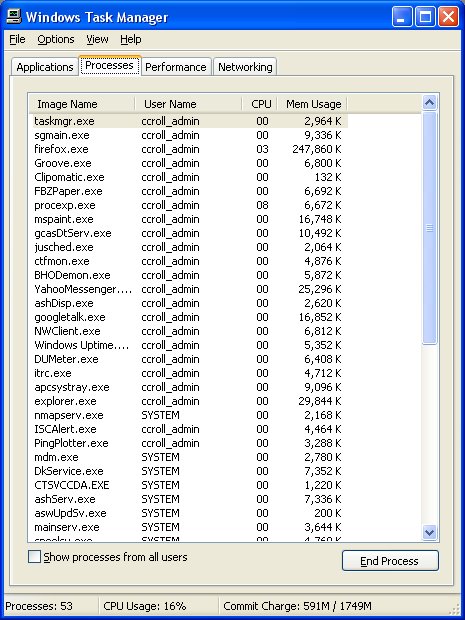
Microsoft gives us Task Manager, to track the processes. Task Manager lets us choose a total of 25 items that we can learn about each process. This is the original tool that you might use, in watching what your computer is doing.

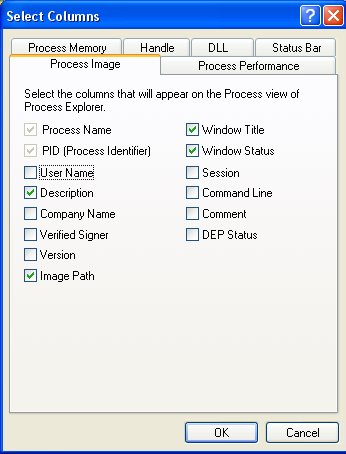
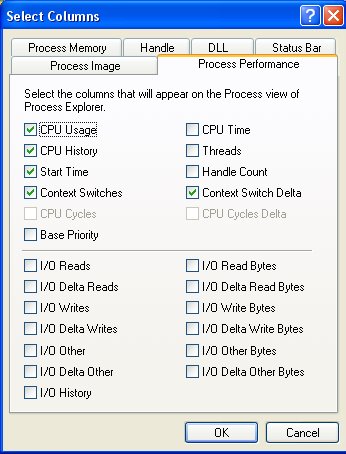
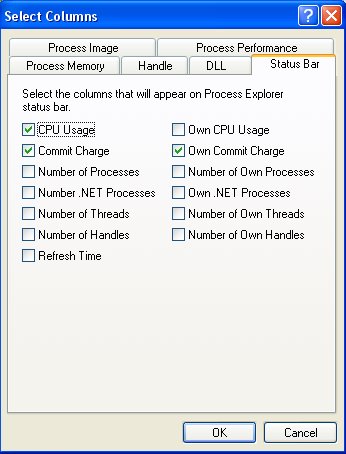
SysInternals (now another division of Microsoft, but that's another story) gives us Process Explorer, which lets us choose, in a tabbed menu

  • DLL - 15 items.
  • Handle - 6 items.
  • Process Image - 14 items.
  • Process Memory - 14 items.
  • Process Performance - 24 items.
  • Status Bar - 13 items.

There are 3 Process (Image, Memory, and Performance) tabs. The complement of 52 items selectable there is comparable to the complement of 25 items selectable for Task Manager.

Task Manager


This is how I use Task Manager.


You can choose any of 25 items here for display.


Process Explorer


This is how I use Process Explorer.


You can choose from 14 items in Process Image.


You can choose from 14 items in Process Memory.


You can choose from 24 items in Process Performance.


You can choose from 13 items in Status Bar.


You can choose from 15 items in DLL.


You can choose from 6 items in Handle.


>> Top

If You Have Windows XP, Without SP2, Please Upgrade Today!

One of the problems with Windows, in general, is its stability and security problems. One of the causes of stability and security problems is the need for Windows to support various versions of different software, its own as well as third party products.

Periodically, Microsoft issues rollup updates, which give it a baseline to work from when supporting their own product. SP2 was one of those rollups. By continuing to use Windows SP1, and by possibly encouraging others to do so, you are requiring useless complexity in Windows.

Now, any pretty good knowledge of computer security is a good start, but any real knowledge will tell you that keeping your computer up to date is essential.

XP SP2 has been out for an extremely long time. Its time to put SP1 to bed, and prepare for SP3 or Vista, which ever comes first. As Windows customers move to SP3 or Vista, support for SP2 will continue. But support for SP1 should not.

Move to SP2. Windows is bad enough with it - its worse without it.

Having applied SP2, proceed directly to malware analysis. If you've been running with SP1 this long, you probably have something you're not aware of.

Now if you're reading this specifically because your computer has problems, but you already did malware analysis, yet you can't find the source of the problem, your computer may be now part of a botnet. In this case, the only solution is for you to "flatten and pave".

  • Immediately, disconnect from the network.
  • Repartition, and reformat the drive.
  • Re install Windows XP.
  • Upgrade to SP2, and all security patches.
  • Reconnect to the network.


I'm aware that this is brutal, and maybe rude, advice. But if you're advised any less, we're essentially saying
Look, you can solve your computer problems without upgrading to XP SP2. It's OK to run XP SP1.

But, it's not OK. Windows XP SP1 isn't supported by Microsoft, as of October 2006. Period.

>> Top

Setup WiFi - And WPA - Carefully

Setting up a WiFi LAN is a great experience. The convenience of surfing the web from your back yard, or sharing files between your main computer and your music server, without running wires here and there, is exhilarating. But there is stress involved.

When you connect a computer to a WiFi LAN, with WPA (and WPA-PSK is absolutely the minimum security measure that you should - no must - take), you are testing a number of things, simultaneously.

  • The WiFi router.
  • Your computer.
  • Your WPA setup.


Now if you do this carefully, and with a small amount of preparation, the whole project can take an hour - or less. Plan it wrong, or make a mistake, and you could be days figuring out the problems. Use a layered strategy - similar to layered testing.
  1. Get each computer connected, by Ethernet, to each other.
  2. Setup, and copy, a key set to each computer.
  3. Get each computer connected, by WiFi, with no security.
  4. Setup WPA on the router, and on each WiFi client.


The different WiFi router vendors have different ideas what type of key their WPA security should work with. Steve Gibson's GRC "Perfect Passwords" Generator will give you a choice of 3. Here's an example of what you might be provided when you click the latter link. Try it, and see.
  • 64 random hexadecimal characters (0-9 and A-F) (not case sensitive):
    1DBE12287EC82B22233C74B356BAC5E4EDC1447168B5F5A9C985C154220E0568

  • 63 random printable ASCII characters (case sensitive):
    Hb+r#^S-T/1!JTP0_~SB 4&rQ7|s"q)7S`teMB`]x_uGATQQ-{B:=%W/_")$w6h

  • 63 random alpha-numeric characters (a-z, A-Z, 0-9):
    0btNigYpFmG5MGDBahRnw203t6jQlCYCNcuvCYgGAZVCFSLSwp7deBMj9Iy7Vfr


All I do is to go to the web page (where it generates a new key set each time - try it), copy the six lines (as in the above list) to a Notepad file, and save the file. Then, with all computers connected by Ethernet (step 1 above), copy the file to each computer. Depending upon the router, one key may work properly, while another won't. Having 3 possibilities, in an identical set on each computer, means repeatedly copying and pasting, without having to worry about getting the computer back online, by other means, to simply copy another file.

After you copy the key set to each computer, start up the WiFi radio, and the WiFi clients. Start with WiFi in open (unencrypted) mode. Make sure that the router works, and you have a working signal, by testing without setting up security.

Since you'll probably be testing the router connection by loading a web page, decide how comfortable you are with giving your neighbourhood open Internet access while you test. If you're not comfortable, then disconnect the Internet feed from the router, while you test, and load the router management web page for your test. Reconnect the Internet service after you get WPA security working.

After you can connect the computer without security, and all network functions work, add WPA-PSK security.
  • Configure the router - copy the appropriate portion of 64 random hexadecimal characters into the router management program.
  • Copy the identical portion of 64 random hexadecimal characters into the client computer WiFi client manager setup wizard.
  • Test the WiFi client. If it works, fine. If not, repeat these steps, trying the 63 random printable ASCII characters, and finally the 63 random alpha-numeric characters.


This is 3 times as complex as it needs to be, and after you've done this a few times, you'll be able to simplify these procedures. But for the first couple times you do this, the careful planning, and the lowered stress level, will make it easier to not make mistakes. By not making mistakes, you're more likely for this to work. And making it work is the reason for my writing this in the first place.

>> Top

Deeply Hidden, and Heavily Protected, Malware

Some malware, besides making it impossible for you to interrupt its processes, will make it impossible for you to even locate on your computer. This is called rootkit protection.

Any program that lists ("enumerates") objects on your computer, for instance,


each of these programs depends upon system functions to tell it what is on your computer. None of these programs gets its list straight from system inventories, they ask system functions for a copy of those lists. Why is this relevant? Because, like any copy, things can be omitted when copying.

If your computer is infected by malware that's using rootkit protection, the system functions that enumerate processes and services, or those that enumerate files and folders, may have been customised. When Process Explorer asks for a list of processes, or Windows Explorer asks for a list of folders in storage, the list returned by the system may be filtered by the rootkit function.

Knowing what folders and processes are related to the protected malware, the rootkit function will simply not list those items. If "C:\Malware" contains the program library for the malware that has infected your computer, "C:\Malware" simply won't be listed by Windows Explorer. You can't delete what you can't see.

That's the bad news. Now the good news.

Any file, folder, process, or service, that isn't enumerated by a system function, is quite likely malware. There are several special programs, distributed by security experts, that enumerate system objects by bypassing the rootkit functions. They compare the results with a normal enumeration, calling the standard (and possibly rootkitted) system functions. If there are objects in the former list, that are not in the latter list, those objects are quite possibly rootkit protected malware.

Two of these special programs are


That's the good news. Now for the bad news, again. Many experts believe, that if Blacklight, RootkitRevealer, or a similar program, identify unknown system objects, your computer is probably compromised beyond reliablity. In this case, the only option is to nuke and pave.

>> Top

Bad Websites? Don't Go There

One of the best ways of protecting your computer from websites which serve malicious content is not to go to those websites. If their content includes malicious code, why would you think that any of their content is desirable? Don't go there, or if you do, go armed with knowledge.

If you must surf to dodgy web sites, know which web sites are known to be malicious. The power of the Internet includes online, real time advice from the good guys.

Besides online malicious web site analysis, the classic protection strategy was plain old avoidance. Various security experts provide lists of websites that you should avoid, and they distribute the lists on the web. These lists are pretty big, and change frequently - generally each month. And, to prevent you from having to examine a list, by hand, each time you consider following a given link, you put these lists into the Hosts file on your computer, and let the computer do the work for you.

You can get a Hosts file from several trusted sources.


The Hosts file is a simple text file, stored in a recognised location on your computer. The operating system finds it from registry entry [HKEY_LOCAL_MACHINE\SYSTEM\CurrentControlSet\Services\Tcpip\Parameters\DataBasePath]. Generally, this entry points to "%SystemRoot%\System32\drivers\etc", though malicious software, if installed on your computer, may change this entry.

If you use a Hosts file from only one of the above sources, you'll simply copy the file into the folder, as discussed above. If you do as I do, and use combined sources (since each source has different criteria what undesirable content is out there), you'll not want to edit and merge the file by hand. So there are several tools for doing this.

All of the above are free, and reliable. But, if you're skeptical about whether to trust any of the sources listed above, that's good. Do some research.

With exception to the issue below, using a Hosts file, as part of a layered security strategy, is simple yet effective. Use of the Hosts file is built in to every network operating system that uses Internet Protocol. Installing the Hosts file simply consists of merging entries into the existing file (as described above), or copying a file into the folder, if there is none in use right now.

Now, using a Hosts file is not without cost. A Hosts file entry identifies one individual subdomain, in any given domain. If "hackersrus.net" has separate addresses for "servera", "serverb", and "serverc", you'll need

127.0.0.1 servera.hackersrus.net
127.0.0.1 serverb.hackersrus.net
127.0.0.1 serverc.hackersrus.net

and this can make the Hosts file pretty large. With the HPGuru Hosts file, the file is well over 1M in size.

If you're running the DNS Client service, which provides a centrally managed DNS / Hosts lookup, the Hosts file is cached automatically. When the system starts up, and anytime you update the Hosts file, the DNS Client service will recache the file. This is a very CPU intensive process - on my computer (the last time I used it), the service would take 10 - 15 minutes to cache the file; during that time, the computer was pretty useless.

The solution, in that case, is to Stop and Disable the DNS Client service.

This should be a relevant issue only on small LANs that don't have a dedicated DNS server. If your domain includes a DNS server for local name resolution, you need to setup both the clients and the server very carefully. In that case, you'll want to centralise your website blocking, not have separate files on each client. If you don't have a dedicated DNS server, there are free DNS server utilities, that will provide local caching of DNS information, without having to precache the Hosts file.

Note one of the downsides of Hosts file based protection is latency. For you to surf safely, you have to be using the most up to date Hosts file. How often do you intend to update yours? If your Internet activity consists mainly of browsing, a browser add-on that references an online database makes much more sense.

>> Top

If I Was A Hacker

If I was a bad guy, and I probed a range of addresses, with a bogus connection attempt, I'd expect any one of 4 possible returns from each of the addresses probed.


  1. "Address unreachable" from the upstream gateway.
  2. "Connection refused" from the router or firewall.
  3. Reply from target, from an unstealthed computer or router.
  4. No response, from a stealthed computer or router.


If I were a true hacker (not a cracker or script kiddie), I think I'd prioritise my hack attempts based upon those results.

  1. "Address unreachable" = You can't hack what doesn't exist.
  2. "Connection refused" = Interesting, but there's so many responding that way.
  3. Reply from target = Boring.
  4. No response (stealth) = Now we're talking. A true challenge. Thinks he's invisible, eh?


I'd go after #4, then #2 and #3, in that order. Security By Obscurity = No Security.

>> Top

Using Public WiFi Networks

Setting up and using WiFi, as an alternative to Ethernet in your home, is a tricky project. Wifi will never be a true alternative to Ethernet.

There are things that you can't control, as a domestic WiFi LAN owner.

  • Noise on the channel (analogue interference).
  • Neighbors sharing the WiFi spectrum (digital interference).


When you take your portable computer to the local coffeeshop, you are still subject to the problems of a domestic WiFi LAN. You have additional problems too, issues that you (as a mere customer) can't control.

  • Security used by the hotspot, to control access, and to keep the customers safe.
  • Other customers at the hotspot (digital interference).
  • The Internet service used by the hotspot.

These issues all apply after you are connected to the hotspot.

Security Issues - and the Initial Connection
Initial hotspot connection is a big issue. And authentication / encryption is a part of the connection problem.

  • Authentication identifies you to the hotspot Access Point, letting only those who have legitimate access use the network. Authentication prevents unauthorised active use of the network.
  • Encryption encodes the network activity between your computer and the access point, so no hackers can snoop on your activity. Encryption prevents unauthorised passive use of the network.
  • WEP, which is the original standard for WiFi security, only provided encryption, with a static encryption key. The hackers figured out how to break the key, so WEP was dismissed as insecure.
  • WPA / WPA2 has several versions of authentication and encryption. You will probably use the simplest in your home WiFi LAN: WPA-PSK with TKIP. PSK is a pre-shared key, similar to the key used in WEP, but more complex. TKIP is an encryption protocol which starts off by using the pre-shared key, but changes the encryption key regularly, to keep hackers from breaking the key. By preventing unauthorised access (by using authentication), and snooping (by using encryption), a WiFi LAN is safer.
  • At most big hotspot chains, like T-Mobile, they have dismissed using WPA (or even WEP), because it's a pain to setup and to manage. If you setup a home LAN, you will (should) use WPA or better, because you control the LAN, and because you need to keep YOUR LAN (with maybe some non-WiFi computers even) secure. But how can you do that, if you don't control or can't meet the customers and their computers?
    • Not every Starbucks customer, with a laptop, is capable of setting up a WPA client, without help.
    • Very few hotspots have anybody on staff, even remotely proficient in setting up WPA security, and available during store hours.


With most hotspot chains, the hotspot AP itself will be open, and use a captive portal for access restriction. You connect to the hotspot, THEN you authenticate using your credit card (or maybe a token provided by the store running the hotspot). Using a hotspot provides challenges similar to, but not limited to, those involved when using a public computer.

To really understand the differences between WEP / WPA / WPA2, and open (with credit card / token), authentication, you have to start with some understanding of the OSI network model, and network layers.
  • WEP / WPA / WPA2 authentication and encryption occurs at layer 2, the Data Link layer. Data link authorisation / encryption occurs between your computer, and the hotspot Access Point, with a mere minimum of information transmitted in the clear (ie visible to any hackers). Based upon the WPA shared key and settings on your computer and on the Access Point, a lot of initial conversation takes place, between your computer and the access point, that you don't see.
  • Open, followed by credit card / token, authorisation, involves a brief initial conversation, between your computer and the access point, that you don't see (layer 2 again). This is followed by with some portions of the transaction transmitted in clear (unencrypted), and readable by any nearby hackers.
    • Initial connection to the hotspot AP is open to anybody. This eliminates the need for setting up WEP / WPA authentication for each WiFi customer.
    • Once a (Layer 2) connection between the AP and a client computer is established, you the customer see a "Please Login" screen in your browser, and can either enter a credit card number (if connectivity is open to everybody paying), or a token (if connectivity is sold by the store running the hotspot). Generally, the browser will use an encrypted protocol between the browser and the hotspot; if so, you will see the familiar padlock icon in your browser. This allows you to use your credit card with some degree of security (but still be careful).
    • Since you have an open connection (with maybe the credit card transaction encrypted), any Internet use will be unencrypted. Whatever you do with your browser, or any other Internet traffic, is available for snooping by any nearby hackers.

  • Any Internet activity between your home LAN (or a public access point) and a distant Internet server, unless transmitted securely (with the padlock), is open to any Internet snooper. Traffic volume on the Internet is immense though, and merely snooping Internet traffic is likely to be a waste of time. With a properly setup home network, all WiFi traffic between your computer and the access point is encrypted; with a hotspot, this may not be the case. A hacker, snooping local traffic on an unprotected WiFi LAN, is much more likely to pick up relevant secrets from unwary customers.


Don't be an unwary hotspot customer. As with using any public computer (and even if you carry your own computer with you), protect yourself when using any LAN that you don't control.

>>Top

Other Customers at the Hotspot

As discussed in my other articles, you have to share the bandwidth. If there are other customers at the hotspot, they will be accessing the Internet too. If they are just browsing the web, and you are doing likewise, you can likely share just fine.

If either you or another customer is using a hotspot to download large music or video files, the other customers may suffer from degraded service. As with any WiFi LAN, depending upon how the hotspot is setup, those with intense network activity (such as downloading large files) may cause unfairly degraded service for the other users.
  • Don't go to a crowded hotspot and download large files during peak use periods.
  • Don't be surprised when your network performance drops during peak use periods.


>>Top

The Internet Service Provided By The Hotspot
As in your home, the quality of the Internet service provided, to any hotspot, may vary. Cable broadband based Internet service will vary depending upon time of day (and Internet access by the cable customers who are immediate neighbours to the hotspot). DSL based Internet service will vary depending upon the distance from the hotspot to the telephone connection office.

Issues like the WiFi channel used, which you would change at home to avoid interference by the neighbours, will be ones that you won't be able to control. And service outages, that you can only report to your ISP from home, you won't be able to report to the hotspot service provider. They will affect you, nonetheless.

Windows XP and Service Packs

Every version of Windows, from Windows 3.1 and Windows For Workgroups to Windows eXPerience, has been full of flaws. From logistics and usability design problems, to security holes, to out and out instability problems, Windows has them. I help people with problems - it's how I got to be an MVP. The problems just don't stop.

Periodically you see somebody ask for help in an online forum, and as part of the system description, admit that they have one or more computers with Service Pack 1 (occasionally, no service pack) on their network. They all have good reasons for not applying SP2.


  • I never got around to applying it.
  • I heard too many stories about how unstable it is.
  • My brother (cousin, neighbor, barber,...) told me not to apply it.
  • It uses too many resources.
  • I don't need it, it was just security enhancements, and my computer is safer without it.
  • I don't need it, I can protect my computer without it.
  • My computer is fine right now. You can't fix what isn't broken.
  • ... and endless variations.

One of the problems with Windows, in general, is its stability and security problems. One of the causes of stability and security problems is the need for Windows to support multiple versions of different software, whether its own, or third party products.

Periodically, Microsoft issues rollup updates, which give it a baseline to work from when supporting their own product. SP2 was one of those rollups. By continuing to use Windows SP1, and by encouraging others to do so, you are requiring useless complexity in Windows.

Yes, your layered security, and your knowledge of proper computer use, avoids your need for SP2, within limits. If your computer is fine right now, and you don't plan to ever add any new hardware or software, you're only vulnerable to problems (and newly discovered security issues) in the current hardware and software. Maybe you can live with that. I'm not sure that I could.

What if you plan to add any hardware or software to your computer? Maybe one day the video card will die on you. Maybe you'll add a new game, or maybe a newer version of your browser, Instant Messenger, or audio / video player? Will the new hardware or software be tested for SP1? Will it even run under SP1?

All hardware requires drivers, that have to support the Service Pack. If you have to buy a new network or video card, can you find one that supports SP1? Take a look at Walmart next time you're there.

No software company has unlimited resources. Do you expect new software to be designed to work under SP1? Do you expect new software to be tested under SP1? For how long? How about the web sites that you surf to? Will they support your old browser, that supports XP SP1, forever?

XP SP2 has been out for a long time. Its time to put SP1 to bed, and prepare for SP3 or Vista, which ever comes first. As Windows customers move to SP3 or Vista, support for SP2 will continue. But support for SP1 should not.

Move to SP2. Windows is bad enough with it - its worse without it. And do it before you have to upgrade your browser, or install a new network or video card. Upgrading to SP2 is stressful. Upgrading to SP2 AND replacing your network card, simultaneously, will be far worse. That said, plan your upgrade, and fix all active problems first.

Watching What Your Computer Is Doing

Your computer, as it runs the many programs that you (or others) start on it, and access other computers on your local or wide area network, is very busy. Even when you aren't doing anything intentionally, your computer is still busy. Sometimes, knowing what your computer is actually doing, at any time, is a critical need.

Long years ago, a computer would be pictured in a movie as a big metal box, with lots of flashing lights. Those lights were used, at that time, to tell what the computer was doing. Those computers ran very slowly (sometimes, not at all), and the flashing lights were critical to knowing what was going on, at any time.

The equivalent of a Blue Screen Of Death was known as (among other terms, some of which won't ever be discussed here) a Hard Stop. When a Hard Stop occurred (which could be many times / day, depending upon what programs were running), the lights would be used to describe what the computer had been doing, and to display the contents of memory and registers.

Today, no computer could ever drive enough lights to tell you anything useful. You typically have three lights on your computer. These lights tell you that the computer is doing something, Period.

  1. Disk activity.
  2. Network activity.
  3. Power.

If you want to have any idea what your computer is doing, you'll have to at least list the tasks it's running. Task Manager is provided as a native component in Windows. Process Explorer (free) from the SysInternals division of Microsoft, provides more detail than Task Manager.

Knowing what tasks are running is a good place to start, but it's only a start. How do you know what each task is doing? I use Filemon and Regmon (both free, and both again from SysInternals).
  • Filemon lists files, as accessed (read and / or written) by any given process.
  • Regmon lists registry values, as accessed (read and / or written) by any given process.

You can use both programs simultaneously, or either program separately, at your convenience.
  1. Open the application that interests you.
  2. Identify the application in Process Explorer, and get its PID. Maybe use the Process Finder to automatically locate the entry for any visible window.
  3. Start Filemon / Regmon.
  4. Create a filter in either application, ":PID" where PID is the PID of the application in question.
  5. Go back to your application, make the change, and watch what Filemon / Regmon displays.
  6. When you find an interesting entry in Filemon, you can double click on it, to open Windows Explorer, and display the folder containing it.
  7. When you find an interesting entry in Regmon, you can double click on it, to automatically open Regedit, and display the registry entry in question.
  8. The filter used by Filemon and Regmon is very simple, and easy to use - it's a simple text string. If you know a process name, or file or registry path, you can filter on whatever you know. Use your imagination.
  9. Both Filemon and Regmon use a context menu (right mouse click) for displayed entries, and a toolbar with several other possibilities. Both can display changes continually (automatically scrolling as you watch), or will let you freeze the display, and manually scroll, at your convenience.

Besides knowing what your computer is doing right now, it is useful sometimes to know what your computer did when it started up. A lot of processes - legitimate, not legitimate, and some in between the two, are started, by other processes, when the computer starts up. Knowing how any process starts up can be important to knowing what it's doing right now. Autoruns (another SysInternals product) and HijackThis are key tools (both free) that I use for this purpose.

Now all of the above tools are used to monitor your computer, and what it's doing on its own. Most computers are used on a network, and make connections to other computers. TCPView, another SysInternals product, shows you what other computers your computer is connected to, local and distant.

If your computer uses WiFi for connectivity, knowing who shares the WiFi spectrum with you could be relevant.

And remember that most computers running Windows contain some server functionality. If your computer is on a local network with other Windows computers, sometimes knowing who else is accessing it is useful too.

>> Top

Get Reliable Online Malware Advice

Usenet will always be the best place, for many, for looking for help. The true geeks hang out in the forums there, because Usenet (or its predecessors, the dialup bulletin boards) has been around before the Web.

The attractions of Usenet are several.


  • Easy access. Anybody with a computer, and either a newsreader (like Forte Agent or Mozilla Thunderbird), or with a browser and access to Google Groups, can access Usenet. Many people have no idea where Google Groups started.
  • No authenticated registration or identity verification required. Just read and write. Or just write (as the trolls and spammers will do).
  • No obligations incurred. You can write what you wish, and nobody will ever hunt you down in person to discuss your mistakes.

And there is a summary of the problems of getting advice from Usenet, without researching each forum carefully.

If you have a malware problem, you absolutely need reliable advice. Ask for help in Usenet, and you may well get advice from one of the trolls that hang out there. For reliable malware analysis and removal, get advice from a reliable forum which requires identity verification. All such forums are web accessed, and require authenticated registration, which is generally free, and should offer posting history with the helpers.

These are but 7 forums which help with malware in general, and HijackThis logs in particular. There are several others, too. You may find still more on your own. I will describe my favourites, 3 of the above 7.

BBR Security Cleanup has a very dynamic mix of helpers. With BBR Forums (of which the BBR Security Cleanup Forum is but a part), the experienced helpers there, like the other forums, are registered (thus have verifiable identity). With BBR Forums, though, there's a much wider range of expert knowlege; and with the helpers being registered, you can cross-reference all previous posts made by each helper. So it's easy to note which helpers are more trustworthy, and have more complete knowlege of what they write. To start asking for help in BBR Security Cleanup, you will do well to start with their FAQ: Mandatory Steps Before Requesting Assistance.

Conversely, I have watched SpywareInfo develop over the past few years. They have a management structure there, with a training and certification process, and very professional behaviour. That's not a place of frivolity, nor flaming, so anybody fearing Usenet (everybody posting to Usenet gets flamed eventually) need not fear SWI Forums. SWI Forums is very narrowly focused, on malware detection and removal, and they do a very good job of both. To start asking for help in SWI Forums, you will do well to start with their FAQ: How to remove spyware or a hijacker.

And Tom Mercado has been working with security for a good while, and is well known in the above forums. In TeMerc's Internet CounterMeasures, Tom offers a personalised approach, with same day response on HijackThis logs.

Whichever forum you choose, though, note that each forum has procedures which they want you to follow, which help the helpers there interpret your log accurately and consistently. That's to everybody's benefit. So be very diligent - read, and follow, the instructions they provide.

Work with the helpers, and they will work with you.

Malware Detection and Removal - Version 2

Many best known malware detection and removal processes focus on using automatic processes to detect and remove the adware, spyware, trojans, viruses, and worms from your computer. There are many tools - some are free, others are not - that will automatically detect, and remove, malware. Here is a sample list of the many available products.


For endless hours of discussions about the merits of each (and many complementary and competitive products), see the Alt.Comp.Virus and Alt.Privacy.Spyware forums.

The way most of these tools work is:

  • You update a malware signature database on your computer, identifying each known malware.
  • You scan each file on your computer.

    • Each file is examined against the malware database.
    • If something is found, which matches an entry in the database, it is removed.


Simple, right? But there are several problems with this procedure.

  1. It requires an up to date malware signature database on your computer, before the process is started.
  2. It is prone to false negatives - if the database isn't up to date, malware might not be detected.
  3. It is prone to false positives - sometimes you remove something that should not be removed.
  4. Because of the false positive threat, you have a quarantine area - anything removed is not really deleted, it is simply moved to an area on the computer by the malware scanner. To recover something mistakenly removed, you must run the malware scanner again, and have it intentionally replaced.
  5. It requires intensive scanning of each file on the computer. The more files in your system, times the larger the signature databases, equals long scanning times. This discourages frequent and regular scans. Malware that matures, and propogates, between scanning cycles is uncontrolled.

There has to be a better way. So let's try one. Here are three possible tools.

  1. HijackFree.
  2. HijackThis.
  3. Silent Runners.


  • Scan the computer for active signatures of all processes - good and bad. Look at all active processes, and at the various databases in your system that control processes, and present you with a log.
  • You can scan the log by hand, and look for obvious entries.
  • You can submit a HijackThis log to any of dozens of expert forums, where real human experts will examine your log and offer legitimate advice.
  • You can submit a HijackThis log to any of several online services, that will check it against their databases.
  • HijackFree will analyse its log for you, against the online SysInfo databases, and present you with a nice GUI display.
  • If any suspicious entries are found, you locate the file, that's suspicious, on your computer.
  • You copy the suspicious files to any of a couple online file scanning services. Those services run the file thru a dozen different malware scanners, doing an intensive analysis. If the file contains any malware - trojan, virus, worm - it should be detected by at least one of the engines.
  • Any file that contains malware, that fits a known entry in an online database, is immediately identified to you. You compare the findings from each of the scanning engines, from the log displayed.
  • Any file containing unknown malware is further analysed, and entries are made to add to the online databases.
  • You can get instructions on removing the malware found, by querying an online database of instructions, provided by the vendor of the online scanner that identified the malware.
  • When you identify specific malware on your computer, continue with an intensive whole computer malware analysis.

There are several advantages to this approach.

  1. Scanning is by known malware traces, not by individual file. This is a much quicker process, which makes it more likely to be used regularly.
  2. The log analysis databases are online, which makes it likely that you'll start from more up to date information.
  3. The online file analysis services provide multiple malware scanners. Scanners specifically sensitive to adware, spyware, trojans, viruses, and worms will be used, complementing each other, to analyse any suspicious file.
  4. When heuristic analysis of a suspicious file indicates malware, but it's not known malware, deeper analysis of your submitted malware can be done by the operators of the online scanning engines. The results of the deeper analysis can be fed back into the online malware databases. The next person with your malware will benefit from your participation. Everybody benefits from this collaboration.

You're welcome to continue using the current, well known strategy of individual file heuristic and signature based analyses, if you wish. But if you're serious about the security of your computers, you'll want to complement that strategy with whole computer scanning.

Using A Public Computer? Protect Yourself

It seems like, wherever you go, there is always a computer available for public use. Computer access, whether for reading email, or surfing the web, is almost a necessity today.

But don't let these public conveniences misguide you. If not properly used, they can place your bank account, or your identity, at risk. Any time you use a public computer, for anything other than anonymous web access, take precautions. Using a public computer may involve many of the same security risks as using a public WiFi network. It will also present additional security challenges.


  • Take note of your surroundings. Don't use a public computer unless absolutely necessary, where it's within casual view of any passerby.
  • If you must use a public computer for any authenticated activity, like reading web email, you will be entering your account name and password. Try and block the view of the keyboard, and the monitor, from any casual passerby or nearby customers, as you enter your account and password. Watch the stranger next to you, using a cellphone (camera?).
  • Remember what you're reading, and writing, is visible to anybody near you. This may not be the best place to start a long involved letter to anybody with any privacy concerns. Treat your friends (the recepients of your email) with respect.
  • When you're on a public computer, would you walk away and leave your purse or notebook sitting on a table? I'd bet not. Don't go strolling to the restroom, either, while logged in. Get your coffee, etc, before you login.
  • When you leave, make sure that you leave no traces of your presence. Don't leave yourself exposed to the next user of that computer.

    • Always log off whatever services you were using.
    • Never select "Remember Me" or anything similar, on any website or program, when asked for a name, nym, or password. You do not want to be remembered. Always plan on logging in, each time.
    • If at all possible, clear all cookies, and delete temporary Internet files. Here's where knowing the menu options on the browser becomes essential. You don't want to have to go ask a staff member at the coffeeshop how to clear your cookies (as if they would know).
    • If convenient, shut down and restart the computer before leaving. Watch it until it goes into the BIOS check, to ensure that it is shutting down. A shutdown and restart is the best way to refresh memory, and ensure that no memory based traces of your visit remain.


You don't have to be paranoid - 9 out of 10 of the folks watching you are simply wishing that they knew how to use the computer so confidently. Or they're waiting their turn (will he hurry up and finish!). Regardless, take reasonable precautions. Don't become an identity theft victim, from using a public computer.