Showing posts with label Windows Networking. Show all posts

Windows 7 And "Not enough storage is available to process this command. "

Long ago, owners of computers running Windows XP, trying to copy files across the network to another computer, would see a cryptic message

Not enough server storage is available to process this command.
It appears that, under Windows 7, this message continues, now phrased as
Not enough storage is available to process this command.
In some cases, the file copying may involve just one computer - or maybe one obvious computer, connected to a digital camera.

This message is connected to an obscure registry setting in Windows Networking, IRPStackSize. It looks like Microsoft, as an attempt to make Windows 7 less mysterious, removed the word "server" from the message.

Unfortunately, Googling for "not enough storage is available to process this command. windows 7" turns up a few search hits - but many discussions seem to fumble around a bit, before arriving at the original article KB177078 from Microsoft Support.

>> Top

Computers Running "Advanced" and "Simple" File Sharing On The LAN Together

If your computer runs Windows XP or Vista, and you're accessing a similar "server" running Windows XP or Vista, with Simple File Sharing / Password Protect Sharing Disabled, you're going to depend upon the status of the Guest account on the server. Occasionally, you'll see a familiar error

File not accessible. You might not have permission to use this network resource. Contact the administratior of this server to find out if you have access permissions. Access is denied.
Your first reaction will be to check the status of the Guest account. When you find that Guest is enabled, and with all security components properly setup, you're going to wonder
OK, now what?


The next thing that you need to do is examine the Sharing Properties of the file or folder in question. It's possible that you'll find that it now needs to be permissioned to "Everyone", and that's despite the fact that you know that you permissioned the parent folder to "Everyone", long ago.

By default, a new file or folder is owned by the account used for setting it up. If you're logged in to your server using a Full access account (equivalent to "Administrator" under Advanced File Sharing / Password Protected Sharing Enabled), that new file or folder won't be permissioned to "Everyone", but to the account that you're logged into. When you try to access the server from the network, and using the Guest account, the file or folders setup without permissions to "Everyone" won't be accessible to Guest, and you'll see the above error (or one similar).

So, besides the security benefit provided by using a limited access account, on a server with SFS / PPS disabled, you'll need to use a limited access account for setting up any files or folders that you'll be sharing. Unless you intend to manually check permissions for every new file or folder, that is.

Be consistent, and balance your file sharing / permissions setup. With just one computer running Simple File Sharing / Password Protected Sharing disabled, you'll be better off running all computers that way. And, always run under a limited access (non administrator) account on every computer, except when installing software or tweaking the system configuration.

>> Top

Windows Vista and Explicit Congestion Notification

With one of the most popular use for computers being Internet access, changes in Windows Vista, to support improved TCP networking, are significant. I've written about Scalable Networking, which contains 3 identified options - Receive-Side Scaling, TCP AutoTuning, and TCP Offload. Scalable Networking contains changes that are implemented from the client, and only require support from the client equipment.

There are more changes to the Vista TCP stack, though, and some of them require support from equipment outside the client network. Explicit Congestion Notification (ECN) is an option that reduces network problems caused by dropped packets, by letting the routers in the network (which drop packets, when overloaded) warn the client and server that they are approaching overload ("congestion").

Rather than experience packet drop (and require packet retransmission), the client and server can be warned before packet drop is necessary, and voluntarily reduce network use. If the endpoints (client and server) reduce network use, the routers in the network path between the endpoints become less overloaded, and are less likely to drop packets. This reduces network problems, and benefits all members of the network, including other endpoints and routers in other connections. By reducing packet retransmission, ECN can reduce Internet congestion in general.

Used inappropriately, however, ECN can actually increase Internet congestion. All Internet equipment is not ECN friendly, and WikiPedia mentions how enabling ECN might actually cause a problem, rather than preventing one.

Some outdated or buggy network equipment drops packets with the ECN bit set, rather than ignoring the bit[1].


ECN isn't granular - either you enable it, or you don't - and it potentially affects access to all web sites that you wish to visit. It may be more useful in specialised computers, that are intentionally used for high speed communication with specific web sites. It doesn't appear too useful for web surfing in general, right now.

For this reason, Vista is installed with ECN Disabled. If you try ECN Enabled, and you lose access to one web site, you'll have no choice but to Disable ECN, or face loss of access to the web site in question. As network hardware is upgraded, and becomes ECN friendly, enabling ECN will become a more practical option.

If you wish to use ECN, enter in a Vista command window (Run as Admin)
netsh interface tcp set global ecncapability=enabled
If you detect problems, such as lack of access to various web sites, enter similarly
netsh interface tcp set global ecncapability=disabled


>> Top

Event ID 2021 Caused By IRPStackSize Problem

Microsoft, in their article (KB317249): How to troubleshoot Event ID 2021 and Event ID 2022, provides a fairly robust assortment of diagnostics, for us to run when we see an "Event ID 2021" or "Event ID 2022" in our System Event Log.

The KnowledgeBase article advises us

Event 2021 is logged when there is accumulation of work items in the server service. But you must understand that the most common cause of the accumulation of work items in the server service is because the disk subsystem does not keep up with the number of requests.


Nowhere, however, does the article mention a very commonly known problem in Windows Networking, the IRPStackSize error. Yet, in one case presented in Windows XP Networking and the Web: Mapped file share unavailable within seconds, the problem mentioned was resolved in that well known way
I solved this problem by further increasing IRPStackSize, to 45 decimal ...


We should note that the KnowledgeBase article mentioned above was purposed for server operating systems, not stated to include Windows XP Home. But in this case, the client found the content of the article sufficiently interesting that he was motivated to increase IRPStackSize, and thus reached his solution.

>> Top

Changes In Internet Explorer Security May Affect Local Network Access

Many owners of third party firewalls such as Norton Internet Security and Zone Alarm, which filter access between computers by zones, are used to the idea that personal firewall settings can affect the ability of various computers on their local network to be accessed from other computers.

Recent changes to Internet Explorer may also have an effect on how your computers, on your local network, are accessed from each other. If you use My Network Places (aka Network in Windows Vista), you may be accustomed to seeing all computers on your local network listed with a Network Location of "Local Network".

Some owners of computers running Microsoft Windows are reporting that local shares now list with a Network Location of "Internet".

It appears that this oddity can be controlled through the (Internet Options - Security - ) Local Intranet - Sites wizard in Control Panel.


This is the default setting, causing local computers to be listed as "Internet".


This is the currently effective setting, causing local computers to be listed as "Local Network".


This behaviour appears to be independent of the status of Windows Firewall. It's quite likely that this will affect more than just the display of the various computers in My Network Places.

>> Top

Windows Vista - Which Edition Should I Choose?

The choice of whether to choose Windows Vista Home or Business, or any other edition, or any similar edition of Windows XP, varies - and not always strictly according to network environment, or to intended use. Some business people claim to be using Vista Home (Basic, in some cases), in their operations.

Based on help requests, I'd guess that the most relevant distinctions, between the various editions of Vista (and XP), are:

  • Backup solutions. Vista Business, Enterprise, and Ultimate include integrated "Complete PC Backup". Vista Home only allows for data backup.
  • Choice of file sharing. A computer running XP Home will only use Simple File Sharing. All editions of Vista will let you select Password Protected Sharing On, or Off. This was a significant issue in XP, that isn't relevant in Vista.
  • Domain membership. A computer running Vista Home (Basic or Premium), cannot join a domain.
  • Number of simultaneous incoming connections. Vista Home Basic limits you to 5 simultaneous incoming connections, while Vista Home Premium, Business, Enterprise, and Ultimate will limit you to 10.
  • Remote access to the desktop. Vista Business, Enterprise, and Ultimate, provide Remote Desktop, which integrates tightly into the Windows structure. For Vista Home, and for other operating systems, you will need VNC, or a similar product.
  • Remote access to the operating system. A computer running XP or Vista Home can't be managed remotely, nor can its problems be diagnosed remotely.
  • Token based access. A computer running Vista Business, Enterprise, or Ultimate, will use token based access. You'll authenticate once (possibly automatically) to a server, the client will setup a token, and use that token in the future. With Vista Home (Basic or Premium), you'll authenticate each time that you create a connection to a server.


As always, Your Mileage May Vary.

Identify Your Edition Of Windows Vista
Windows Vista has 5 significant editions. The 5 are not directly comparable to the 5 editions of Windows XP. A sixth edition, Vista Starter, is available only in developing countries, and has rather limited networking capabilities.
  • Vista Home Basic.
  • Vista Home Premium.
  • Vista Business.
  • Vista Enterprise.
  • Vista Ultimate.


If you want to make a detailed comparison, and look at other decision making possibilities, you may want to read additional articles:


>> Top

Windows Vista And Personal Storage Space

Except for the flashy new GUI, Windows Vista is similar to Windows XP and earlier versions of Windows. This allows people who are used to Windows to adjust to Windows Vista. But there are subtle differences, such as where personal data is stored.

In Windows XP and earlier versions of Windows, your personal storage would be part of your user profile. Your documents might be stored in a folder in "C:\Documents and Settings\(Your AccountName)\My Documents".

In Windows Vista, "C:\Documents and Settings\" has been reorganised, and your personal storage will now be part of "C:\Users\(Your AccountName)\". To provide backward compatibility with older versions of Windows, Vista still will recognise the path "C:\Documents and Settings\(Your AccountName)\", but will retain it as what it calls a "junction point". A junction point is the Vista term for an object that doesn't exist, except virtually.

When you use Windows Explorer (or its Vista equivalent), and try to open "C:\Documents and Settings\(Your AccountName)\My Documents\", you should get "C:\Users\(Your AccountName)\My Documents\", labeled as "C:\Documents and Settings\(Your AccountName)\My Documents\", assuming that you have permissions properly setup.

This is more complicated, when a computer running Windows Vista is a client, and a computer running Windows XP is a server. If the client reports getting "access denied" when trying to open a file in "C:\Documents and Settings\(Your AccountName)\My Documents\", it may be referring to "C:\Users\(Your AccountName)\My Documents\" on the server. "C:\Users\" doesn't exist in Windows XP.

File Sharing And Printer Sharing Are Not The Same Thing

If you have a computer, you probably use it to access the Internet. You are, quite likely, reading this article from your computer. If you have more than one computer, you probably have connected them together to share the Internet connection, plus you may be sharing files and / or a printer between them.

You share files, and printers, using two important network components in Windows Networking.

  • Client For Microsoft Networks goes on any computer accessing another computer.
  • File And Printer Sharing For Microsoft Networks goes on any computer being accessed by another computer.
  • Most computers using Windows Networking will need both components, as most Windows computers function in both ways.


Both file sharing, and printer sharing, require authentication and authorisation, which is how you prove to the operating system that you have the right to access a given file or printer. Once you get past the authentication and authorisation issues, you should have file sharing working. File sharing works as an integral component of the operating system.

Printer sharing, however, involves another layer of challenges. Every printer that you might connect to your computer requires its own set of drivers. The drivers are specific both to the printer model and to the operating system. You will need the right drivers on both the server (where you connect the printer), and on the clients (where you use the printer).

The drivers are written by the printer vendor, and subject to their limitations.
  • Newer printers may only be supported for newer operating systems, and older printers my not be supported at all. If the vendor doesn't have drivers that support the operating system on your computer, you're out of luck.
  • Not all printers are designed for network use. If the drivers don't support network use, you're out of luck.
  • You do know to always check directly with the vendor for updated drivers and firmware, whenever installing a new printer? This especially applies if one of the computers is running the latest model of Windows (currently Vista).
  • And consider how you address the printer, when setting up the client.


If you have a typical $100 desktop printer, note another detail. Less expensive printers will use more resources on the server. Printer serving is a graphic process, and can use significant amounts of CPU and memory (both physical and virtual) in printing a document of any complexity. You may want to host the printer on your newer computer, because that's the computer that you'll be using the most.

If you host the printer on an older computer, you'll probably be using the network more from your newer computer. With Ethernet and a switch (NAT router) connecting the two computers, network use will be a minor issue. With WiFi, which is half duplex, if both the client and server are connected wirelessly, you'll get a possible network conflict.

The client computer will be sending to the WiFi router / Access Point, and the router will be sending to the server computer, and both on the same WiFi channel. Printing thru a WiFi network can take more than twice as long as printing thru an Ethernet network, as the router has to constantly switch between receiving from the client, and sending to the server.

Since you can only test the printer on a properly setup client and server relationship, it's a good idea to get file sharing working first. Get the sharing issues out of the way, then concentrate on the drivers issue. This is a basic layered troubleshooting technique.

>> Top

SMB Protection Requires Careful Setup

Server Message Blocks, or SMBs, are the life blood of Windows Networking. On high security networks, you can create secure channels between the server and client, to ensure security of SMBs. You can provide authentication (digital signing) and / or encryption (digital encryption) of SMBs, similar in nature to WPA, as used in WiFi security.

However, just as WiFi connectivity being prevented by improper setup of WPA, necessary use of Windows Networking can be prevented by by improper setup of SMB protection. Both SMB Encryption and Signing must be setup consistently on your network. If any of your clients don't support either protection, it's best that you don't require it on your servers.

When you try to connect a Windows client computer to a server, you may see

The account is not authorized to log in from this station.


If a server requires SMB encryption or signing, all workstations must provide it, if they are going to connect to that server. SMB Signing has been supported since Windows 98 and NT V4.0. Non-Windows operating systems, such as Apple and Linux / Unix, may or may not support SMB Signing. Be consistent in your LAN, however you choose to set it up.

For computers in a workgroup, you configure SMB Encryption and Signing using the Local Security Policy editor. For computers in a domain, the Local Security Policy editor is available, but settings may be overridden by Group Policy.

You will have settings for both the server (incoming SMBs) and the workstation (outgoing SMBs), and settings for encryption (to prevent snooping) and signing (to prevent spoofing). You'll find settings under Local Policies - Security Options. Domain member, Microsoft network client, and Microsoft network server Policy Categories all contain relevant settings.

Note both server and workstation services, and thus these settings, apply to most Windows computers. And note the difference between Enabling SMB Signing (where both computers that enable SMB Signing, and those that don't, will be able to connect to each other) and Requiring SMB Signing (where only computers that enable SMB Signing will be able to connect to each other).

For more detail, see:

>> Top

Windows XP And Vista On The LAN Together

File and Printer Sharing in Windows Vista is not extremely different from File and Printer Sharing in Windows XP. There are new features, and wizard procedures, that work on top of Windows XP features and procedures. If you have a working network, with one or more computers that use Windows Networking, you probably know enough to get started.

There will be challenges though. One predictable challenge is the availability (or lack of availability) of drivers for devices that are operating system sensitive, like network adapters. This has inspired various attitudes, even rants, among the user community.

Computers running Windows Vista use the same layered network as previous versions of Windows, so start by reviewing the principles of layered network design and installation, and of layered network problem solving. And review various issues that affected Windows Networking on computers running Windows XP.

>> Top

System Updates Issues
With Windows Vista, as with Windows XP, Microsoft will issue periodic (and monthly) updates. Most updates are for security issues, and others for operability and / or stability. All updates are necessary, if recommended for your edition of Vista, and some may have a direct effect on your problem.

As an interim measure, possibly before an actual Service Pack, Microsoft has started issuing compatibility, performance, and reliability fixes, covering a variety of issues with Vista.

>> Top

Connectivity Issues
By default, computers running Vista will set the Broadcast flag, in the DHCP Discover packets, On. If your DHCP server (NAT router, or non-Microsoft dedicated server) doesn't support DHCP Broadcast, you'll have various problems - your computer may never get an IP address, or your IP connectivity may come and go unpredictably. To make your Vista computer compatible with Windows XP, (KB928233): turn the DHCP Broadcast flag Off. Besides the DHCP Broadcast difference, be aware of an interesting (KB931550): timing difference between the Windows Vista and XP DHCP clients.

One of the most interesting features in Vista (my opinion anyway) is the ability to dynamically determine Receive Window size for each individual Internet connection. Users of high speed broadband connections will be especially interested in this. Unfortunately, it appears that RWin AutoTuning may be a bit problematic. This setting has been observed to affect both LAN and WAN connectivity, and can cause instability, or lack of connectivity.

On laptop computers, and other computers with multiple network adapters, you'll see an inaccurate / inconsistent network status indicator, when the computer is first started.

Like every newer version of Windows, Windows Vista will use more resources on the host computer, and on any peripherally connected computers and routers. If your peripheral network equipment like routers are becoming aged, you'll be advised to upgrade or replace whatever you can.

The IPX/SPX Protocol is not provided in Windows Vista, though Novell does now provide a Netware client for Vista. NetBEUI, on the other hand, is now a part of history.

>> Top

Visibility Issues
One of the new features of Windows Vista is the Network Map, which runs at the Link Layer of the OSI Network Model, and offers functions similar to The Dude. The Network Map uses a discovery protocol called Link-Layer Topology Discovery (LLTD), which is not a normal part of Windows XP.

To be able to see a Windows XP server from a Vista client, using the Vista Network Map, you need to install (KB922120): the LLTD Responder on any Windows XP computers. The LLTD Responder isn't available for Windows 2000, so you won't be able to see a Windows 2000 server from a Vista client, using the Vista Network Map.

Even if you can't see a Windows XP or 2000 computer in the Network Map, though, you'll still be able to see it in Network Neighborhood / My Network Places, aka the Network window (Start - Network) in Windows Vista. And even if you can see a computer in the Network Map, you may still have to work on name resolution, or on sharing permissions, if you are going to actually access its resources.

The simplest visibility will be enjoyed with all computers in the same workgroup. By default, Windows Vista uses "Workgroup", while Windows XP uses "MSHome". If you leave workgroup names at default, the other computers will be visible in the Network (My Network Places aka Network Neighbourhood) wizard, but they won't be seen immediately, when you open the wizard. You may have to look under Entire Network - Microsoft Windows Network, for the different workgroups used by each set of computers. And with having multiple browse domains (workgroups), your browser infrastructure will be slightly more complex.

>> Top

Using A Windows Vista Client
Under Windows Vista, the personal storage (personal profile and other files and folders) container has been changed, from "C:\Documents and Settings", to "C:\Users". The folder "C:\Documents And Settings" will continue to exist, for backward compatibility, only as a junction point. On a mixed LAN, I would very carefully test sharing of either "C:\Documents and Settings" (with a Windows Vista client), or "C:\Users" (with a Windows XP client), before committing myself.

>> Top

Setting Up A Windows Vista Server
If you're adding a computer running Windows Vista to your network, you have to set it up as a server, so you can access it from your other computers. You do this using the Network and Sharing Center wizard, accessed by Start - right-click on Network, and select Properties. This is equivalent to running the Network Setup Wizard, in Windows XP.

  • Set the Network Location Type to "Private". This requires that your computers are secure, behind a perimeter firewall or a NAT router, and opens the standard Vista personal firewall to allow Server Message Blocks (SMBs) to pass between the computers. If your computer is directly connected to your Internet service, either get a NAT router, or leave the Network Location Type set to Public (which will prevent you from networking this computer).
  • Having set the NLT to "Private", you must now designate which services you wish for your server to provide or use. You should verify each setting before continuing, and change it if necessary.
    • File sharing.
    • Public folder sharing.
    • Printer sharing.
    • Password Protected Sharing (PPS) affects the above 3 services. Disabling PPS is the equivalent of enabling Simple File Sharing, in Windows XP.
  • Setup shared folders and printers. If you enabled PPS, you should setup access for individual users. If you disabled PPS, you setup access for "Guest" or "Everyone". Since Vista security is "deny by default (permit by demand)", "Everyone" doesn't automatically have access to newly created shares. Check the Security tab, for each share created, if you disable PPS.
  • Whether you setup the server with PPS Enabled (aka Advanced File Sharing, in Windows XP), or PPS Disabled, make sure that the account used for sharing is activated for network use.
    • If you Enable PPS, you can use either the Guest account, or a non-Guest account of your choice, but the chosen account has to be activated for network use.
    • If you Disable PPS, then the Guest account must be activated for network use. By default, Guest is disabled. If your server provides network access through the Guest account, be aware of its limitations.
    • Whether you use Guest, or a non-Guest account for access, the account used has to be added, explicitly, under Security, and under Sharing.
  • On a server running Windows Vista, the Administrative (Hidden) volume share of "C$ ("D$", etc) isn't defined, by default.

For an overview of the above, see Microsoft: File and Printer Sharing in Windows Vista

>> Top

Setting Up A Windows XP Server
If you have just one computer besides your computer running Vista, you may have to setup your first computer as a server too. On a computer running Windows XP, run the Network Setup Wizard. For a server connected behind a NAT router, select
This computer connects to the Internet through another computer on my network or through a residential gateway.
Running the NSW, and making that selection, is similar to setting the Vista NLT to "Private".

>> Top

Common Issues
Other than the network setup wizards used, Vista will be pretty similar to XP. You'll have the same challenges with Windows Networking.

>> Top

Editions Of Windows Vista and XP
There are 5 editions of Windows XP, which are basically 2 variants - Home and Pro.
  • XP Home is the equivalent of Vista Basic Home, with PPS permanently disabled.
  • XP Pro can use Advanced File Sharing (similar to PPS Enabled), or Simple File Sharing (similar to PPS Disabled).
  • The other 3 editions - Media Center, Tablet, and Pro x64 - are all variants of XP Pro, in terms of file sharing functionality.
  • With XP Pro, and with all editions of Vista, you can have Guest or non-Guest authentication. Note the limitations of Guest authentication carefully, some limitations aren't as obvious as they should be.
  • Whether you use the Guest account, or a non-Guest account, for authentication, make sure that the account used is properly prepared for network access.

There are also 5 well known editions of Windows Vista, plus several obscure ones which we probably won't encounter. The different editions of Windows Vista are completely different from Windows XP, in feature set differentation.

>> Top

Windows Vista and Older / Other Operating Systems
If you also have one or more computers running Windows 9x (95, 98, ME), you'll need to be aware of a significant difference between Windows XP and Vista, in Microsoft Windows And Authentication Protocols. But focus your mind on the future - Windows 95 / 98 / ME have a limited life span.

This will be a problem, too, if you have a Network Attached Storage (NAS) device. Many NAS devices, with unknown authentication abilities, will be a similar challenge. Some NAS devices will also try to act as a master browser on your network, and will cause master browser conflicts, and unreliable displays in Network (aka My Network Places).

>> Top

Windows Vista and Printers
If you are setting up your mixed LAN specifically to share a printer, note the additional challenges involved in sharing printers. Get file sharing working, first, then concentrate on getting working printer drivers that support Windows Vista. On a mixed network, the printer will have to support both Windows Vista, and Windows XP. And drivers for the client will probably differ from drivers for the server.

If you're having problems with printing from a computer running Vista, and the printer is shared by another computer, read Network Printing From A Windows Vista Computer.

>> Top

Windows Vista and Security
Depending upon what personal firewall you are using on your Windows Vista computer, you may have to set the firewall manually. It appears that Windows OneCare does not setup seamlessly, as Windows Firewall does, when you set the Network Location Type. And a recent change (September 2007) in Internet Explorer appears to affect Windows Networking access between computers.

>> Top

More References
For the above issues, and more, see

>> Top

Controlling, And Watching, The Services Running On Your Computer

The Services are the various low-level system processes, that all programs and applications depend upon. Services run independently of who is logged in to a computer; most services start when the computer is started, not after login.

While there are many services provided with the Operating System, all services are not essential on any given computer, and may not be running at any given time.

The essential services must be running, yet other services may have to be NOT running, on your computer. You must make the decision, based upon how your computer is to be used. You set each service in question appropriately.

You can start, stop, change startup status, and / or query the status of a service interactively (using the Services wizard), or from a command window (using the Services Controller CLI). You can use Process Explorer, to find out many details about any service, since (as I wrote above) services are the low level processes running on your computer.

The Services Wizard
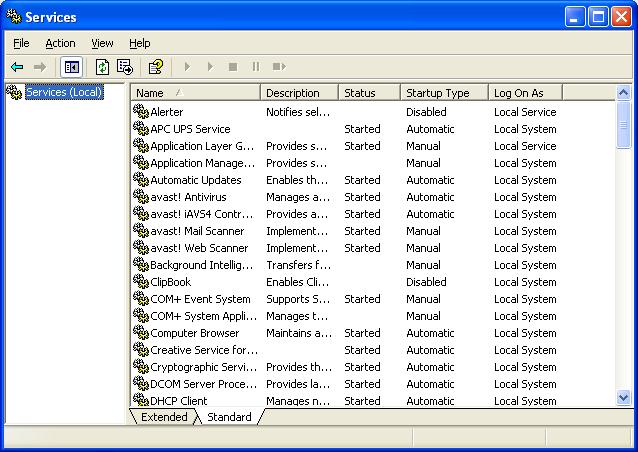
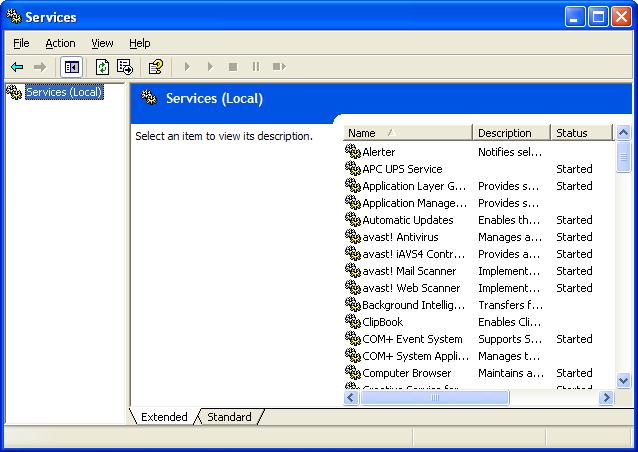
You start the Services wizard from Control Panel - Administrative Tools - Services.

You may use the Services wizard presented in Standard, or Extended, mode. The choice is yours.


Find the service that concerns you, and double click on it (or right click, and select "Properties").


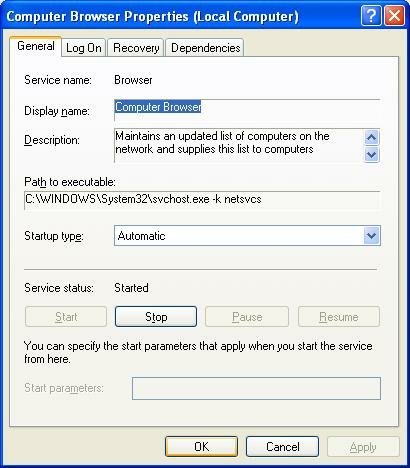
The Service name and Display name are two descriptors which are used, alternately, in various places. You should be aware of both values.

You may find Path to executable useful when you are researching an instance of "svchost.exe", using Process Explorer.

Startup type determines when, or if, it will ever be started.

Service status determines whether it is, or should be, running now.


  • If the service in question is running, and you want it stopped, hit "Stop", and wait while it stops.
  • If the service is not running, and you want it running, hit "Start" and wait.
  • If you want the service in question to start the next time the system starts, set Startup type to "Automatic".
  • If you want the service to be started the next time it is needed, set Startup type to "Manual".
  • If you want the service to never start, set the Startup type to "Disabled".

Dependencies shows other services that this service requires to be running, and other services that require this service to be running, before they themselves will start.
If the service wouldn't start, or if its Startup Type wouldn't change, it may have a dependency. Look on the Dependencies tab, under "This service depends upon the following system components". Make sure that everything there is present on the computer, and all services listed are Started. Also check the Event Viewer logs for clues. The Services Controller CLI You can also use the Services Controller, aka "SC", from a command window. Observe the spaces in the examples below; they are essential.
  • To find ot the status of the browser service, enter
    sc query browser
  • To stop the browser service, enter
    sc stop browser
  • To start the browser service, enter
    sc start browser
  • To disable the browser service at startup, enter
    sc config browser start= disable
  • To enable the browser service at startup, enter
    sc config browser start= auto
For more information about the Services Controller, see (KB166819): Using Sc.exe and Netsvc.exe to Control Services. If no help yet, check Event Viewer for additional clues. For more information about the many services, the Internet expert is BlackViper, and you can (currently) refer to his websites, Windows Vista Service Configurations, and / or Windows XP Service Configurations. Note that each service has TWO identities. Some utilities and wizards might use one identity to refer to a service, others might use the other. The Browser Service has, for instance,
  1. Service Name: Browser.
  2. Display Name: Computer Browser.
The Workstation Service has,
  1. Service Name: lanmanworkstation.
  2. Display Name: Workstation.
Don't be confused if you can't find a particular service in a list, or if the SC command doesn't seem to work. Make sure that you know both identities for the service that you're interested in. >> Top

NAS Has Its Own Limitations

I needed a larger hard drive to store my movie collection. My server was maxed out, and I didn't feel like buying a new computer, so I bought a computer in a box, aka Network Attached Storage.

But what makes NAS so attractive is also a limitation. Since NAS is, by design, accessible to all operating systems, you'll find that it's not predictable, like NTFS, and Windows Networking.


So NAS is a great solution, if you need a quick, inexpensive storage boost. But know the limitations, and choose your NAS solution carefully.

>> Top

Using The Internet As A WAN Link? Use A VPN.

Stable and secure Windows Networking depends upon properly designed, routed, subnets. IP routing was designed to make Local Area Networks connect, yet still observe geographical relationships. Using routers between LANs allows localisation of some domain services (browsing, name resolution), but wide spread availability of others.

When you route IP connectivity thru wiring that you own and control, that's behind a firewall, each connected LAN is as safe as any of the other LANs. Threats on the outside (Internet) stay on the outside. Two geographically separate LANs, connected by a dedicated, leased communication line, are as safe as each other is safe.

What if you have 2 LANs, distant from each other, and can't justify the expense (initial or ongoing) of a leased or owned communication line? If both LANs have Internet access, you can still connect them; just use the Internet as the WAN link.

But wait! I hope you know how dangerous the Internet can be. It's bad enough when accessing it as clients. Plain old web browsing is bad enough, how about running a server on the Internet? OK, how about running all of the computers on your LANs thru the Internet? Why not hold up a $100 bill, and stroll thru Times Square in New York City? See if you get anywhere alive.

But you can connect your LANs thru the Internet, if you design the connection properly. A controlled, encrypted tunnel between your LANs, using routers that support a Virtual Private Network (aka VPN) will do this fine.

A VPN will be a lot easier to setup, and more stable and secure, when properly planned.


>> Top

Each LAN Is Addressed By Its WAN Address.
The VPN routers setup static tunnels between each other. Setting up a VPN router requires identifying the other router(s), by its IP address as well as by a pre installed certificate (aka pre shared authentication key). If you can't provide a fixed IP address for each router, you'll have to use a domain name, registered with a dynamic DNS service like DynDNS, TZO, or the like.

>> Top

Hardware Compatibilty Is A Must.
There are various conventions and standards for establishing, and conducting, authentication and encryption in a VPN. Each router manufacturer will likely have some variation, however small. The easiest, and most stable, VPNs will use router hardware of the same make, model, and firmware level at each end of a VPN tunnel.

>> Top

LAN Subnets Must Be Unique.
A VPN provides a routed connection between LANs. In order for routing to work best, you have to have different subnets on each LAN. When you setup a VPN between LANs that were setup before being connected, you may have some LANs using the same subnet. You can't have stable LANs, each having the same subnet, connected by a router.

>> Top

Use DNS For Reliable Name Resolution.
On most small LANs, you'll use broadcasts for name resolution. Broadcasts aren't routable; each IP subnet is, by definition, a broadcast domain. If you want computers on one subnet to access computers on another (which is, presumably, why you're setting up a VPN), you'll find computer names more convenient than IP addresses. Some VPNs will, if configured, pass SMBs for name resolution and browsing, but this will likely slow down Windows Networking. DNS based name resolution is the best way to go, for anything more complex than a single local cluster of computers.

>> Top

Use Domains, Not Workgroups.
If you use Network Neighbourhood to identify and access other computers, you'll need browsing to work between the subnets connected thru the VPN. A properly designed domain structure will make browsing work much better.

>> Top

Connectivity Between Any LAN And The Internet Can Affect Its Connection With The Others.
A VPN connection between any two LANs requires regular interchange of control information, and irregular application data. Balanced connectivity makes both more predictable. If one LAN has a dual WAN business class DSL service, and the other has residential class dialup, how secure and stable will that VPN be?

>> Top

Security On Any LAN Can Affect The Others.
VPNs are used to connect geographically separate LANs, and imply some degree of trust between those LANs. The computers on any LAN, connected to a VPN, are only as secure as the computers on the LAN with the weakest security policies. Review, and synchronise security policies before setting up a VPN.

If you wish to setup a VPN between your home network and your work network, security at your work may be compromised. You should always get permission from LAN administration, before doing this. You may be legally at risk without such precautions.

>> Top

Increased Sophistication and Excess Bandwidth Mitigates These Issues.
As availability of VPNs has increased, with VPN capable hardware sold in WalMart and similar convenience stores, and as VPN firmware becomes more sophisticated, each endpoint in a VPN relationship will be better able to adjust to differences between its own environment and the environment present at the other end. Many of the above issues won't be quite as relevant in the future. But if you start out being aware of the issues, you will be prepared to deal with them when they do become relevant.

>> Top

The Network Language That Your Computer Speaks

If you have Windows XP, and you just ran the Network Setup Wizard, your computer most likely uses NetBIOS Over TCP/IP (NetBT). If all of your computers use this same language, and were all setup properly, the chances are good that you will be able to share files with them.

There are other languages that your computers might speak.


  • NetBT uses IPV4, the current Internet addressing scheme of nnn.nnn.nnn.nnn. IPV6 will expand this to xxxx.xxxx.xxxx.xxxx.xxxx.xxxx, giving IPV6 almost infinitely more address space than IPV4.
  • NetBT is more completely known as "Server Message Blocks hosted over NetBT". SMBs over NetBT is most useful in small LANs that use broadcasts for name resolution. If you have a LAN with a DNS server for local name resolution, you can Disable NetBT, and use SMBs directly hosted over IP.
  • There are odd circumstances where SMBs hosted over alternate protocols such as IPX/SPX or NetBEUI may be advisable.

Windows XP will support any of the above languages, if you already have a LAN, and want to keep your existing computers as they are right now. If you have a portable computer, and intend to use it on different networks, or if you have a small LAN and want to have the most choices in design and support available, using SMBs hosted over NetBT makes the most sense.

It's your computer, and your choice. Just know what the choices are, and how they may affect you. You may select IPV4, IPV6, IPX/SPX, and NetBEUI from the Network Connection Properties wizard. You Enable SMBs hosted over NetBT from the TCP/IP Properties - Advanced wizard.

>> Top

Know Who's Accessing The Server

Most computers in a workgroup will run as a server, and some computers in a domain will too. Servers do not have unlimited capacity to serve you, and occasionally, they run out of available connections. You'll be trying to access another computer, and you'll see a message that you don't want to see

No more connections can be made to this remote computer at this time because there are already as many connections as the computer can accept.


And this can also be an issue, when you need to know, in general, what your computer is doing.

So what do you do now? Do you run around, turning off some computers, just so another computer can connect, or just to see if this computer will stop doing what you're wondering about? Sometimes, that's the only diagnostic left to us, but just maybe you can be a bit more methodical, this time.

You can start by identifying who's accessing the server right now. And you can use either one of two tools.

Computer Management
Computer Management is a tool in the Administrative Tools section of Control Panel.

Under Computer Management, you find System Tools, then Shared Folders.


Shares enumerates each share on the server, and the number of connections that are in use for each share. This is where you start, when the server has exceeded its connection limit.


Sessions enumerates the accounts being used for access, and the remote computers, by IP address.


Open Files enumerates the open files and folders, and what accounts are being used for access.


The command window based Net command, with 3 of its sub commands, will provide information similar to the Shared Folders wizard.

Net Shares enumerates the shares on the server.

C:\>net share

Share name Resource Remark

-------------------------------------------------------------------------------
E$ E:\ Default share
IPC$ Remote IPC
D$ D:\ Default share
ADMIN$ C:\WINDOWS Remote Admin
C$ C:\ Default share
CDrive C:\
DDrive D:\
EDrive E:\
Quarantine E:\Quarantine
System Resources
E:\System Resources
Utility C:\Utility
The command completed successfully.


Net Sessions enumerates the remote computers (by IP address) and the accounts being used for access.

C:\>net sessions

Computer User name Client Type Opens Idle time

-------------------------------------------------------------------------------
\\192.168.203.100 CCROLL_ADMIN Windows 2000 2195 1 00:42:48
The command completed successfully.


Net Files enumerates the shared files or folders being accessed, and the accounts being used for access.

C:\>net file

ID Path User name # Locks

-------------------------------------------------------------------------------
3 E:\Temp\20060925 CCROLL_ADMIN 0
The command completed successfully.


>> Top

The NT Browser and Windows Networking

To find the various computers on a LAN, from each other, you generally open Windows Explorer (don't confuse this with Internet Explorer, please), and look in My Network Places. On a fully working LAN, this will work just fine. It doesn't always work that way though.

The contents of My Network Places (Network Neighbourhood, in some cases) are provided by a subsystem known as the NT Browser. The browser depends upon Server Message Blocks, and anything that interferes with SMBs will cause browser problems, and consequent problems in Network Neighbourhood.

In most cases, browser problems are symptoms of more basic network issues. Computer A and B should be equally visible, and accessible, from each other.

In one common scenario, Computer A shows both Computers A and B, as it should, and files on Computer B are accessible. On Computer B, either you don't see Computer A, or when you try to access Computer A, you get an error. You may, or it may not, see Computer B from itself. This visibility problem may be observed constantly, or it may come and go.


  • Since Computer B is accessible from Computer A, a permanent physical connectivity issue is unlikely, but still possible.
  • Besides physical problems, browser problems can have several possible causes. Browser functionality depends upon several relationships:

    • The browser server (ie the browser), and this computer. If this computer can't access its designated browser server, it may lack browse information, and / or have outdated information.
    • The browser server, and the client server (ie any computer being enumerated by the browser). A server, remember, is any computer being displayed in Network Neighborhood. If the browser server can't contact a client server, or if the client server uses a different browser, that server may not appear in Network Neighborhood.
    • The browser server, and the master browser (if not the same computer). If a browser server can't contact the master browser, it won't get the browse list aggregated by the master browser. Any client computers that use that browser won't have the browse list aggregated by the master browser.
    • The master browser for this domain / workgroup, and master browsers for other domains / workgroups. Any master browsers that can't contact other master browsers won't be able to exchange browse lists with them, and their clients won't have the browse lists for the other domains / workgroups.

  • Problems with any of the above relationships - now, or in the past - can cause various problems with Network Neighborhood. All computers won't try to access the browser simultaneously; if a browser problem just started, all computers won't reflect the problem immediately. If there is a problem, asymmetrical browse lists should be expected.


You will probably best address your problem by continuing with my troubleshooting guide, Irregularities In Workgroup Visibility.

>> Top

Firewall Behaviour - And Windows Networking

The classical personal firewalls, which would be installed on most personal computers in a typical Small Office / Home Office environment, block only specific network traffic. By default, they are open, and pass all traffic.

Modern firewalls, used by more cautious network experts, permit only specific network traffic. By default, they are closed, and pass no traffic. After installing this type of firewall, you must run a manager and configure the firewall to pass your desired traffic.

My suspicion is that the nVidia nForce hardware firewall falls in the latter category. If you don't run the firewall manager, it will pass only a minimum of traffic, probably just enough for you to surf to the nVidia website and get software upgrades. This intentionally blocks SMBs (whether NetBT hosted, or directly hosted), and protects against the dangers offered by Windows Networking. If you're going to use Windows Networking over TCP/IP, you must run the firewall manager, and intentionally configure it for Windows Networking.

Short of configuring the firewall for Windows Networking over TCP/IP, you have no choice but to install an alternate transport such as IPX/SPX or NetBEUI, which bypasses the firewall completely.

For ongoing discussion about this issue, see these threads in the Microsoft Public WindowsXP Network_Web forum:


  • Selling my soul to the devil is the next step...
  • NVIDIA "hidden firewall" causes networking problem, by the Original Poster in the previous thread
    If you have the NVIDIA nforce networking controller with onboard LAN, you may have a "hidden firewall" interfering with your network connection. I'll describe my own situation and how I resolved the problem. I owe great gratitude to Chuck, frequent poster in this group, who worked with me for about a week, and had suggested the possibility of the NVIDIA "hidden firewall", but I was reluctant to accept that because, well, it really was hidden and I couldn't find it (and still can't). But it was there. (For those who want to review the original thread, it was posted in this group under the title "networking only works one way" on 08/04/06.)

  • Networking only works "one way", with only my part of the thread provided, because the Other Poster's content was not archived.


>> Top

Advanced Windows Networking Using Internet Protocol

Windows Networking is the subsystem that lets you share files and printers, between computers running the various versions of Windows. Server Message Blocks, also called SMBs, are the foundation of Windows Networking. SMBs provide several crucial functions.


(Note): If you're not familiar with the concept of network layers, take a few moments and read about the OSI Network Model.

SMBs are not transported directly over the various physical networking components, as Layer 1 or 2 traffic. SMBs may be transported over Internet Protocol (IP), as well as alternate protocols like IPX/SPX or NetBEUI.

Windows Networking has historically used NetBIOS Over TCP/IP (NetBT) as an intermediate transport for SMBs over IP. Windows 2000, XP, and Vista however, will transport SMBs over IP, without NetBT, using directly hosted SMBs.

To remain compatible with the older versions of Windows, a Windows Networking client, running Windows 2000, Windows XP, or Windows Vista, can use either directly hosted SMBs, or it can use NetBT. If any server supports directly hosted SMBs, the client computer in question will bypass NetBT, when communicating with that specific server.

This dual compatibility, which allows Windows 2000 / XP / Vista clients to communicate with computers running other editions of Windows, is not without cost. Trying for two communications channels, when establishing a connection with any server, increases program complexity and network traffic. In some cases, it may increase latency.

We need to resolve one major misconception. It may appear that when you Disable NetBT, you are disabling Windows Networking over IP. This is not correct. When you Disable NetBT, you are merely disabling hosting of SMBs over NetBT. You then end up with SMBs hosted directly over IP. But look at address resolution on your LAN, before trying this. Don't make this change blindly.

If your LAN
  • Has a domain.
  • Has computers running only Windows 2000, Windows 2002 (aka Windows XP), Windows 2003 (aka Server 2003), Windows 2006 (aka Vista), and Windows 2009 (aka Windows 7).
  • Uses DNS, properly setup, for name resolution.
then you may wish to Disable NetBT, and (KB204279): use directly hosted SMBs. If any of the above are not true, you should Enable NetBIOS Over TCP/IP. Be consistent on all computers.

In the TCP/IP Properties - Advanced wizard, WINS, select Disable NetBIOS Over TCP/IP. Alternately, if you have the Default NetBIOS setting selected (instead of "Disable" or "Enable") on your client computers, and you have a DHCP server (not a NAT router with DHCP), you can disable NetBT from a DHCP server setting.

If you use directly hosted SMBs, whether alternately or exclusively, be aware of the security implications.
  • NetBT uses TCP and UDP ports 137 - 139.
  • Direct hosted SMBs use TCP port 445.

Be sure that all personal firewalls have the proper ports opened.

Here are the relevant ports used by SMBs over NetBT, per IANA port number allocation:

netbios-ns 137/tcp NETBIOS Name Service
netbios-ns 137/udp NETBIOS Name Service
netbios-dgm 138/tcp NETBIOS Datagram Service
netbios-dgm 138/udp NETBIOS Datagram Service
netbios-ssn 139/tcp NETBIOS Session Service
netbios-ssn 139/udp NETBIOS Session Service

And the relevant ports used by directly hosted SMBs:

microsoft-ds 445/tcp Microsoft-DS
microsoft-ds 445/udp Microsoft-DS


Similar to the effect of a personal firewall, SMBs can be setup to use secure channel communication, by using SMB Authentication and Encryption. If you ever see
The account is not authorized to log in from this station.

then check SMB Encryption and Signing settings.

And, if you have an integrated security suite (previously sold as anti-virus protection), you may have an anti-worm component protecting you. Anti-worm protection, if not correctly configured, may interfere with any or all of the above NetBT traffic. Different brands of products will cause different problems.

For more information:

>> Top

Layered Testing In Windows Networking

When you're working in Windows Networking - that is, the ability to share files, using named resources, between computers - you'll find sometimes that you can't access the files on one computer. Sometimes, you can't even see the files on another computer.

The challenge here is that the inability to see the files on another computer might be something as simple as your having kicked the network cable loose - or it might come from your having given a different workgroup name to the other computer. But how are you going to diagnose the problem?

Some folks will tell you, immediately

If you don't see the other computer in My Network Places, go to Entire Network - Microsoft Windows Network, and look there.


Now, if your physical network is solid, and the Internet Protocol is properly configured, then checking in Entire Network for a missing computer name is one of the next logical steps. But be aware of the lower layers, and check them, at least briefly. Maybe your network cable is broken, AND your computers are in different workgroups.

As I point out in Solving Network Problems - A Tutorial, Windows Networking is based on the OSI Network Model.

  • Windows Networking, in its default state, uses an application interface called NetBIOS Over TCP.
  • NetBIOS Over TCP, aka NetBT, uses TCP/IP for the logical network.
  • And in your home or small office, you'll likely have either Ethernet or WiFi. TCP/IP uses Ethernet, WiFi, and similar transports for physical connectivity.

When you test, observe those layers. Test from the bottom up.

  • Test Layers 1 & 2 - Physical & Data Link. If you have Ethernet, you'll have an Ethernet cable connecting either 2 computers, or one computer and a hub / switch / router. If you have WiFi, you'll have a computer connected to another computer, or to a similar WiFi hub / switch. Physical devices like Ethernet adapters, WiFi adapters, and hubs / switches / routers have diagnostics. Most have multi-colour lights. Find out about the diagnostics for each device. Learn what each colour means, and how it tells you that it detects a connection (or not).

  • Test Layer 3 - Network. If you verify that your computer is physically connected to another computer, or to the hub / switch / router, next check your IP settings. First, verify that the settings are good, using "ipconfig /all". Next, ping the other computer, or the router, and make sure that you get a consistent reply. If you get a partial reply (with some dropped packets), or if the reply time from the other device varies widely, do some more research. Here's where PingPlotter may come in handy.

  • Test Layer 7 - Application. If IPConfig and Ping indicate a good, solid, logical connection, look in My Network Places. If you don't see what you're hoping for, a combination of "browstat status" and "net config server" / "net config workstation" is a good diagnostic here. Coupled with "ipconfig /all", and compared against the same from the other computers involved, you can figure out just about any network problem.

  • Finally, if neither "ipconfig /all", "browstat status", "net config server", nor "net config workstation" indicates a problem, then do relational analysis using CDiag and CPSServ.

I'm aware that this just scratches the surface. But it's a start.

>> Top

Registry Settings Which Affect Access To Your Server

Windows NT based operating systems (NT, 2000, XP, Server 2003) use Access Control Lists (ACLs) to meter access to files and folders which are NTFS based. If your server uses NTFS (as most do), you should know how to create and modify ACLs, to allow or prevent access to specific files and folders.

Besides the NTFS ACLs, though, there are registry based settings that can affect the ability of your server to be seen, or accessed, by clients on the network. These settings work in addition to, or in spite of, the ACLs.


  • The Hidden setting will explicitly instruct the browser to not enumerate your server.
  • The restrictanonymous setting will affect the ability of your server to be enumerated by the browser, and the ability for it to be accessed by clients using the Guest account.
  • The RestrictNullSessAccess setting will affect the ability of specific shares to be accessed by clients using the Guest account.

If you are experiencing problems with visibility of, or access to, your server, and more obvious settings or personal firewalls are not the problem, check these registry settings.

>> Top