Showing posts with label NetBIOS Over TCP/IP. Show all posts

The Network Language That Your Computer Speaks

If you have Windows XP, and you just ran the Network Setup Wizard, your computer most likely uses NetBIOS Over TCP/IP (NetBT). If all of your computers use this same language, and were all setup properly, the chances are good that you will be able to share files with them.

There are other languages that your computers might speak.


  • NetBT uses IPV4, the current Internet addressing scheme of nnn.nnn.nnn.nnn. IPV6 will expand this to xxxx.xxxx.xxxx.xxxx.xxxx.xxxx, giving IPV6 almost infinitely more address space than IPV4.
  • NetBT is more completely known as "Server Message Blocks hosted over NetBT". SMBs over NetBT is most useful in small LANs that use broadcasts for name resolution. If you have a LAN with a DNS server for local name resolution, you can Disable NetBT, and use SMBs directly hosted over IP.
  • There are odd circumstances where SMBs hosted over alternate protocols such as IPX/SPX or NetBEUI may be advisable.

Windows XP will support any of the above languages, if you already have a LAN, and want to keep your existing computers as they are right now. If you have a portable computer, and intend to use it on different networks, or if you have a small LAN and want to have the most choices in design and support available, using SMBs hosted over NetBT makes the most sense.

It's your computer, and your choice. Just know what the choices are, and how they may affect you. You may select IPV4, IPV6, IPX/SPX, and NetBEUI from the Network Connection Properties wizard. You Enable SMBs hosted over NetBT from the TCP/IP Properties - Advanced wizard.

>> Top

Firewall Behaviour - And Windows Networking

The classical personal firewalls, which would be installed on most personal computers in a typical Small Office / Home Office environment, block only specific network traffic. By default, they are open, and pass all traffic.

Modern firewalls, used by more cautious network experts, permit only specific network traffic. By default, they are closed, and pass no traffic. After installing this type of firewall, you must run a manager and configure the firewall to pass your desired traffic.

My suspicion is that the nVidia nForce hardware firewall falls in the latter category. If you don't run the firewall manager, it will pass only a minimum of traffic, probably just enough for you to surf to the nVidia website and get software upgrades. This intentionally blocks SMBs (whether NetBT hosted, or directly hosted), and protects against the dangers offered by Windows Networking. If you're going to use Windows Networking over TCP/IP, you must run the firewall manager, and intentionally configure it for Windows Networking.

Short of configuring the firewall for Windows Networking over TCP/IP, you have no choice but to install an alternate transport such as IPX/SPX or NetBEUI, which bypasses the firewall completely.

For ongoing discussion about this issue, see these threads in the Microsoft Public WindowsXP Network_Web forum:


  • Selling my soul to the devil is the next step...
  • NVIDIA "hidden firewall" causes networking problem, by the Original Poster in the previous thread
    If you have the NVIDIA nforce networking controller with onboard LAN, you may have a "hidden firewall" interfering with your network connection. I'll describe my own situation and how I resolved the problem. I owe great gratitude to Chuck, frequent poster in this group, who worked with me for about a week, and had suggested the possibility of the NVIDIA "hidden firewall", but I was reluctant to accept that because, well, it really was hidden and I couldn't find it (and still can't). But it was there. (For those who want to review the original thread, it was posted in this group under the title "networking only works one way" on 08/04/06.)

  • Networking only works "one way", with only my part of the thread provided, because the Other Poster's content was not archived.


>> Top

Manual Network Setup Procedures

The Windows Network Setup Wizard, provided on computers running Windows XP, is a convenient way to setup your network. Sometimes though, you need to setup things manually.

In cases where you can't use the Network Setup Wizard, you'll be using the Network Connection Wizard.

  • Please start by reviewing Networking Your Computers, if you haven't already.
  • From Settings, open Network Connections. Find the network connection that you'll be using. The most common one is called Local Area Connection. Right click on the appropriate connection, and choose Properties. Make sure the following network components are installed, in the network items list.
    • Client for Microsoft Networks.
    • File and Printer Sharing for Microsoft Networks.
    • Internet Protocol (TCP/IP)
  • Make sure that the Internet Connection Firewall / Internet Connection Sharing (ICS) (pre-SP2), or Windows Firewall / Internet Connection Sharing (ICS) (SP2) service is running - Started and Automatic.
  • Configure your firewall setup, including installing any third party firewalls, after you run the wizard.


>> Top

Local Area Connection Properties
Start from the connection items list (Start - Settings - Network Connections in Windows XP). Right click on Local Area Connection, and select Properties. This will give you the Local Area Connection Properties wizard. If you have additional or alternate network devices, your connection may have a different name.


If you need to make changes to the network adapter, click on Configure. This will give you the Network Adapter Settings Wizard.


Make sure that the required protocols, for Windows Networking, are loaded. And make sure that you know what are loaded, and remove any that aren't necessary.


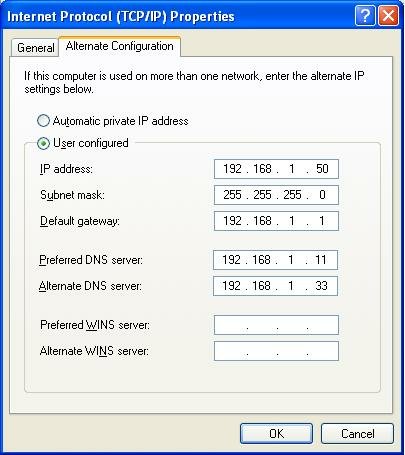
You'll likely be configuring TCP/IP as your primary network protocol. Double click on Internet Protocol (TCP/IP). This will open the TCP/IP Properties Wizard.


>> Top


In most cases, you'll use automatic (dynamic) settings.
  • Select Obtain an IP address automatically.
  • Select Obtain DNS server address automatically.
If you must make manual IP settings, you'll have up to 5 values to set.
  • IP address
  • Subnet mask
  • Default gateway
  • Preferred DNS server
  • Alternate DNS server
If you're just connecting 2 (or more) computers directly, IP address and subnet mask will be the only relevant entries. If you're connecting (2 or more) computers, and providing Internet service, you'll have also Default gateway and DNS servers to set.


>> Top


If you selected Obtain an IP address automatically, you'll have an opportunity to enter alternate settings too. If no DHCP server is available, you'll have static network settings, aka APIPA. This will let you connect with other computers on your immediate network (that are also using APIPA), and possibly other networks (with a gateway on the APIPA subnet).


>> Top

TCP/IP Properties - Advanced

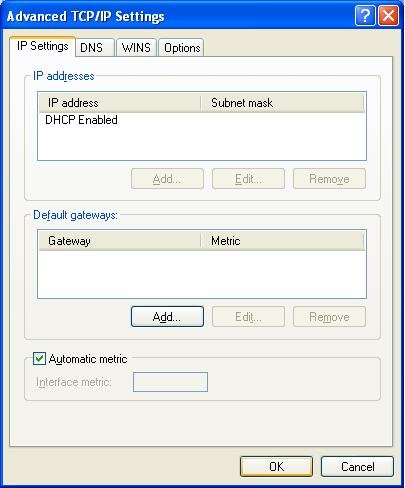
Sometimes you will need to make settings beyond the basic 5 on the TCP/IP Properties window. From TCP/IP Properties, hit the Advanced button at the bottom. This opens the Advanced TCP/IP Settings wizard.


If you selected Use the following IP address, you'll be able to have your computer use multiple IP addresses.

With either automatic or manual IP addresses, you'll have a chance to specify multiple gateways. If the default gateway isn't available, your computer will try an alternate gateway, automatically.

And here, you can adjust the metric for this connection. If you have multiple network connections, and one is faster or more reliable, you can influence IP routing. These selections are reflected in the static route table. This is important with a computer with multiple network connections.


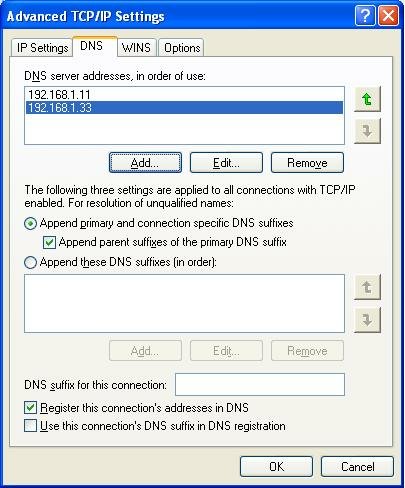
On the DNS tab, you have the ability to define more than 2 DNS servers. And additional DNS settings.


On the WINS tab, you will find the most frequently checked and set selection - the NetBIOS setting, aka NetBT.
  • If your LAN has a DHCP server (not a NAT router), you can select "Default", and control the setting from a setting in the DHCP server.
  • If you have a domain, and use DNS for name resolution, you can select "Disable", and use Direct Hosted SMBs.
  • If you don't know what any of this means, or if you have a small LAN without a DNS server, select "Enable".


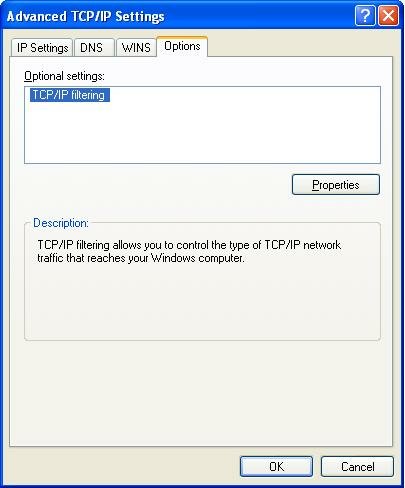
On the Options tab, you can set various TCP/IP filtering options.


>> Top

Advanced Windows Networking Using Internet Protocol

Windows Networking is the subsystem that lets you share files and printers, between computers running the various versions of Windows. Server Message Blocks, also called SMBs, are the foundation of Windows Networking. SMBs provide several crucial functions.


(Note): If you're not familiar with the concept of network layers, take a few moments and read about the OSI Network Model.

SMBs are not transported directly over the various physical networking components, as Layer 1 or 2 traffic. SMBs may be transported over Internet Protocol (IP), as well as alternate protocols like IPX/SPX or NetBEUI.

Windows Networking has historically used NetBIOS Over TCP/IP (NetBT) as an intermediate transport for SMBs over IP. Windows 2000, XP, and Vista however, will transport SMBs over IP, without NetBT, using directly hosted SMBs.

To remain compatible with the older versions of Windows, a Windows Networking client, running Windows 2000, Windows XP, or Windows Vista, can use either directly hosted SMBs, or it can use NetBT. If any server supports directly hosted SMBs, the client computer in question will bypass NetBT, when communicating with that specific server.

This dual compatibility, which allows Windows 2000 / XP / Vista clients to communicate with computers running other editions of Windows, is not without cost. Trying for two communications channels, when establishing a connection with any server, increases program complexity and network traffic. In some cases, it may increase latency.

We need to resolve one major misconception. It may appear that when you Disable NetBT, you are disabling Windows Networking over IP. This is not correct. When you Disable NetBT, you are merely disabling hosting of SMBs over NetBT. You then end up with SMBs hosted directly over IP. But look at address resolution on your LAN, before trying this. Don't make this change blindly.

If your LAN
  • Has a domain.
  • Has computers running only Windows 2000, Windows 2002 (aka Windows XP), Windows 2003 (aka Server 2003), Windows 2006 (aka Vista), and Windows 2009 (aka Windows 7).
  • Uses DNS, properly setup, for name resolution.
then you may wish to Disable NetBT, and (KB204279): use directly hosted SMBs. If any of the above are not true, you should Enable NetBIOS Over TCP/IP. Be consistent on all computers.

In the TCP/IP Properties - Advanced wizard, WINS, select Disable NetBIOS Over TCP/IP. Alternately, if you have the Default NetBIOS setting selected (instead of "Disable" or "Enable") on your client computers, and you have a DHCP server (not a NAT router with DHCP), you can disable NetBT from a DHCP server setting.

If you use directly hosted SMBs, whether alternately or exclusively, be aware of the security implications.
  • NetBT uses TCP and UDP ports 137 - 139.
  • Direct hosted SMBs use TCP port 445.

Be sure that all personal firewalls have the proper ports opened.

Here are the relevant ports used by SMBs over NetBT, per IANA port number allocation:

netbios-ns 137/tcp NETBIOS Name Service
netbios-ns 137/udp NETBIOS Name Service
netbios-dgm 138/tcp NETBIOS Datagram Service
netbios-dgm 138/udp NETBIOS Datagram Service
netbios-ssn 139/tcp NETBIOS Session Service
netbios-ssn 139/udp NETBIOS Session Service

And the relevant ports used by directly hosted SMBs:

microsoft-ds 445/tcp Microsoft-DS
microsoft-ds 445/udp Microsoft-DS


Similar to the effect of a personal firewall, SMBs can be setup to use secure channel communication, by using SMB Authentication and Encryption. If you ever see
The account is not authorized to log in from this station.

then check SMB Encryption and Signing settings.

And, if you have an integrated security suite (previously sold as anti-virus protection), you may have an anti-worm component protecting you. Anti-worm protection, if not correctly configured, may interfere with any or all of the above NetBT traffic. Different brands of products will cause different problems.

For more information:

>> Top

NetBIOS Over TCP/IP

Microsoft Windows, in its default state, uses TCP/IP, and NetBIOS Over TCP/IP, for networking. Sometimes, we forget this detail. NetBT is so easily overlooked, yet it is essential.

If we are looking at the output from "ipconfig /all", and we see


IP Address. . . . . . . . . . . . : 192.168.1.50
Subnet Mask . . . . . . . . . . . : 255.255.255.0
Default Gateway . . . . . . . . . : 192.168.1.1
DHCP Server . . . . . . . . . . . : 192.168.1.1
DNS Servers . . . . . . . . . . . : 192.168.1.11
192.168.1.33
NetBIOS over Tcpip. . . . . . . . : Disabled
Lease Obtained. . . . . . . . . . : Wednesday, April 16, 2003 11:19:12
Lease Expires . . . . . . . . . . : Wednesday, April 23, 2003 11:19:12


Obviously, we're going to correct that. But what if we simply see

IP Address. . . . . . . . . . . . : 192.168.1.50
Subnet Mask . . . . . . . . . . . : 255.255.255.0
Default Gateway . . . . . . . . . : 192.168.1.1
DHCP Server . . . . . . . . . . . : 192.168.1.1
DNS Servers . . . . . . . . . . . : 192.168.1.11
192.168.1.33
Lease Obtained. . . . . . . . . . : Wednesday, April 16, 2003 11:19:12
Lease Expires . . . . . . . . . . : Wednesday, April 23, 2003 11:19:12

Do we see any problem there? Probably not. Look in the TCP/IP - Advanced Properties wizard, WINS tab. There are 3 possible settings for NetBIOS Over TCP/IP
  • Default.
  • Enable.
  • Disable.

The last setting, Disable, becomes apparent when we see the first example above. But what if if we see the second example above? Well, that display can result from either the "Default", or the "Enable" setting. If it's not showing Disabled, it could be either.

The Default setting, according to the wizard, is for

Use NetBIOS setting from the DHCP server.

If your LAN
  • Has a domain.
  • Has computers running only Windows 2000, Windows 2002 (aka Windows XP), and Windows 2003 (aka Server 2003).
  • Uses DNS, properly setup, for name resolution.
then you may wish to disable NetBT, and use directly hosted SMBs.

But what if your LAN has a NAT router providing DHCP services, and / or has no domain? NAT routers are Operating System independent, and NetBT is a Microsoft Windows Networking feature. NAT routers have no setting for NetBIOS Over TCP/IP. If you select "Default", and you have a NAT router, what network functionality do you get?

The challenge is that this one setting affects multiple functions between your computer, and other computers, in both directions.
  1. Browsing: Ability to see other computers.
  2. File sharing: Ability to access resources on other computers.
  3. Name resolution: Ability to find out the addresses of other computers.


Depending upon what network hardware and software you have, any or all of the above functions may or may not work, in either direction (incoming or outgoing), between any pair of computers. And each different pair of computers may yield a different set of symptoms. If you have a NAT router providing DHCP services, the only way to deal with this reliably is to Enable NetBT consistently, on all computers.

In the TCP/IP - Advanced Properties - WINS wizard for all relevant network connections,

  • Select the radio button "Enable NetBIOS over TCP/IP".
  • Hit OK 3 times.
  • Close Network Connections, after enabling NetBT on all relevant network connections.

If you still see

NetBIOS over Tcpip. . . . . . . . : Disabled
after Enabling NetBT, check the TCP/IP NetBIOS Helper service.

Be safe - don't settle for "Default".

>> Top

Networking Your Computers

Setting up a computer network, whether to share files, or Internet service, can be a lot of fun. It's more fun, though, if you set it up properly, from the start. I'll try and make that possible, if you work with me.


>> Top

With the basic issues out of the way, you can get detailed instruction from plenty of websites, that will give you illustrated instructions. Here are but five, listed in alphabetical order.

If you have properly chosen and setup your equipment, advice from any one of the above should get your network in order. The various guides are written by different organisations, and each has a different style, so check them all out if possible. Find the one which works best for you.

>> Top

Solving Problems
If you're here because you have problems, please start by reading Solving Network Problems.

Now, what is your specific problem? Is it accessing the Internet? Then read Troubleshooting Internet Connectivity. Or is the problem with File Sharing? Then read Troubleshooting Network Neighborhood (Windows Networking).

One major issue that the websites listed above won't help you with, if your problem is with file sharing, is the browser. Now when I mention the browser, don't start with "My Internet access is not a problem". The browser is the program that provides the contents of Network Neighborhood on your LAN. It's frequently involved in problems when "I can't see the other computers", or "I get access denied when I try to access another computer". Please read my article Windows NT (NT/2000/XP/2003) and the Browser.

Do you have a LAN with both Windows 9x (95, 98, ME) computers and Windows NT (NT, 2000, XP) computers? Then you should read Windows 9x (95/98/ME) and the Browser.

>> Top

In Conclusion
All of the above articles link to dozens of other articles, so read carefully. And be patient with me, as I add to this blog occasionally. Check back here periodically. Or write to my Guestbook.

>> Top

Windows Networking And Alternate Transports

Windows Networking is the suite of programs that provide file and printer sharing between computers running Microsoft Windows (and compatible Operating Systems, such as Linux). Windows Networking runs at the Application level of the OSI Network Model, and, in its default configuration, uses NetBIOS Over TCP/IP (NetBT) and TCP/IP, for logical connectivity. It can be customised to use alternate transports, like IPX/SPX or NetBEUI.

Microsoft supports only NetBT and TCP/IP, though you may use IPX/SPX or NetBEUI, if you're prepared to deal with the support issues. There are advantages and disadvantages to using either alternative. (Update): Windows Vista will not support NetBEUI.

Similar in effect to IPX/SPX / NetBEUI, we have a commercial product called Network Magic. Network Magic requires no complicated configuration, you just install it and it works. Unfortunately, nobody that I know knows how it works, or if it's OSI Network compliant. And, just as the disadvantages of IPX/SPX / NetBEUI, if there's a problem with the network outside its scope of effect, you may not be able to diagnose such a problem as reliably as with IP.

Advantages Of Alternate Transports


  • No filtering problems. A misconfigured or overlooked personal firewall can cause problems with IP based networks. Neither IPX/SPX nor NetBEUI is affected by firewall problems.
  • Segments are isolated. Any separate networks, connected by routers, won't pass IPX/SPX or NetBEUI based traffic between them. Windows Networking simply won't leak onto any networks connected by routers, such as the Internet.
  • Easier to setup. There's no need to configure TCP/IP settings, both IPX/SPX and NetBEUI attach directly to the hardware, and both setup automatically.


Disadvantages Of Alternate Transports

  • Network complexity. You'll likely have redundant system components in use by each computer, and redundant network traffic between each computer.
  • Lack of diagnostics. The ipconfig and ping utilities can identify logical and physical connectivity problems on an IP network. This is not available on non-IP networks, and may not give consistent results when you deal with problems on mixed networks.
  • Lack of filtering. Firewalls only filter IP network traffic.
  • Limited effect. Using alternate transports provides a workaround only for TCP/IP configuration problems, or filtering problems. It does nothing for physical problems, or for problems caused by authentication / authorisation.
  • Only TCP/IP can link multiple segments. Any separate networks, connected by routers, won't pass IPX/SPX or NetBEUI based traffic between them. If your network is segmented, for physical reasons, you'll have to bridge the segments (which is, by design, what NBT does).
  • Have to be setup properly. If just one computer on the network attaches Windows Networking to NBT, convenience and security gains are eliminated.


>> Top

Filtering
IP traffic, by design, can be filtered by personal firewalls and routers. IPX/SPX and NetBEUI, which attach directly to the physical transport and in parallel to TCP/IP, are not affected by IP based filtering. This has its good side and its bad side.

If you're having a problem with a personal firewall on a computer, you can work around that problem. IPX/SPX and NetBEUI are not affected by personal firewalls.

However, if you depend upon a personal firewall providing protection against malicious network traffic, you won't have that. Any malicious network traffic, IPX/SPX or NetBEUI based, won't be filtered.

>> Top

Segmentation
IP traffic, by design, passes thru routers; IPX/SPX and NetBEUI traffic doesn't. This has its good side and its bad side.

If you have a network in a single segment, and you use IPX/SPX or NetBEUI to provide a transport for Windows Networking, all Windows Networking traffic will stay on that segment. All shares will be totally safe from malicious access from other network segments, including the Internet.

If your network includes multiple segments, connected by routers, and you use IPX/SPX or NetBEUI as a transport for Windows Networking, all Windows Networking traffic will stay on each segment. Computers on separate segments will be unable to access each other, unless you build bridges between the segments. NBT was designed as that bridge.

>> Top

Setup
A network, using IPX/SPX or NetBEUI, is easy to setup. It's not so easy to setup properly though.

A simple IPX/SPX or NetBEUI network, in a single segment, requires no configuration. Both transports essentially set themselves up. There's no subnetting or other complicated TCP/IP settings to make.

If you want to access the Internet from your computers, though, you will still have to have TCP/IP on each computer. If you do not separate Windows Networking from TCP/IP on even one single computer, your entire Windows Networking environment may be exposed. And without protection by personal firewalls, all computers may be at risk more than if they were using NBT.

>> Top

Complexity and Use of Network and System Resources

IPX/SPX and NetBEUI are not significantly more chatty than NBT, and do not use significantly more network or system resources. If your computers only use IPX/SPX or NetBEUI, there is no complexity or resource problem.

But, if your computers will be accessing the Internet too, you'll need TCP/IP on each computer. IPX/SPX, NetBEUI, and TCP/IP, although each run under the same operating system, use different system components. And while they each generate traffic on the same network, the content of that traffic is different. So, with multiple combinations of IPX/SPX, NetBEUI, and TCP/IP operating on your network, your computers will have to work harder (to use multiple protocols), and your network hardware will have to work harder (to transport multiple protocols, with a higher volume of traffic).

If Windows Networking functions like browsing, or name resolution, run thru dual protocols on one computer, or if all computers on the LAN aren't identically setup and different computers run services thru different protocols, you'll really have problems. And some problems might not be immediately obvious either.

Separating Internet traffic (using TCP/IP) from Intranet (Windows Networking) traffic (using IPX/SPX or NetBEUI) has an effect similar to using a Virtual LAN. But using a common protocol (TCP/IP) with a properly designed layered security strategy is more efficient in the long run.

>> Top

Network Diagnostic Tools

With any network, any time there's a problem, such as an "access denied" error, you'll want to first look for a possible physical problem (by observing the lights on the network devices, and by running Device Manager diagnostics). Having dismissed the physical possibility, on a TCP/IP network, you'll be looking at IPConfig, and pinging one computer from the other. You have to eliminate lower level problems, before you can diagnose higher level problems.

If you have TCP/IP on each computer, for Internet access, you can still use ipconfig and ping. But if Windows Networking is using a separate transport, neither ipconfig or ping will be conclusively valid.
  • Just because you have IP connectivity (valid ping results), that doesn't mean that you have IPX connectivity.
  • Just because your computers are on separate subnets (from a bad IP configuration, indicated by ipconfig), you can't expect to find a NetBEUI connectivity problem.
  • If you don't install TCP/IP on each computer (or if you completely detach it from any computer), then ipconfig, ping, and other IP based diagnostics won't provide consistently relevant results.


>> Top

Limitations of Effectiveness

If you have problems with either IP configuration, or with a personal firewall, either IPX/SPX or NetBEUI will provide a good workaround. But, if the problem causing the "access denied" error is a bad cable or connection, or if you haven't setup file sharing authentication / authorisation properly, you'll have the same problem with IPX/SPX or NetBEUI. But now you won't have diagnostic tools to identify the problem.

>> Top

Windows Networking

Windows Networking is the suite of programs that provide file and printer sharing between computers running Microsoft Windows (and compatible Network Operating Systems, such as Linux). If you reference the OSI Network Model, Windows Networking runs at the Application level. It uses Server Message Blocks over the lower network layers, such as Ethernet or WiFi, for connectivity.

By default, Windows Networking uses SMBs over NetBIOS Over TCP/IP (NetBT), and TCP/IP, for logical connectivity. It can be customised to use alternate transports, like IPX/SPX or NetBEUI, if you're prepared to deal with the support issues. On a large LAN with a dedicated DNS server for local name resolution, it can use SMBs directly bound to ("hosted on") Internet Protocol.

Whatever transport that you choose, though, all computers need to use the same one.

There are five concepts, which you need to understand, to deal with Windows Networking problems.


Domains / Workgroups
Computers are grouped in domains or workgroups, with membership in either grouping providing benefits.

We can browse My Network Places (known sometimes as "Network Neighborhood"), and see all nearby computers. The workgroup that we are in is the part of My Network Places that is nearest to us - those are the computers that we need access to the most. A workgroup provides a way of identifying the computers that relate closely to our computer.

A domain, on the other hand, is a collection of computers that trust each other. When your computer is joined to a domain, it sets up a two way trust, where the computer and the domain are trained to trust each other.
  1. You authenticate (login as a local administrator) to your computer.
  2. You allow a domain administrator to authenticate to the domain from your computer.
  3. Your computer learns to trust the domain. A "certificate" from the domain is added to your computer.
  4. The domain learns to trust your computer. A "certificate" from your computer is added to the domain.


The domain membership also gives workgroup visibility. You see the other members of "your" domain. as you would see the other members of "your" workgroup. But the two way trust in the domain is special.
  • You gain access to your computer thru domain authentication - you trust the domain, based upon the certificate from the domain that's now on your computer, and upon the credentials (domain account / password) that you supply.
  • You gain access to domain resources in a similar way, from the certificate from your computer that's now in the domain, and from the credentials that you supply.
  • Other people in your work area, and presumably in your domain, can potentially access your computer, as you access theirs.
  • For an allegorical description of two factor (certificate / credential) authentication, see Designing an Authentication System....


Most small LANs will use workgroups, although small domains are worthwhile. Domain membership provides two components - Authentication / Authorisation, and Browsing. Workgroup membership provides one component - Browsing. Workgroup membership provides no authentication / authorisation; that must be provided by redundant accounts setup on both the client and the server.

Outside of becoming invisible in Network Neighborhood, by changing your domain / workgroup membership, you are not adding to your security at all. Becoming invisible is simply a form of Security By Obscurity. If you're on a network with untrustable computers or people, making yourself invisible won't protect you; you need Layered Protection, including a perimeter and / or personal firewall.

>> Top

Name To Address Resolution
You might call the computer in your kitchen "Kitchen Computer", but it's a safe bet that your equipment will call it something more definitive, like "192.168.0.101" (an IP address), or "06-04-7A-D7-EF-BA" (a MAC address). The IP address, and the MAC address, are used by the various operating systems and network devices, to send message from computer to computer.

The process of translating a name like "Kitchen Computer" to an IP address like "192.168.0.101" is called name resolution. Name resolution is provided independently of domain / workgroup membership. A domain may contain a DNS or WINS server, but that's not a given. Less likely, but still possibly, a workgroup may contain either. Without a name resolution server, all computers use peer-peer name resolution. Please don't confuse peer-peer resolution with Node Type "Peer-Peer", which is just the opposite.

If your network (domain or workgroup) is setup properly, but does not contain a DNS or WINS server, all computers will use peer-peer broadcasts to resolve names. Using IP addresses to refer to computers should not be necessary, except in extreme situations. And, if you're using an alternate protocol, an IP address won't work at all.

>> Top

Browsing
Each domain / workgroup uses a browser server to tell it what resources are out there. For every domain / workgroup on a network, there should be at least one browser server in that domain / workgroup.

You can have computers in a workgroup, sharing a network with a domain. If a workgroup has its own browser server, the computers in the workgroup can see each other, and can see the computers in the adjoining domain.

If a workgroup has no browser server, its members will still be able to see each other, and the computers in the domain, if you make the workgroup name identical to the domain name. If you have a computer that's not a domain member, AND you give that computer a workgroup name identical to the domain name, the browser servers in the domain will provide visibility between that computer and the computers in the domain.

In order for browsing to work properly, several essential relationships have to exist between the various computers on the LAN in question.

Does your domain / workgroup occupy multiple subnets? If so, you need to know about Browsing Across Subnets. Do you maybe have two (or more) routers, but would prefer to have one subnet? If so, then read about File Sharing On A LAN With Two Routers.

>> Top

The Total Picture
Browsing is, arguably, not essential in a small LAN. Without the use of a browser server, a common workaround is to make an adhoc mapping to a share.

  • Hit the Start button.
  • Hit the Run button.
  • Type "\\OtherComputerName" (substituting the Other Computer Name, and less the ""), and hit Enter.


Or, you may make a persistent mapping from Windows Explorer.
  • Select Tools, then Map Network Drive, from the Windows Explorer menu.
  • Substitute the Server, and Share, into "\\Server\Share" as entered into the Folder: box.
  • Select "Reconnect at logon", if desired.
  • Select the Finish button.


Name resolution is not essential either. Without the use of name resolution, you can map a resource by substituting the ip address of the server for the name (again, if you're using NetBIOS Over TCP/IP as the transport).
  • Hit the Start button.
  • Hit the Run button.
  • Type "\\OtherComputerIPAddress" (substituting the Other Computer IP Address, and again less the ""), and hit Enter.


But, when you use Network Neighborhood (My Network Places) to provide a neat list of all the shared folders and printers on your network, you select and double click on a share, and you get a connection, you are using, in turn,

If you're having a problem with Network Neighborhood:
  • Network Neighborhood is empty, or lacks an entry for one or more computers that you know are there.
  • Computer A shows in Network Neighborhood for Computer B, but Computer B doesn't show in Network Neighborhood for Computer A.
  • You get an error "(Workgroup) is not accessible..." when opening Network Neighborhood.
  • You get a variant (and there are many variants here) of "not accessible / name not found ... access denied" when clicking on an entry in Network Neighborhood.

then you likely have a problem with either browsing, or name resolution. Diagnose Windows Networking first. If, and only if, you can't find any problems with Windows Networking, look at File Sharing. Whenever working on problems with Windows Networking, work from the bottom up.

You may also benefit from reading about Server Message Blocks, and Windows Networking.
>> Top

Authentication and Authorisation
Whether or not you do use the browser to list resources, and / or name resolution to locate the resources, you will still have to setup authentication and authorisation properly, if you wish to actually connect to, access, and change those resources. You can avoid use of the browser, and of name resolution; you cannot avoid authentication and authorisation.

>> Top

Local Name and Address Resolution On Your Computer

Hosts and LMHosts are local, fixed name resolution caches on your computer, invented before the concept of DNS. Their contents may cause the computer to bypass use of dynamic name resolution techniques like querying DNS, name broadcast, and / or WINS.

If your computer is attempting to resolve the name of a computer, and there's an entry in either Hosts (if DNS resolution is being used), or in LMHosts (if NetBIOS aka WINS resolution is being used) that matches the target name, resolution will stop there.

The Hosts (and similarly the LMHosts) file contains entries of the form:


nnn.nnn.nnn.nnn hostname

The first entry in Hosts, for instance, should be:

127.0.0.1 localhost

This entry is called the loopback address. It lets you reference the computer itself, from itself, without using any network hardware or software. The loopback address is an essential component in layered testing. It is referenced in a diagnostic sequence, for instance:

  • Ping 127.0.0.1.
  • Ping the computer by IP address.
  • Ping the computer by name.

There may be additional entries in Hosts. Some entries may be intentional, others may have been added without your knowlege. Know and understand the difference.

  • You may intentionally override dynamic resolution to create an alias to a server.
  • Malware has been known to hijack the Hosts file. This practice predates pharming, and has the same effect.
  • Many security strategies use the Hosts file to block access to known malicious websites.


Hosts and LMHosts are generally found in "%SystemRoot%\System32\drivers\etc". When in doubt, though, it's best to verify the registry entry which points to that location, as some malware may change the registry entry. Examine the value of registry entry [HKEY_LOCAL_MACHINE\SYSTEM\CurrentControlSet\Services\Tcpip\Parameters\DataBasePath], and make sure its value is as stated above. Any other value may point to a Hosts file hijack.

See TCP/IP and NBT configuration parameters for Windows XP for further information.

Whether or not you find your Hosts file hijacked in a registry setting, check the content of your Hosts file very carefully.

Both Hosts and LMHosts are simple text files, so you may view and/or edit either using Notepad. But view and edit them carefully; errors can have unpredictable results. Saving changes is tricky; you should save Hosts, for instance, as "Hosts." (note the period after "Hosts"), as type "All Files".

File Sharing On A LAN With Two Routers

File sharing on a LAN with a single segment (all computers connected to the same router) is fairly simple. Windows Networking uses Server Message Blocks (SMBs) broadcast between all computers. In most networks, SMBs are transported over IP.


  • Browser broadcasts help to advertise the existence of a computer to the others. This enables each computer to be displayed in My Network Places / Network Neighborhood.
  • Name resolution broadcasts help a computer find out the IP address of another computer. With Windows Networking transporting SMBs over IP, accurate and complete IP information is essential.

If you use Windows Networking in its native form, by opening My Network Places, and clicking on a server name, to see a list of its shares, you're using broadcasts. If you try to access a server by name, you're probably using broadcasts.

Now, you can't have every computer in the world broadcasting to every other computer. So, SMB broadcasts, by design, don't pass thru routers. One router = one subnet = one broadcast domain.

What if you need to have two or more routers on your LAN, but you need to have just one broadcast domain, so you can share files everywhere?

  • The primary router is to be next to the broadband modem, and you have to run a long cable to another room, with a secondary router, to connect wireless computers in there.
  • The primary router ran out of ports, so you used the secondary router to add capacity to your LAN.
  • It's simpler to run 1 cable elsewhere, and share that one cable using a router, than to run 2 (or more) separate cables from the primary router.
  • Your Internet service includes a modem that can only connect to the primary router. The primary router may be a computer running ICS.
  • The primary router is a wired router, and the secondary router is wireless.

In this example, you've got a pair of routers, and 4 computers. Router 1 is connected to your Internet service. Computers A and B, and Router 2, are all connected to Router1. Computers C and D are connected to Router 2. You have Computers A and B on their subnet (LAN 1), in one broadcast domain, and Computers C and D their subnet (LAN 2), in another broadcast domain.

That's a perfectly reasonable setup for Internet service, but it's not-so-great for file sharing. Computers A and B can see, and access each other. Likewise, Computers C and D can see and access each other. But neither Computer A nor B can see nor access C or D, and vice versa. It would be simpler if you would just get rid of Router 2, connect all computers to Router 1, and everything would be fine.

Maybe using 2 routers is something you just can't avoid, but nobody said that they have to both work as routers. What you do is only use Router 2 as a switch (or a WAP, if it's wireless) - you can still connect the computers to it, but Router 1 will be the only functioning router. It's a simple solution.

If you're lucky, and have a high end NAT router, your router may have a switch - maybe physical, maybe set in the router setup - that will put it into "Access Point Mode" or similar. Check your owners manual.

If not, you simply change the way the router is connected, and used.

In this exercise, the Router 1 LAN is 192.168.0.1, and the Router 2 LAN is 192.168.1.1.

  • Don't connect the WAN on Router 2 to anything. Connect a LAN port on Router 1, and Computers C and D, as peers, to a LAN port on Router 2.
  • Disable the DHCP server on Router 2.
  • Change the LAN on Router 2 from 192.168.1.1, to 192.168.0.254 (or any other address not in use, and not part of any DHCP scope).
  • Are you using DHCP on your LAN? If so, make sure that the DHCP server, on router 1, has a scope defined large enough to service all of the computers.
  • Restart each computer, so it gets a new IP address. This may always not be necessary with Windows XP / Vista, but be prepared to do this.

In a variant of this setup, Router 2 is distant from Router 1, and you won't be running Ethernet cables between the two. You'll configure Router 2 the same as in the above scenario, then put it into client mode connected to Router 1 by WiFi. Router 2 then becomes a WiFi bridge client, and provides service to Computers C and D, which connect to it by Ethernet.

And that's all you have to do. Router 1 is the only router (remember, the router has to sit between your LAN and the Internet, so that has to be Router 1). Router 2 still provides connectivity for Computers C and D, but it's working now as a switch (or WiFi AP). And all 4 computers - A, B, C, D - are now on the same broadcast domain, and the same subnet.

For another description of this solution, see DSLR Forums Using a Wireless Router as an Access Point (#11233)

>> Top

Windows XP (2000, Vista) On An NT Domain

If you're attaching a computer running Windows 2000, XP, or Vista, to a LAN with Windows NT systems, you may have a problem logging in to the domain, or accessing domain resources, if both the client computer and the domain aren't setup properly.

Windows 2000, XP, and Vista use DNS to locate Domain Controllers. If DNS is not configured properly, a computer will waste time waiting for a DNS query to timeout, then try NT4 NetBIOS (i.e., WINS) to locate a Domain Controller. See the Microsoft articles How Domain Controllers Are Located in Windows, or How Domain Controllers Are Located in Windows XP, for more information.

These specific instructions are known to apply to Server 2003; for Server 2000, or for NT server, details may differ.


  1. Ensure that the clients are all configured to use the domain DNS server. If you're using DHCP on your LAN, the DHCP server should provide the address of the domain DNS server, not your ISP's DNS server(s). If you're not using DHCP, each client should provide the address of the domain DNS server individually.
  2. Whether you use DHCP or not, don't specify your ISP's DNS server as a backup to your domain DNS server. If you're using DNS for name resolution, your ISP won't have your local addresses.
  3. Check Properties for the DNS server Forward Lookup Zone.
    • On the General tab, ensure the domain DNS server is configured to permit dynamic updates.
    • On the Name Servers tab, ensure the DNS server points to itself as a DNS server.
  4. Check Properties for the DNS server. For internet address resolution, specify your ISP's DNS server(s) in the Forwarders tab of the DNS server.
  5. When you have done all of the above, and if all of your computers can do so consistently, then you can use SMBs Directly Hosted Over IP.

You may find more information in additional Microsoft articles:


>> Top

Your Personal Firewall Can Either Help or Hinder You

One of the key elements in a layered defense strategy is a personal firewall on each computer. You need to protect each computer on your LAN from hostile Internet traffic, and sometimes, from hostile traffic coming from other computers on your LAN.

Unfortunately, if you don't setup your personal firewall properly, you can have problems.

A misconfigured or misbehaving personal firewall on one or more computers on your LAN can block access to the server, whether local (on your LAN) or remote (on the Internet), that you need to access. If your problems remain even after you configure your personal firewall, then you will need to try deactivating it, or un installing it.

Deactivating a firewall isn't always an effective solution. Many personal firewalls do not react well to being deactivated - you have to either configure them properly, or un install them. Un installation, depending upon the brand, may require intensive work, and may involve more than running a simple script from Control Panel or All Programs - (Name Of Firewall Product).

Once you deactivate or un install the firewall, you are unprotected. If you must deactivate or un install your firewall, only do this temporarily. If you're connected directly to the Internet (which is simply not a recommended setup, even with a personal firewall on the computer), disconnect from the Internet BEFORE doing this. After you get things working, then re install, reactivate, and configure a firewall on each computer, before reconnecting.

Configuring a personal firewall, to enable access to the desired services, may involve changing one or more settings. Please spend some time reading the documentation for the firewall in question. After reading the documentation, check the appropriate settings. For Windows Firewall, see Windows Firewall and Windows Networking.


  • Select the appropriate Protection ("paranoia") level.

  • Make sure that exceptions are permitted.

  • Select a preset exception or rule.

  • Configure the Trusted Zone. Be sure that the router, the DHCP and DNS servers (if separate), and the other computers on the LAN, are all Trusted. Get this wrong, and you could have various symptoms.
    • Not all computers might be visible in Network Neighbourhood.
    • Other computers might be visible, but in the "Internet Zone".
    • Other computers might be visible, but attempting to access some will result in the much feared "Access Denied".
    • Attempting to access any computer, local or Internet, may return the equally disliked "Name not found" or similar error.

  • Open the appropriate ports.


Please don't make the mistake of running two or more personal firewalls. Running more than one firewall will not add protection, it will just cause confusion and system malfunctions. If you're going to run a third party firewall, you must chose one and only one. Make sure that you're aware of all software products on your computer, that could act as a personal firewall.

  • Do you have an antivirus product (and if not, get one immediately!)? Some antivirus products come bundled with personal firewalls. F-Secure Internet Security, McAfee Internet SecuritySuite, and Norton Internet Security, for example, each contain both antivirus and personal firewalls (F-Secure Personal Firewall, McAfee Personal Firewall and Norton Personal Firewall, respectively). A newly installed Microsoft (KB923157): Windows Live OneCare may be an issue here.

  • Even if your antivirus is NOT part of a bundle, it may have a component that acts like a firewall. Some antitrojan, antivirus, and antiworm products can install components that cause these problems. As every security package struggles to keep up with the bad guys, and with competing products, features are constantly being added. Examine any antitrojan / antivirus / antiworm product with suspicion, when researching any otherwise unexplained network problem.
    • Read the manual / owners guide for your security product.
    • Google / Yahoo for your security product name / version. See if there are any reported similar problems.

  • Recent changes to Internet Explorer (likely the September 2007 security updates) have caused changes in the My Network Places (Network in Windows Vista) display, and possibly access problems.

  • The Microsoft AntiVirus / Personal Firewall bundle, Windows OneCare, doesn't operate as seamlessly as Windows Firewall, under Windows Vista. You may have to check the NetBT setting, or open some ports manually, to get Windows Networking to work with OneCare under Vista.

  • Server Message Blocks, or SMBs, are the lifeblood of Windows Networking. Make sure that all firewalls are setup to pass SMBs properly - whether you're using SMBs directly hosted on IP, or SMBs hosted on NetBIOS Over TCP.

  • Do you have a VPN endpoint on the computer? Many VPN endpoints are bundled with personal firewalls.

  • What network card do you have? Does it have an nVidia chipset? The nVidia nForce is probably the first, but surely not the last, device of this type.

  • Is a NAT router in the center of your LAN?
    • Most NAT routers use only a switch, connecting the LAN ports. But look carefully for a "DMZ", "Isolation Mode", "Virtual Server", or "VLAN" setting - either on a single port, or affecting the entire LAN. These options are becoming more popular on NAT routers which emphasise sharing Internet access, and make peer-peer connectivity optional.
    • Did you just change to a different NAT router? If the router changed recently, check the subnet that it creates. If the subnet has changed, all computers on the subnet, with firewalls or other security components that assign trust by IP address, may have to be updated to reflect the new subnet.

Don't get surprised, and waste a lot of time looking for a solution that may be right under your nose - check for a bundled firewall first.

If you're going to run a third party firewall, you must disable Windows Firewall, but only from the appropriate Control Panel applet - do not make the mistake of stopping the Windows Firewall service. The Windows Firewall service breaks several network services, if it is stopped.

Stop Windows Firewall from either the Security Center, or the Windows Firewall, applet. Settings - Control Panel, then either:
  • Security Center, and select Firewall Off.
  • Windows Firewall, and select Off.

Please leave the Windows Firewall / Internet Connection Sharing (ICS) service Started and Automatic, at all times. See Microsoft Threats and Countermeasures Guide: Chapter 7 for more information. Also, see (KB889320): When you disable the Windows Firewall service... for a problem acknowledged by Microsoft with a Hotfix.

On the other hand, if you decide to un install your newly discovered third party firewall, please read and observe precautions.

>> Top

Have Laptop Will Travel?

When you use a computer at the office, the office network provides several features that are transparent to you. When you use a portable computer there, then disconnect it from the office network, and carry it to a remote site, or maybe to your home network, there are issues which you need to consider.


IP Configuration
If you carry your computer from site to site, and connect to the networks at each site, this will work quite easily, as long as there is a DHCP server at each site to issue you an IP address, and DNS settings.

  • Open the Properties applet for your network connection (wired or wireless).
  • Under TCP/IP Properties, on the General tab, select "Obtain an IP address automatically" and "Obtain DNS server addresses automatically".


What if one site doesn't have a DHCP server? If just one site lacks a DHCP server, then you're in luck. Windows XP has provided for this situation.

If, as above, you select "Obtain an IP address automatically", you will then have an Alternate tab, where you provide settings for your computer to use when a DHCP server isn't available. The default setting here is to use (KB220874): APIPA, a self-assigned dynamic address, which should allow you to communicate with other computers, on any LAN, that are also using APIPA assigned addresses.

You can, if you wish, override the APIPA selection, and manually assign fixed IP address and DNS settings. These settings, like the APIPA selection, will be used when you're connected without using DHCP to provide configuration.

For more information, see Microsoft (KB283676): How to use the Alternate Configuration feature for multiple network connectivity in Windows XP, and Automatic Configuration for Multiple Networks.

If your travel involves more than one site without DHCP, you may need a more complex solution.

>> Top

Name / Address Resolution
If your computer is primarily used on a domain with a WINS, or DNS, server, it will probably be setup to use that server in name / address resolution. If taken to another network that has a different WINS or DNS server, or no server at all, name resolution may be a problem.

The worst scenario, in this case, would be a Peer-Peer node type configured on the computer, on a LAN with no WINS or DNS server. Here, you will have no resolution at all. NetBT based broadcast, which is essential on a LAN with no server, won't even be tried.

Other settings, besides Peer-Peer aka P-Node, may be problematic when used in a home workgroup. A Hybrid, aka H-Node, setting will require the computer to always attempt name resolution first from a server, then by broadcast. You'll notice slow response when locating resources. And a Mixed, aka M-Node, setting will take a long time when you try a name that doesn't exist.

See Address Resolution on the LAN, for more detail about the Node Type.

>> Top

Windows Networking (My Network Places / Network Neighborhood)
When you're connected to the office domain, the domain browser sets up the contents of Network Neighborhood for you. When you're connected to another domain, or to a workgroup, you won't necessarily see other computers directly in Network Neighborhood. You'll need to look in Entire Network - Microsoft Windows Network - (name of domain or workgroup).

Don't count on providing access to your computer thru Network Neighborhood. Most likely, other computers won't be able to see your computer, at all. You'd have to start the browser on the laptop, for the laptop to be displayed anywhere in Network Neighborhood on the other computers. You could cause problems on the domain later, if you carry your computer back to the office and connect it to the domain, with the browser started.

As pointed out below, please DO NOT join your laptop to the workgroup, without knowing the consequences you will face when you get back to the office.

Also note that both Name / Address Resolution and Browsing generally require NetBIOS Over TCP (NetBT), which is not used in many large networks, for efficiency and security.

>> Top

Domain / Workgroup Login and Authentication
If you login to a domain at the office, you're using a domain controller to authenticate your login, and possibly to provide authorisation for access to various resources there. When you're away from the domain, you'll need to login locally to your computer. Be sure that you have a local account on your computer that you can use.

Resources at other locations may not be so transparently accessed when you're logged in locally on your computer. You may have to check the setup of your laptop, and the other networks, if you're going to access Windows resources elsewhere.

But please do everybody a favour and DO NOT drop your computer from the domain, hoping to casually rejoin the domain, the next time you're in the office. Joining a computer to a domain involves setting up a two way trust, between the computer, and the domain. This is a significant security issue, and can't (shouldn't) be done casually.

Rejoining the domain will involve explaining to your overworked network admin why you have to do this again. And then there will be paperwork, and extra security tasks, on the domain controller. Don't put the two (or more) of you through that.

>> Top

Possible Solutions for Complex Situations
What if you travel to multiple sites where there's no DHCP server? Or what if there are sites with domains, and you need the ability to move between domains?

In this case, you'll need extra software, that remembers the appropriate settings for each different site. Three such products are:

You will need an experienced and authoritative support person, at each location, to help you run the above software. Joining a computer to a domain involves setting up a two way trust, between the computer, and the domain. This is a significant security issue, and can't (shouldn't) be done by just anybody. Be sure that you have the permission of onsite technical support personnel, if any are available. And be sure that you, or the person transporting the portable computer, has authority to make the changes to that computer when necessary.

>> Top

Two Connections To The Same LAN
If you have a portable computer, and you've setup a WiFi LAN in your house or office, you'll enjoy the freedom of moving around, at will, while still connected to the LAN. Even so, sometimes there will be times when the WiFi connection isn't enough. You'll never get rid of Ethernet, completely.

>> Top

Address Resolution on the LAN

On a small LAN, with no DNS or WINS server, you'll use NetBIOS Over TCP for local name resolution. NetBT based name to address resolution is a pretty complex process, and a rather common cause of problems in Windows Networking.

To identify a possible problem on your LAN, start by running "ipconfig /all" in a command window, or in a Windows Vista command window. The value of NodeType will tell you if you have a problem with network based resolution. Remember to allow for local resolution too.

You might see output similar to this:


Windows IP Configuration

Host Name . . . . . . . . . . . . : MyComputer
Primary Dns Suffix . . . . . . . :
Node Type . . . . . . . . . . . . : Broadcast

You might see any of 5 values for Node Type, and the various values will have varying effects on address resolution.


>> Top

Broadcast Node Type
For a small LAN with no name server, Broadcast, or B-node, makes the most sense. Broadcast simply resolves by broadcasting an address query to all computers on the subnet, then responds promptly with "name not found" if no response is received from the broadcast.

Note that Broadcast, and the variants of Broadcast (Hybrid / Mixed), depend upon packets broadcast over NetBIOS Over TCP (NetBT). Make sure that your DHCP server, if you have one, is setup to enable NetBT. If you're on a small LAN with a NAT router providing DHCP, make sure that NetBT is explictly Enabled on each computer, and make sure that all personal firewalls are properly configured for NetBT. Without NetBT, you'll need a DNS server, for name resolution.

Also note that the effect of NetBT Broadcast name resolution is much more pronounced on a large LAN with slow network speed, or with congestion. In a small LAN, with modern, high-speed components, the effects of NetBT broadcast will be minimal. For most small LANs, NetBT Broadcast is a perfectly acceptable method of name resolution.

>> Top

Hybrid Node Type
Node type Hybrid, or H-node, will work on a small LAN, but it may cause response issues. Hybrid queries the name server first, using directed NetBT, not broadcast NetBT. If there is no name server, the computer has to wait for the name server query to time out, before trying to resolve by Broadcast.

>> Top

Mixed Node Type
Node type Mixed, or M-node, will work on a small LAN, but it may cause response issues when trying to resolve invalid names. Mixed tries Broadcast first, then queries the name server if no response is received to the broadcast. If a computer with the desired name does not exist, the computer has to wait for the name server query to time out before responding with an error 53, "name not found".

>> Top

Peer-Peer Node Type
Node type "Peer-Peer", more appropriately called "Point-Point", is a problem on most small LANs. That means MyComputer requires a WINS server to resolve names. No WINS server means no name resolution, no access to its shared resources, and the dreaded "Name Not Found" error (among various symptoms).

Microsoft has documented (KB903267): a fix for this. You'll need to run the Registry Editor on MyComputer. You need to find the key [HKEY_LOCAL_MACHINE \SYSTEM \CurrentControlSet \Services \NetBT \Parameters], and delete these two values (which ever is there):

  • NodeType
  • DhcpNodeType

After restarting the computer, rerun IPConfig and examine the results.

>> Top

Unknown Node Type
An Unknown node type, if a WINS server is configured, will be treated as Hybrid. If you actually have a WINS server, then fine. If not, this could cause name resolution latency.

On a small LAN, with no WINS configuration, Node Type Unknown should not be a problem - Unknown will be treated as Broadcast. However, Microsoft has documented (KB310570): a fix for this, if seeing "Unknown" bothers you.

To resolve this issue, use Registry Editor (Regedit.exe) to locate the following key in the registry:
HKEY_LOCAL_MACHINE \System \CurrentControlSet \Services \Netbt \Parameters
Change the value of the EnableProxy value in the preceding registry key to 0 or 1, quit Registry Editor, and then restart your computer.

The above fix simply says to change the value specified. Some people discover that their system has no registry entry for that value. If that's the situation you find yourself in, simply add a REG_DWORD value of that name, with value "0". Apparently, changing (or adding) that value forces the system to recalculate the correct value of NodeType.

>> Top

Changing The Node Type

There's no GUI applet to change Node Type. You'll have to use the Registry Editor, and change value [HKEY_LOCAL_MACHINE \SYSTEM \CurrentControlSet \Services \NetBT \Parameters \DHCPNodeType], or [HKEY_LOCAL_MACHINE \SYSTEM \CurrentControlSet \Services \NetBT \Parameters \NodeType] (which ever is there), or add [HKEY_LOCAL_MACHINE \SYSTEM \CurrentControlSet \Services \NetBT \Parameters \NodeType].

Value Node Type
1 Broadcast.
2 Peer-Peer.
4 Mixed.
8 Hybrid.


>> Top

The Total Picture

Microsoft, in Microsoft Windows NT Browser: Microsoft TCP/IP and Name Resolution, summarises the sequence of events involved in NetBT based name resolution.


(Click on either of the above 2 images for a larger view).

For more information, see:


>> Top