Showing posts with label DNS. Show all posts

Using A DNS Relay On Your LAN

As I discuss in The DNS Server Settings On Your Computer, your ability to resolve server names into addresses is almost as important as the ability to contact the servers in the first place. The DNS client structure, which provides name resolution on your computer, allows for several possibilities.

If your Internet service goes thru a NAT router, you may be using the router as a DNS relay.


DNS Servers . . . . . . . . . . . : 192.168.0.1

Normally, as I discuss in the other article, you would not want a single DNS server. But if you have Internet service thru a single failure point (the NAT router), you might as well get DNS there too. If the NAT router goes out, you won't need DNS. Simplifying your setup makes sense here.

If you have a collection of computers, you can configure all of them to use the NAT router as an intermediary DNS server. The router maintains the actual DNS server relationships with its upstream feeds, checking the primary, secondary, even tertiary servers, as necessary. Each client has to worry about one relationship - the router.

But this can be a problem in one case. If your NAT router can be overloaded, it's possible that DNS relay functions may fail, while simple routing continues. The DNS relay function in ICS, if your Internet service depends upon an ICS server, appears to be subject to interruption when CPU load on the system is high.

This may be yet another reason why ICS is not a good solution for sharing Internet service.

>> Top

Manual Network Setup Procedures

The Windows Network Setup Wizard, provided on computers running Windows XP, is a convenient way to setup your network. Sometimes though, you need to setup things manually.

In cases where you can't use the Network Setup Wizard, you'll be using the Network Connection Wizard.

  • Please start by reviewing Networking Your Computers, if you haven't already.
  • From Settings, open Network Connections. Find the network connection that you'll be using. The most common one is called Local Area Connection. Right click on the appropriate connection, and choose Properties. Make sure the following network components are installed, in the network items list.
    • Client for Microsoft Networks.
    • File and Printer Sharing for Microsoft Networks.
    • Internet Protocol (TCP/IP)
  • Make sure that the Internet Connection Firewall / Internet Connection Sharing (ICS) (pre-SP2), or Windows Firewall / Internet Connection Sharing (ICS) (SP2) service is running - Started and Automatic.
  • Configure your firewall setup, including installing any third party firewalls, after you run the wizard.


>> Top

Local Area Connection Properties
Start from the connection items list (Start - Settings - Network Connections in Windows XP). Right click on Local Area Connection, and select Properties. This will give you the Local Area Connection Properties wizard. If you have additional or alternate network devices, your connection may have a different name.


If you need to make changes to the network adapter, click on Configure. This will give you the Network Adapter Settings Wizard.


Make sure that the required protocols, for Windows Networking, are loaded. And make sure that you know what are loaded, and remove any that aren't necessary.


You'll likely be configuring TCP/IP as your primary network protocol. Double click on Internet Protocol (TCP/IP). This will open the TCP/IP Properties Wizard.


>> Top


In most cases, you'll use automatic (dynamic) settings.
  • Select Obtain an IP address automatically.
  • Select Obtain DNS server address automatically.
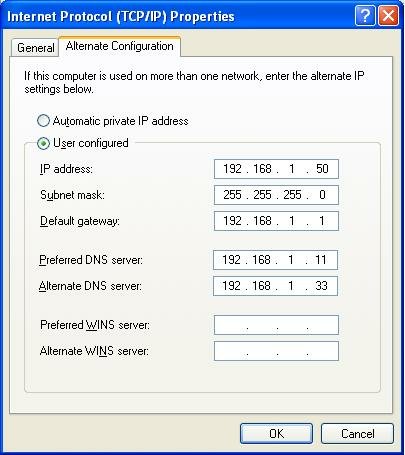
If you must make manual IP settings, you'll have up to 5 values to set.
  • IP address
  • Subnet mask
  • Default gateway
  • Preferred DNS server
  • Alternate DNS server
If you're just connecting 2 (or more) computers directly, IP address and subnet mask will be the only relevant entries. If you're connecting (2 or more) computers, and providing Internet service, you'll have also Default gateway and DNS servers to set.


>> Top


If you selected Obtain an IP address automatically, you'll have an opportunity to enter alternate settings too. If no DHCP server is available, you'll have static network settings, aka APIPA. This will let you connect with other computers on your immediate network (that are also using APIPA), and possibly other networks (with a gateway on the APIPA subnet).


>> Top

TCP/IP Properties - Advanced

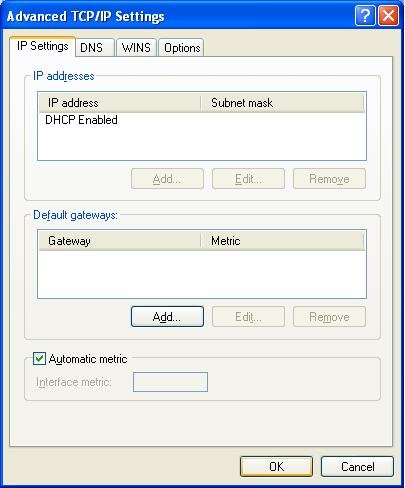
Sometimes you will need to make settings beyond the basic 5 on the TCP/IP Properties window. From TCP/IP Properties, hit the Advanced button at the bottom. This opens the Advanced TCP/IP Settings wizard.


If you selected Use the following IP address, you'll be able to have your computer use multiple IP addresses.

With either automatic or manual IP addresses, you'll have a chance to specify multiple gateways. If the default gateway isn't available, your computer will try an alternate gateway, automatically.

And here, you can adjust the metric for this connection. If you have multiple network connections, and one is faster or more reliable, you can influence IP routing. These selections are reflected in the static route table. This is important with a computer with multiple network connections.


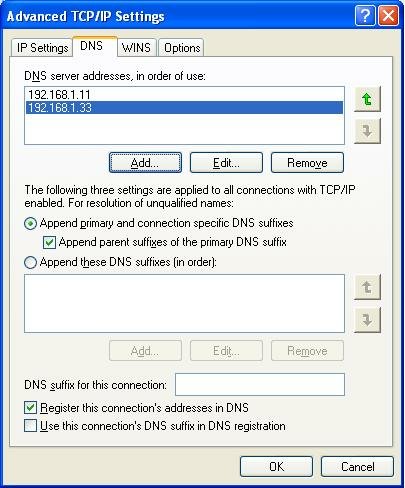
On the DNS tab, you have the ability to define more than 2 DNS servers. And additional DNS settings.


On the WINS tab, you will find the most frequently checked and set selection - the NetBIOS setting, aka NetBT.
  • If your LAN has a DHCP server (not a NAT router), you can select "Default", and control the setting from a setting in the DHCP server.
  • If you have a domain, and use DNS for name resolution, you can select "Disable", and use Direct Hosted SMBs.
  • If you don't know what any of this means, or if you have a small LAN without a DNS server, select "Enable".


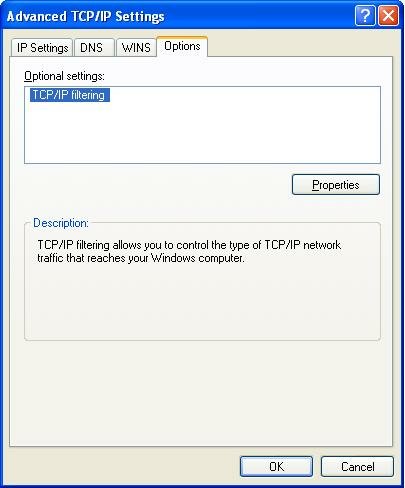
On the Options tab, you can set various TCP/IP filtering options.


>> Top

Advanced Windows Networking Using Internet Protocol

Windows Networking is the subsystem that lets you share files and printers, between computers running the various versions of Windows. Server Message Blocks, also called SMBs, are the foundation of Windows Networking. SMBs provide several crucial functions.


(Note): If you're not familiar with the concept of network layers, take a few moments and read about the OSI Network Model.

SMBs are not transported directly over the various physical networking components, as Layer 1 or 2 traffic. SMBs may be transported over Internet Protocol (IP), as well as alternate protocols like IPX/SPX or NetBEUI.

Windows Networking has historically used NetBIOS Over TCP/IP (NetBT) as an intermediate transport for SMBs over IP. Windows 2000, XP, and Vista however, will transport SMBs over IP, without NetBT, using directly hosted SMBs.

To remain compatible with the older versions of Windows, a Windows Networking client, running Windows 2000, Windows XP, or Windows Vista, can use either directly hosted SMBs, or it can use NetBT. If any server supports directly hosted SMBs, the client computer in question will bypass NetBT, when communicating with that specific server.

This dual compatibility, which allows Windows 2000 / XP / Vista clients to communicate with computers running other editions of Windows, is not without cost. Trying for two communications channels, when establishing a connection with any server, increases program complexity and network traffic. In some cases, it may increase latency.

We need to resolve one major misconception. It may appear that when you Disable NetBT, you are disabling Windows Networking over IP. This is not correct. When you Disable NetBT, you are merely disabling hosting of SMBs over NetBT. You then end up with SMBs hosted directly over IP. But look at address resolution on your LAN, before trying this. Don't make this change blindly.

If your LAN
  • Has a domain.
  • Has computers running only Windows 2000, Windows 2002 (aka Windows XP), Windows 2003 (aka Server 2003), Windows 2006 (aka Vista), and Windows 2009 (aka Windows 7).
  • Uses DNS, properly setup, for name resolution.
then you may wish to Disable NetBT, and (KB204279): use directly hosted SMBs. If any of the above are not true, you should Enable NetBIOS Over TCP/IP. Be consistent on all computers.

In the TCP/IP Properties - Advanced wizard, WINS, select Disable NetBIOS Over TCP/IP. Alternately, if you have the Default NetBIOS setting selected (instead of "Disable" or "Enable") on your client computers, and you have a DHCP server (not a NAT router with DHCP), you can disable NetBT from a DHCP server setting.

If you use directly hosted SMBs, whether alternately or exclusively, be aware of the security implications.
  • NetBT uses TCP and UDP ports 137 - 139.
  • Direct hosted SMBs use TCP port 445.

Be sure that all personal firewalls have the proper ports opened.

Here are the relevant ports used by SMBs over NetBT, per IANA port number allocation:

netbios-ns 137/tcp NETBIOS Name Service
netbios-ns 137/udp NETBIOS Name Service
netbios-dgm 138/tcp NETBIOS Datagram Service
netbios-dgm 138/udp NETBIOS Datagram Service
netbios-ssn 139/tcp NETBIOS Session Service
netbios-ssn 139/udp NETBIOS Session Service

And the relevant ports used by directly hosted SMBs:

microsoft-ds 445/tcp Microsoft-DS
microsoft-ds 445/udp Microsoft-DS


Similar to the effect of a personal firewall, SMBs can be setup to use secure channel communication, by using SMB Authentication and Encryption. If you ever see
The account is not authorized to log in from this station.

then check SMB Encryption and Signing settings.

And, if you have an integrated security suite (previously sold as anti-virus protection), you may have an anti-worm component protecting you. Anti-worm protection, if not correctly configured, may interfere with any or all of the above NetBT traffic. Different brands of products will cause different problems.

For more information:

>> Top

Identifying A DNS Problem In Your Internet Service

DNS, which lets you translate a host name or URL into an IP address, is a key process in Internet use. Sometimes, though, it doesn't work. You try to browse to http://www.example.com, and you get a cryptic

Firefox can't find the server at www.example.com.

or
We can't find "www.example.com"

or worse, sometimes the classical
404 Not Found

Or even, the white screen of death - no error - no response.

Now the above example symptoms could have been caused by any of several scenarios.

  1. Host www.example.com doesn't exist.
  2. Host www.example.com isn't operational today.
  3. Your DNS (that translates www.example.com into an IP address) isn't working.
  4. Your MTU setting is causing a problem with accessing www.example.com.
  5. (This is not fiction, folks) - Your ISP, or a government agency, is intentionally blocking your access to www.example.com.
  6. You don't have Internet connectivity.


What to do now? Well, if your Internet connectivity is down, you've got different work to do. But, if you can access any other web sites, or if you're otherwise certain that your service is not the problem, then make sure that your DNS is working. To do this:

  • Find out the IP address of the web site. There are various web sites all over the Internet that will let you use their DNS servers, thru your browser. I use 2 web sites, consistently, and keep their URL and IP addresses available.

    1. All Net Tools, by IP address: http://216.92.207.177/toolbox .
    2. All Net Tools, by name: http://www.all-nettools.com/toolbox .
    3. DNS Stuff, by IP address: http://66.36.247.82/ .
    4. DNS Stuff, by name: http://www.dnsstuff.com/ .

    I use either of those two web sites; in case one goes down I use the other. And, if I'm researching a DNS problem, I access either one by its IP address. Finally, given the possibility that one or the other might change its IP address, I can hopefully resolve its name, using the other website. So, I keep all 4 addresses handy.

    • For All Net Tools, I enter the web site URL into the "SmartWhois" window, and hit Enter or Go!.
    • For DNS Stuff, I enter the web site URL into the "DNS lookup" window, and hit Enter or Lookup.

  • Conduct a simple 4 step test. In this example, I'll target www.yahoo.com, which uses (among many others) 66.94.230.33. Feel free to use whatever web site, for your testing, that pleases you.
    • Clear all caches, to ensure consistency.
      • Clear DNS cache. From a command window, enter "ipconfig /flushdns".
      • Clear the cache in your browser.
        • From Firefox, Tools - Options - Privacy - Cache - Clear Cache Now.
        • From Internet Explorer, Tools - Internet Options - Temporary Internet files - Delete Files.
    • From a command window:
      1. Ping www.yahoo.com.
      2. Ping 66.94.230.33.
      3. Note success / exact text of error messages.
    • From your browser:
      1. Browse www.yahoo.com.
      2. Browse 66.94.230.33.
      3. Note success / exact text of error messages.

  • Now, consider the results of the tests.
    • If you see a difference between both IP address accesses, as compared to both named accesses, you very likely have a DNS problem.
    • If you can ping (with a successful return), but not browse, with identical results for IP address and name, you may well have an MTU setting problem.
    • If you see a combination of results, you may need to research BOTH a DNS and MTU problem.
    • If the tests aren't conclusive, consider the ubiquitous LSP / Winsock corruption problem.
If you want to read a more detailed description of this diagnostic technique, check out Roberto's Report: DNS and MTU - Interpreting Results.

>> Top

The DNS Server Settings On Your Computer

Domain Name Services, or DNS, is a critical service on almost all Local and Wide Area Networks. DNS is used for host name to IP address resolution of all Internet hosts, many WAN hosts, and may be used for address resolution of LAN hosts too. DNS resolution is so important that Windows supports configuration of 2 DNS servers in basic IP configuration; with more work, you can define even 3 or more DNS servers. Many NAT routers will let you define up to 3 DNS servers.

Any time you try to access a server on the Internet, and get "server not found" or "unknown host", check your DNS server settings. Run "ipconfig /all", and look for the DNS servers entry, such as:


DNS Servers . . . . . . . . . . . : 192.168.1.11
192.168.1.33


The DNS server sequence is important. When DNS resolution is needed, server #1 is queried first. If server #1 is busy or otherwise unavailable, server #2 is used in that query, and all subsequent queries. If server #2 is needed to provide a backup to server #1, server #1 may not be used again, until you reset the computer or router. This behaviour is not consistent, though, some DNS clients may always try DNS Server #1 first, then #2, and finally (if defined), #3.

If you're researching a problem where the symptoms indicate a DNS issue, and the problem isn't consistent between computers, compare the DNS server settings on each computer.

If all DNS servers in the sequence don't have balanced ability (availability, capacity, connection to higher level DNS server), you can get to a situation where the next server in the sequence is used, and won't provide consistent service. Resetting the DNS client, generally by restarting the computer or router, after DNS server #1 is returned to service, is the normal recovery from this problem.

Recognising a DNS problem may not be easy, though. Without some minimal diagnosis, a DNS problem can be confused with a physical connectivity problem, a security problem, or even a simple CKI fault.

The long term solution, for a DNS server sequence problem, is to have a properly balanced DNS server sequence. Many networks plan their primary DNS server very carefully, and throw a surplus (generally old and underpowered) computer in as the secondary. Some networks may even have 2 primary servers (with the clients split between the two), and an single, surplus, secondary.

What happens when the primary DNS server goes down? If your clients are using the secondary server suddenly, and it doesn't have the same capacity as the primary server, you're going to have performance problems. Make sure that your backup server is equal to the task of replacing, even temporarily, the primary server. Remember that the clients will be using the backup server, after the primary server comes back online. And if there's a chance that a secondary DNS server will be in use during an outage of other equipment, don't compound the stress. The stress that your clients experience will be passed on to you, generally doubled.

If you relay DNS requests to external DNS servers, and ones that you don't control, again try to specify servers of equal ability. Also, make sure that both external servers have good servers feeding them, and that they are secured against exploits that would permit pharming. If, for any reason, some of your clients are using the backup external server, and others the primary, both servers need to be able to resolve your DNS queries properly. If either server filters addresses differently, for instance, you'll have some clients able to access websites that other clients can't. Again, more stress for you.

If you're using DNS for address resolution on your LAN, make sure that both the server and all clients are setup properly.

If your Internet service goes thru a NAT router, you may be using the NAT router as a DNS relay.

If you think that you have a DNS problem, but aren't quite sure, read Identifying A DNS Problem In Your Internet Service.

>> Top

Local Name and Address Resolution On Your Computer

Hosts and LMHosts are local, fixed name resolution caches on your computer, invented before the concept of DNS. Their contents may cause the computer to bypass use of dynamic name resolution techniques like querying DNS, name broadcast, and / or WINS.

If your computer is attempting to resolve the name of a computer, and there's an entry in either Hosts (if DNS resolution is being used), or in LMHosts (if NetBIOS aka WINS resolution is being used) that matches the target name, resolution will stop there.

The Hosts (and similarly the LMHosts) file contains entries of the form:


nnn.nnn.nnn.nnn hostname

The first entry in Hosts, for instance, should be:

127.0.0.1 localhost

This entry is called the loopback address. It lets you reference the computer itself, from itself, without using any network hardware or software. The loopback address is an essential component in layered testing. It is referenced in a diagnostic sequence, for instance:

  • Ping 127.0.0.1.
  • Ping the computer by IP address.
  • Ping the computer by name.

There may be additional entries in Hosts. Some entries may be intentional, others may have been added without your knowlege. Know and understand the difference.

  • You may intentionally override dynamic resolution to create an alias to a server.
  • Malware has been known to hijack the Hosts file. This practice predates pharming, and has the same effect.
  • Many security strategies use the Hosts file to block access to known malicious websites.


Hosts and LMHosts are generally found in "%SystemRoot%\System32\drivers\etc". When in doubt, though, it's best to verify the registry entry which points to that location, as some malware may change the registry entry. Examine the value of registry entry [HKEY_LOCAL_MACHINE\SYSTEM\CurrentControlSet\Services\Tcpip\Parameters\DataBasePath], and make sure its value is as stated above. Any other value may point to a Hosts file hijack.

See TCP/IP and NBT configuration parameters for Windows XP for further information.

Whether or not you find your Hosts file hijacked in a registry setting, check the content of your Hosts file very carefully.

Both Hosts and LMHosts are simple text files, so you may view and/or edit either using Notepad. But view and edit them carefully; errors can have unpredictable results. Saving changes is tricky; you should save Hosts, for instance, as "Hosts." (note the period after "Hosts"), as type "All Files".

The Mysterious "Error = 53" aka "Name Not Found"

Next to an "error = 5" ("access denied"), I don't know of too many diagnostic messages that can cause so much confusion or uncertainty in the heart of your desktop / network support tech.

An error = 53 ("0x80070035" in Windows Vista) message comes in a number of circumstances.


The literal meaning of "name not found" is "I can't resolve the name of this host to an address". There are a number of possible reasons for this.

One of the most obvious is lack of physical connectivity between you (this host), and the target. Maybe that host doesn't even exist. How many times have you mistyped the name of a host that you're pinging? I've done that a few times.

I've been working with Windows Networking, and browser issues, for several years. I've come to associate "error = 53" ("name resolution") problems with several possible causes that don't come from either CKI or hardware faults.

  • Corrupted LSP / Winsock.
  • Firewall problem.
  • Registry settings.
  • Invalid node type.
  • Network components and services not started, or missing.
  • Excessive protocols.


The first three are identified only from experimentation. A corrupted LSP / Winsock is only diagnosed after its been fixed. Many times, you try everything, and I mean everything, to fix a problem. Sometimes you spend days, then somebody says "Try LSP-Fix". You run it, and that's the solution. But there are 5 possible solutions for the corrupted LSP / Winsock - LSP-Fix is just one of the 5, and not all 5 work every time.

A firewall problem you only identify after you disable a personal firewall (assuming it disables successfully, which does happen about 1/2 the time). The other half, you go thru the bit with everything else, and even try LSP-Fix and its siblings, to no avail. Then someone discovers a misconfigured or overlooked firewall, and the light goes on in your head. You un install a personal firewall, and your problems are gone.

Registry settings, which are designed for security, can cause many problems, including interfering with name resolution. Here the oddly ubiquitous restrictanonymous setting has been observed to cause problems.

Run "ipconfig /all". The value of Node Type will tell you if you have a problem. If the Node Type is "Peer-Peer", and you're on a small LAN (ie no DNS or WINS server), Peer-Peer won't work, though any other setting will, though with varying success.

Also in the log from "ipconfig /all", if you saw the line

NetBIOS over Tcpip. . . . . . . . : Disabled

you would hopefully know to correct that. But even if that line does not show, NetBT might not be enabled, and that will cause this symptom, "error = 53". Please, explicitly Enable NetBT, except for specific network conditions.

An "Error = 53", when referring to the master browser in a browstat log, can be caused by the Remote Registry Service not running on the master browser. Running a server with XP Home, as the master browser, is a bad idea - XP Home does not have the Remote Registry Service, as it does not provide for any administrative access thru the network.

Finally, if you spot IPX/SPX or NetBEUI protocols in a "browstat status" log, or IPV6 aka Advanced or Teredo Tunneling in an "ipconfig /all" log, you'll need to un install that - at least to diagnose the problem. Having unnecessary protocols will hamper name resolution. Name resolution is generally by broadcast - the computer sends out a message to all computers, thru all transports bound to that computer, asking what address the target computer is using. The computer has to wait for each transport to timeout, when no response is received, before trying the next transport, on each query.

Microsoft Unable to Reach a Host or NetBIOS Name discusses other possibilities.

>> Top

Using The Network Setup Wizard in Windows XP

There are a lot of network settings in any Windows operating system. The many settings can affect how your computers connect to each other, and to the Internet. The Network Setup Wizard is provided as a part of Windows XP, to make the more common settings, for you. In Windows Vista, you'll use the Network and Sharing Center wizard.

The Network Setup Wizard is most useful when run on a properly designed, setup, and prepared network.

  • Make sure the following network components are installed, in the network items list in (Name of connection) Connection - Properties.
    • Client for Microsoft Networks.
    • File and Printer Sharing for Microsoft Networks.
    • Internet Protocol (TCP/IP)
  • Make sure that the DHCP Client service is running - Started and Automatic.
  • Make sure that the Internet Connection Firewall / Internet Connection Sharing (ICS) (pre-SP2), or Windows Firewall / Internet Connection Sharing (ICS) (SP2) service is running - Started and Automatic.
  • Configure your firewall setup, including installing any third party firewalls, after you run the wizard.


I know of several ways to start the wizard.
  • From (Start - Programs - Accessories - Communications - ) Network Setup Wizard.
  • From Windows Explorer, with Common tasks enabled.
    • In Network Connections, look under Network Tasks.
    • Select
      Setup a home or small office network.
  • From the Help and Support Center.
    • Start Help and Support.
    • Search on "Network Setup Wizard".
    • Under "Pick a task", select "Start the Network Setup Wizard".
      To start the Network Setup Wizard
      You must be logged on to this computer as an administrator to complete this procedure.
      1. Start the Network Setup Wizard.
      2. Follow the instructions on your screen.
    • Select the shortcut in "Network Setup Wizard".


The Network Setup Wizard will run on your computer only if
  1. You are logged in with administrative authority.
  2. Your computer is not joined to a domain.


When you run the Network Setup Wizard, you are given a total of five choices, on two screens, which identify how you connect your home or small office network to each other, and / or to the Internet. See Practicallynetworked XP ICS - Starting the Network Setup Wizard for more graphical instructions.

Alternatives
The Network Setup Wizard is a Windows XP component. If you have a computer running another version of Windows, like Windows 98 or ME, you can run NetSetup. Copy NetSetup.exe from "C:\Windows\System32" to a CD or a USB flash drive, carry the CD or flash drive to the target computer, and run it from there. You are under no obligation to copy anything to any device or drive; any settings that you make on this computer, using the Network Setup Wizard, you can make on another computer, manually. The Network Setup Wizard is simply a convenience tool.

You can do just what NetSetup.exe, or the Wizard, does, on any computer running Windows XP, 2000, 98, or ME.
  • Install any missing network components, from Network Neighbourhood - Properties - Configuration.
    • Client for Microsoft Networks.
    • File and Printer Sharing for Microsoft Networks.
    • TCP/IP.
  • Set the Computer Name, and Network Name, from My Computer - Properties - Computer Name, or Network Neighbourhood - Properties - Identification.
  • Set TCP/IP to obtain IP and DNS server addresses automatically, from Network Neighbourhood - Properties - Configuration - TCP/IP Properties.


Note that the Network Setup Wizard only makes very basic system settings, and doesn't check for the presence and configuration of other computers on the network. If you run the Wizard, and you don't get the results that you expect, you'll need to read either Troubleshooting Network Neighborhood Problems (for local access problems), or Troubleshooting Internet Service Problems (for Internet access problems). You may also benefit from reading Solving Network Problems. Be persistent.

If you cannot run either NetSetup.exe or the Network Setup Wizard, on any computer, you can still setup your network. On a computer with Windows 2000, or in any other case where neither netsetup nor the wizard can be used, you can make all settings manually.

ICS Host
This computer connects directly to the Internet. The other computers on my network connect to the Internet through this computer.

This network configuration uses (KB306126): Internet Connection Sharing (ICS) to share this computer's Internet connection with the rest of the computers on your network. Communication to and from the Internet to all the computers on your network are sent through this computer, called the ICS host computer.

If you're going to use an ICS host to provide Internet service for your network, please use (KB283673): Internet Connection Firewall (Windows pre-SP2), Windows Firewall (Windows SP2), or a third party personal firewall at all times. Please don't ever connect an unprotected computer to the Internet.

Note the other disadvantages and requirements of ICS. You'll have to have two separate network connections (one might be a modem, directly connected). You'll indicate which connection is to be used to connect to the Internet. Other connections on the computer will then be used for sharing the service.

As an ICS Host, the wizard will perform steps 1 - 11, from the list of Actions below.

Gateway (ICS or NAT Router) Client
This computer connects to the Internet through another computer on my network or through a residential gateway.

This computer is part of a home or small office network that connects to the Internet through another computer on the network or using a residential gateway (i.e., a NAT router). If you have another computer on your network that shares its Internet connection, called the ICS host computer, this computer will be able to send and receive e-mail and access the Web, as if it were connected directly to the Internet.

A residential gateway is a hardware device that works similarly to a host computer. Typically, a DSL or cable modem connects to the Internet service, and the residential gateway connects to the modem. Internet communication is shared by the residential gateway to all of the computers on your network.

As a NAT Client, the wizard will perform steps 1-5, then 10-11, from the list of Actions below.

Multiple Direct Internet Connections
This computer connects to the Internet directly or through a network hub. Other computers on my network also connect to the Internet directly or through a hub.

This network configuration typically has an external DSL or cable modem connected to an Ethernet network hub. The other computers on your network are also connected to the network hub. Each computer on the network has a direct connection to the Internet by means of the network hub and DSL or cable modem.

If you are using this configuration for your home or small office network, I highly recommend that you disable file and print sharing on the TCP/IP protocol and enable it on the IPX/SPX protocol. If you share files and folders on your computers using the TCP/IP protocol, they could be seen on the Internet. Only enable IPX/SPX for file and printer sharing if you are using this network configuration for your home or small office.

I do not recommend this network configuration. It exposes all computers on the network directly to the Internet, creating potential security problems. I highly recommend that you use a secure host device, such as a computer running Windows XP with ICS and Windows Firewall enabled, or using a residential gateway.

As a Directly Connected Client, the wizard will perform steps 1-5, then 10, from the list of Actions below.

Single Direct Connection To The Internet
This computer connects directly to the Internet. I do not have a network yet.

Select this option if you only have one computer and it has an Internet connection. The Network Setup Wizard configures this computer to use Windows Firewall, to protect your computer from intrusions from the Internet.

Networked Locally But Not To The Internet
This computer belongs to a network that does not have an Internet connection.

Select this option if you have two or more computers networked together, but don't have an Internet connection. You can have a home or small office network, using Ethernet, a home phoneline network adapter (HPNA), or wireless adapters. If you have different network adapter types, such as Ethernet, HPNA, or wireless devices, installed in your Windows XP computer, the Network Setup Wizard can create a network bridge to allow all of the computers in your network to communicate.

If you're lucky and have Ethernet on both computers, you can use a hub and Ethernet cables to connect your computers. This is, by far, the best choice in your case. If you're connecting just 2 computers, you can even use a cross-over cable, instead of a hub.

Actions Taken By The Wizard

Depending upon the Option selected, the wizard will do any of the following:
  1. Set the computer name, computer description, and workgroup name that you specify.
  2. Install these network components if they're not already present:
    • Client for Microsoft Networks.
    • File and Printer Sharing for Microsoft Networks.
    • TCP/IP.
  3. Share any printers connected to the computer.
  4. Create the "Shared Documents" folder, if it doesn't exist.
  5. Share the "Shared Documents" folder.
  6. Enable Internet Connection Sharing, on the network connection that you specify.
  7. Enable the Internet Connection Firewall (pre-SP2) / Windows Firewall (SP2), on the shared network connection.
  8. Create a Network Bridge, if more than one local area network connection exists.
  9. Configure the local area network connection (or Network Bridge), using IP address 192.168.0.1/24.
  10. Configure the local area network connection, to obtain an IP address automatically.
  11. Install software, to allow the client to control the host's Internet connection.


>> Top

Address Resolution on the LAN

On a small LAN, with no DNS or WINS server, you'll use NetBIOS Over TCP for local name resolution. NetBT based name to address resolution is a pretty complex process, and a rather common cause of problems in Windows Networking.

To identify a possible problem on your LAN, start by running "ipconfig /all" in a command window, or in a Windows Vista command window. The value of NodeType will tell you if you have a problem with network based resolution. Remember to allow for local resolution too.

You might see output similar to this:


Windows IP Configuration

Host Name . . . . . . . . . . . . : MyComputer
Primary Dns Suffix . . . . . . . :
Node Type . . . . . . . . . . . . : Broadcast

You might see any of 5 values for Node Type, and the various values will have varying effects on address resolution.


>> Top

Broadcast Node Type
For a small LAN with no name server, Broadcast, or B-node, makes the most sense. Broadcast simply resolves by broadcasting an address query to all computers on the subnet, then responds promptly with "name not found" if no response is received from the broadcast.

Note that Broadcast, and the variants of Broadcast (Hybrid / Mixed), depend upon packets broadcast over NetBIOS Over TCP (NetBT). Make sure that your DHCP server, if you have one, is setup to enable NetBT. If you're on a small LAN with a NAT router providing DHCP, make sure that NetBT is explictly Enabled on each computer, and make sure that all personal firewalls are properly configured for NetBT. Without NetBT, you'll need a DNS server, for name resolution.

Also note that the effect of NetBT Broadcast name resolution is much more pronounced on a large LAN with slow network speed, or with congestion. In a small LAN, with modern, high-speed components, the effects of NetBT broadcast will be minimal. For most small LANs, NetBT Broadcast is a perfectly acceptable method of name resolution.

>> Top

Hybrid Node Type
Node type Hybrid, or H-node, will work on a small LAN, but it may cause response issues. Hybrid queries the name server first, using directed NetBT, not broadcast NetBT. If there is no name server, the computer has to wait for the name server query to time out, before trying to resolve by Broadcast.

>> Top

Mixed Node Type
Node type Mixed, or M-node, will work on a small LAN, but it may cause response issues when trying to resolve invalid names. Mixed tries Broadcast first, then queries the name server if no response is received to the broadcast. If a computer with the desired name does not exist, the computer has to wait for the name server query to time out before responding with an error 53, "name not found".

>> Top

Peer-Peer Node Type
Node type "Peer-Peer", more appropriately called "Point-Point", is a problem on most small LANs. That means MyComputer requires a WINS server to resolve names. No WINS server means no name resolution, no access to its shared resources, and the dreaded "Name Not Found" error (among various symptoms).

Microsoft has documented (KB903267): a fix for this. You'll need to run the Registry Editor on MyComputer. You need to find the key [HKEY_LOCAL_MACHINE \SYSTEM \CurrentControlSet \Services \NetBT \Parameters], and delete these two values (which ever is there):

  • NodeType
  • DhcpNodeType

After restarting the computer, rerun IPConfig and examine the results.

>> Top

Unknown Node Type
An Unknown node type, if a WINS server is configured, will be treated as Hybrid. If you actually have a WINS server, then fine. If not, this could cause name resolution latency.

On a small LAN, with no WINS configuration, Node Type Unknown should not be a problem - Unknown will be treated as Broadcast. However, Microsoft has documented (KB310570): a fix for this, if seeing "Unknown" bothers you.

To resolve this issue, use Registry Editor (Regedit.exe) to locate the following key in the registry:
HKEY_LOCAL_MACHINE \System \CurrentControlSet \Services \Netbt \Parameters
Change the value of the EnableProxy value in the preceding registry key to 0 or 1, quit Registry Editor, and then restart your computer.

The above fix simply says to change the value specified. Some people discover that their system has no registry entry for that value. If that's the situation you find yourself in, simply add a REG_DWORD value of that name, with value "0". Apparently, changing (or adding) that value forces the system to recalculate the correct value of NodeType.

>> Top

Changing The Node Type

There's no GUI applet to change Node Type. You'll have to use the Registry Editor, and change value [HKEY_LOCAL_MACHINE \SYSTEM \CurrentControlSet \Services \NetBT \Parameters \DHCPNodeType], or [HKEY_LOCAL_MACHINE \SYSTEM \CurrentControlSet \Services \NetBT \Parameters \NodeType] (which ever is there), or add [HKEY_LOCAL_MACHINE \SYSTEM \CurrentControlSet \Services \NetBT \Parameters \NodeType].

Value Node Type
1 Broadcast.
2 Peer-Peer.
4 Mixed.
8 Hybrid.


>> Top

The Total Picture

Microsoft, in Microsoft Windows NT Browser: Microsoft TCP/IP and Name Resolution, summarises the sequence of events involved in NetBT based name resolution.


(Click on either of the above 2 images for a larger view).

For more information, see:


>> Top