Showing posts with label Malware. Show all posts

Web Sites Increasing Vigilance Against Malware

These days, if you're publishing a web site - or surfing the web - you have to watch your back, constantly. Merely publishing a secure site - or only surfing to secure sites - may not be enough. Any link on any web site might link to another web site, with malware. Worse, any link on any web site might not link to a web site with malware, but to a web site that links to another web site, with malware. And so on ...

How do you draw the line how far to look? You can use a browser add-on which monitors your surfing, and tells you which web sites are safe, or aren't safe - but that add-on better go beyond just checking the immediate web site.

This month, we see progress in that direction. Just yesterday, I was asked, in Blogger Help Forum: Something Is Broken

I see that Blogger says "Blog Unavailable"
Upon further investigation, I found interesting reports from "safebrowsing.clients.google.com", which appears to be a database fed by Google and StopBadware.org.


The top level reports simply says that "earnovertheinternet.blogspot.com" is a dodgy web site. Here I won't comment on the name, more commentary will be found elsewhere.


We click on the "Why was this site blocked" button, and see the report for "earnovertheinternet.blogspot.com". "earnovertheinternet.blogspot.com" is clean, but it links to "popuptraffic.com".


We click on the link for "popuptraffic.com", and see the report for "popuptraffic.com". "popuptraffic.com" is clean, but it links to "javapo.t35.com", "downner.blogspot.com", and "lpspain.galeon.com".


We click on the link for "javapo.t35.com", and see the report for "javapo.t35.com". "javapo.t35.com" is not clean. Reports for "downner.blogspot.com", and "lpspain.galeon.com" contained similar warnings.


I'll note here the stated dangers from "javapo.t35.com"
25 page(s) resulted in malicious software being downloaded and installed without user consent ...

Malicious software includes 26 exploit(s), 2 trojan(s), 1 scripting exploit(s). Successful infection resulted in an average of 5 new process(es) on the target machine ... Malicious software is hosted on 12 domain(s), including velassin.com/, rmbclick.com/, 39m.net/.

11 domain(s) appear to be functioning as intermediaries for distributing malware to visitors of this site, including popuptraffic.com/, adtrak.net/, hele.t35.com/.
We see evidence that the web site monitoring process is persistently cyclic.
The last time Google visited this site was on 2009-09-04, and the last time suspicious content was found on this site was on 2009-09-04.
And, it describes details about the degree of danger.
Malicious software includes 26 exploit(s), 2 trojan(s), 1 scripting exploit(s). Successful infection resulted in an average of 5 new process(es) on the target machine.


"earnovertheinternet.blogspot.com" and "popuptraffic.com" had apparently been visited that same day, 2009/09/17.
What is the current listing status for earnovertheinternet.blogspot.com?
Site is listed as suspicious - visiting this web site may harm your computer.

Part of this site was listed for suspicious activity 1 time(s) over the past 90 days.
What happened when Google visited this site?
Of the 1 pages we tested on the site over the past 90 days, 1 page(s) resulted in malicious software being downloaded and installed without user consent. The last time Google visited this site was on 2009-09-17, and the last time suspicious content was found on this site was on 2009-09-17.


The owner of "earnovertheinternet.blogspot.com" (you'll note that I won't be linking there) states his intention to clean up his act, and to convince at least one other web site to do likewise.
I will remove those popups ... I asked the admin of popuptrafic


This is a start. Get the responsible web sites to remove their links to dodgy web sites. Enough action here, and one day, maybe no more dodgy web sites.

We can dream, can't we?

>> Top

Online Analysis Of Suspicious Websites

One of the neatest ways to distribute malware nowadays is by serving it from a web site. Why push malware by files to the victims computer - just put the bad stuff on your web site, and entice the victim to surf there. If he does so, intentionally, he's more likely to trust you, and badda bing, download your malware to his computer.

The classic way of protecting us from malicious web sites was stopping us from surfing there, generally using Hosts file based web site blocking.

Besides web site blocking, and malware protection (both active and passive) on your computer, you need malware scanning of any web site that you access. And what better way to do this than by using the power of the web?

  • AVG / Exploit Prevention Labs provides LinkScanner, which can be accessed as a browser add-on or queried online. LinkScanner does a live scan on Google, Yahoo and MSN search results, rather than querying a database of previous scan results.
  • FireTrust provides SiteHound, which can be accessed as a Firefox or Internet Explorer toolbar.
  • McAfee provides Site Advisor, which can be accessed as a Firefox add-on, or queried online. SiteAdvisor has an accumulated database, a web site popularity meter ("nitecruzr.net" shows a 2 of 4 - "some users"), plus does real-time evaluation when requested. They also accept comments from site readers, and from site owners.
  • A partnership between top academic institutions, technology industry leaders, and volunteers provides StopBadware.org, which feeds the Google search engine results pages. Google uses the StopBadware database, and accepts input by site owners through Google Webmaster Tools.
  • Symantec provides Norton SafeWeb, which appears to be intended as a plugin to a Norton security suite, though it does provide for web based queries. SafeWeb accepts comments from site readers.
So there are choices. Try them, and see which one suits your needs to the best degree.


(Update 2009/09/18): Today, we note a significant increase in vigilance.


>> Top

Process Explorer

Microsoft Windows gives us the ability to run multiple processes simultaneously - it's called multitasking. Some processes we start intentionally - we call them applications or programs. Other processes are started by the system - we call them services. Keeping track of all of the processes running, at any time, is a major activity.

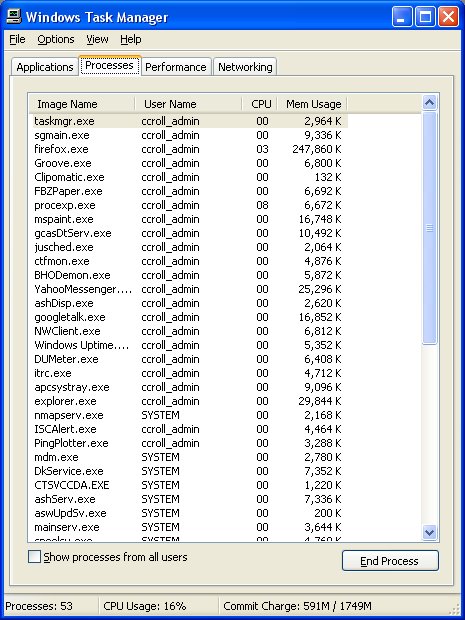
Microsoft gives us Task Manager, to track the processes. Task Manager lets us choose a total of 25 items that we can learn about each process. This is the original tool that you might use, in watching what your computer is doing.

SysInternals (now another division of Microsoft, but that's another story) gives us Process Explorer, which lets us choose, in a tabbed menu

  • DLL - 15 items.
  • Handle - 6 items.
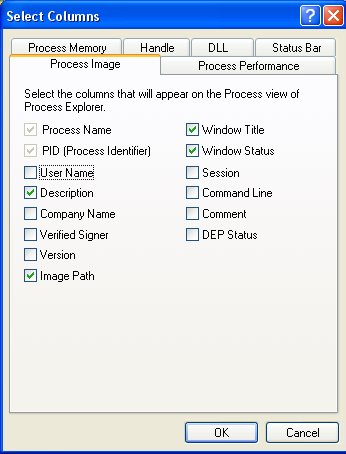
  • Process Image - 14 items.
  • Process Memory - 14 items.
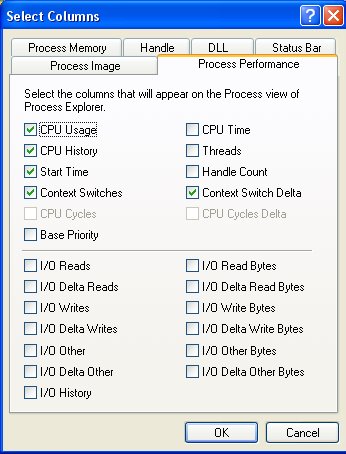
  • Process Performance - 24 items.
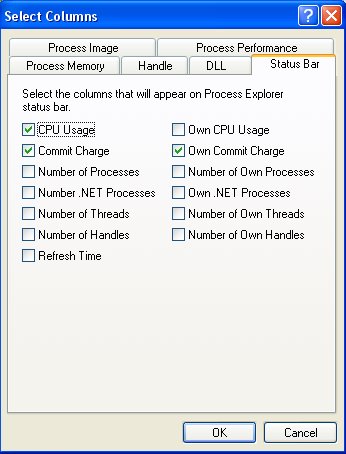
  • Status Bar - 13 items.

There are 3 Process (Image, Memory, and Performance) tabs. The complement of 52 items selectable there is comparable to the complement of 25 items selectable for Task Manager.

Task Manager


This is how I use Task Manager.


You can choose any of 25 items here for display.


Process Explorer


This is how I use Process Explorer.


You can choose from 14 items in Process Image.


You can choose from 14 items in Process Memory.


You can choose from 24 items in Process Performance.


You can choose from 13 items in Status Bar.


You can choose from 15 items in DLL.


You can choose from 6 items in Handle.


>> Top

Deeply Hidden, and Heavily Protected, Malware

Some malware, besides making it impossible for you to interrupt its processes, will make it impossible for you to even locate on your computer. This is called rootkit protection.

Any program that lists ("enumerates") objects on your computer, for instance,


each of these programs depends upon system functions to tell it what is on your computer. None of these programs gets its list straight from system inventories, they ask system functions for a copy of those lists. Why is this relevant? Because, like any copy, things can be omitted when copying.

If your computer is infected by malware that's using rootkit protection, the system functions that enumerate processes and services, or those that enumerate files and folders, may have been customised. When Process Explorer asks for a list of processes, or Windows Explorer asks for a list of folders in storage, the list returned by the system may be filtered by the rootkit function.

Knowing what folders and processes are related to the protected malware, the rootkit function will simply not list those items. If "C:\Malware" contains the program library for the malware that has infected your computer, "C:\Malware" simply won't be listed by Windows Explorer. You can't delete what you can't see.

That's the bad news. Now the good news.

Any file, folder, process, or service, that isn't enumerated by a system function, is quite likely malware. There are several special programs, distributed by security experts, that enumerate system objects by bypassing the rootkit functions. They compare the results with a normal enumeration, calling the standard (and possibly rootkitted) system functions. If there are objects in the former list, that are not in the latter list, those objects are quite possibly rootkit protected malware.

Two of these special programs are


That's the good news. Now for the bad news, again. Many experts believe, that if Blacklight, RootkitRevealer, or a similar program, identify unknown system objects, your computer is probably compromised beyond reliablity. In this case, the only option is to nuke and pave.

>> Top

Watching What Your Computer Is Doing

Your computer, as it runs the many programs that you (or others) start on it, and access other computers on your local or wide area network, is very busy. Even when you aren't doing anything intentionally, your computer is still busy. Sometimes, knowing what your computer is actually doing, at any time, is a critical need.

Long years ago, a computer would be pictured in a movie as a big metal box, with lots of flashing lights. Those lights were used, at that time, to tell what the computer was doing. Those computers ran very slowly (sometimes, not at all), and the flashing lights were critical to knowing what was going on, at any time.

The equivalent of a Blue Screen Of Death was known as (among other terms, some of which won't ever be discussed here) a Hard Stop. When a Hard Stop occurred (which could be many times / day, depending upon what programs were running), the lights would be used to describe what the computer had been doing, and to display the contents of memory and registers.

Today, no computer could ever drive enough lights to tell you anything useful. You typically have three lights on your computer. These lights tell you that the computer is doing something, Period.

  1. Disk activity.
  2. Network activity.
  3. Power.

If you want to have any idea what your computer is doing, you'll have to at least list the tasks it's running. Task Manager is provided as a native component in Windows. Process Explorer (free) from the SysInternals division of Microsoft, provides more detail than Task Manager.

Knowing what tasks are running is a good place to start, but it's only a start. How do you know what each task is doing? I use Filemon and Regmon (both free, and both again from SysInternals).
  • Filemon lists files, as accessed (read and / or written) by any given process.
  • Regmon lists registry values, as accessed (read and / or written) by any given process.

You can use both programs simultaneously, or either program separately, at your convenience.
  1. Open the application that interests you.
  2. Identify the application in Process Explorer, and get its PID. Maybe use the Process Finder to automatically locate the entry for any visible window.
  3. Start Filemon / Regmon.
  4. Create a filter in either application, ":PID" where PID is the PID of the application in question.
  5. Go back to your application, make the change, and watch what Filemon / Regmon displays.
  6. When you find an interesting entry in Filemon, you can double click on it, to open Windows Explorer, and display the folder containing it.
  7. When you find an interesting entry in Regmon, you can double click on it, to automatically open Regedit, and display the registry entry in question.
  8. The filter used by Filemon and Regmon is very simple, and easy to use - it's a simple text string. If you know a process name, or file or registry path, you can filter on whatever you know. Use your imagination.
  9. Both Filemon and Regmon use a context menu (right mouse click) for displayed entries, and a toolbar with several other possibilities. Both can display changes continually (automatically scrolling as you watch), or will let you freeze the display, and manually scroll, at your convenience.

Besides knowing what your computer is doing right now, it is useful sometimes to know what your computer did when it started up. A lot of processes - legitimate, not legitimate, and some in between the two, are started, by other processes, when the computer starts up. Knowing how any process starts up can be important to knowing what it's doing right now. Autoruns (another SysInternals product) and HijackThis are key tools (both free) that I use for this purpose.

Now all of the above tools are used to monitor your computer, and what it's doing on its own. Most computers are used on a network, and make connections to other computers. TCPView, another SysInternals product, shows you what other computers your computer is connected to, local and distant.

If your computer uses WiFi for connectivity, knowing who shares the WiFi spectrum with you could be relevant.

And remember that most computers running Windows contain some server functionality. If your computer is on a local network with other Windows computers, sometimes knowing who else is accessing it is useful too.

>> Top

Get Reliable Online Malware Advice

Usenet will always be the best place, for many, for looking for help. The true geeks hang out in the forums there, because Usenet (or its predecessors, the dialup bulletin boards) has been around before the Web.

The attractions of Usenet are several.


  • Easy access. Anybody with a computer, and either a newsreader (like Forte Agent or Mozilla Thunderbird), or with a browser and access to Google Groups, can access Usenet. Many people have no idea where Google Groups started.
  • No authenticated registration or identity verification required. Just read and write. Or just write (as the trolls and spammers will do).
  • No obligations incurred. You can write what you wish, and nobody will ever hunt you down in person to discuss your mistakes.

And there is a summary of the problems of getting advice from Usenet, without researching each forum carefully.

If you have a malware problem, you absolutely need reliable advice. Ask for help in Usenet, and you may well get advice from one of the trolls that hang out there. For reliable malware analysis and removal, get advice from a reliable forum which requires identity verification. All such forums are web accessed, and require authenticated registration, which is generally free, and should offer posting history with the helpers.

These are but 7 forums which help with malware in general, and HijackThis logs in particular. There are several others, too. You may find still more on your own. I will describe my favourites, 3 of the above 7.

BBR Security Cleanup has a very dynamic mix of helpers. With BBR Forums (of which the BBR Security Cleanup Forum is but a part), the experienced helpers there, like the other forums, are registered (thus have verifiable identity). With BBR Forums, though, there's a much wider range of expert knowlege; and with the helpers being registered, you can cross-reference all previous posts made by each helper. So it's easy to note which helpers are more trustworthy, and have more complete knowlege of what they write. To start asking for help in BBR Security Cleanup, you will do well to start with their FAQ: Mandatory Steps Before Requesting Assistance.

Conversely, I have watched SpywareInfo develop over the past few years. They have a management structure there, with a training and certification process, and very professional behaviour. That's not a place of frivolity, nor flaming, so anybody fearing Usenet (everybody posting to Usenet gets flamed eventually) need not fear SWI Forums. SWI Forums is very narrowly focused, on malware detection and removal, and they do a very good job of both. To start asking for help in SWI Forums, you will do well to start with their FAQ: How to remove spyware or a hijacker.

And Tom Mercado has been working with security for a good while, and is well known in the above forums. In TeMerc's Internet CounterMeasures, Tom offers a personalised approach, with same day response on HijackThis logs.

Whichever forum you choose, though, note that each forum has procedures which they want you to follow, which help the helpers there interpret your log accurately and consistently. That's to everybody's benefit. So be very diligent - read, and follow, the instructions they provide.

Work with the helpers, and they will work with you.

Malware Detection and Removal - Version 2

Many best known malware detection and removal processes focus on using automatic processes to detect and remove the adware, spyware, trojans, viruses, and worms from your computer. There are many tools - some are free, others are not - that will automatically detect, and remove, malware. Here is a sample list of the many available products.


For endless hours of discussions about the merits of each (and many complementary and competitive products), see the Alt.Comp.Virus and Alt.Privacy.Spyware forums.

The way most of these tools work is:

  • You update a malware signature database on your computer, identifying each known malware.
  • You scan each file on your computer.

    • Each file is examined against the malware database.
    • If something is found, which matches an entry in the database, it is removed.


Simple, right? But there are several problems with this procedure.

  1. It requires an up to date malware signature database on your computer, before the process is started.
  2. It is prone to false negatives - if the database isn't up to date, malware might not be detected.
  3. It is prone to false positives - sometimes you remove something that should not be removed.
  4. Because of the false positive threat, you have a quarantine area - anything removed is not really deleted, it is simply moved to an area on the computer by the malware scanner. To recover something mistakenly removed, you must run the malware scanner again, and have it intentionally replaced.
  5. It requires intensive scanning of each file on the computer. The more files in your system, times the larger the signature databases, equals long scanning times. This discourages frequent and regular scans. Malware that matures, and propogates, between scanning cycles is uncontrolled.

There has to be a better way. So let's try one. Here are three possible tools.

  1. HijackFree.
  2. HijackThis.
  3. Silent Runners.


  • Scan the computer for active signatures of all processes - good and bad. Look at all active processes, and at the various databases in your system that control processes, and present you with a log.
  • You can scan the log by hand, and look for obvious entries.
  • You can submit a HijackThis log to any of dozens of expert forums, where real human experts will examine your log and offer legitimate advice.
  • You can submit a HijackThis log to any of several online services, that will check it against their databases.
  • HijackFree will analyse its log for you, against the online SysInfo databases, and present you with a nice GUI display.
  • If any suspicious entries are found, you locate the file, that's suspicious, on your computer.
  • You copy the suspicious files to any of a couple online file scanning services. Those services run the file thru a dozen different malware scanners, doing an intensive analysis. If the file contains any malware - trojan, virus, worm - it should be detected by at least one of the engines.
  • Any file that contains malware, that fits a known entry in an online database, is immediately identified to you. You compare the findings from each of the scanning engines, from the log displayed.
  • Any file containing unknown malware is further analysed, and entries are made to add to the online databases.
  • You can get instructions on removing the malware found, by querying an online database of instructions, provided by the vendor of the online scanner that identified the malware.
  • When you identify specific malware on your computer, continue with an intensive whole computer malware analysis.

There are several advantages to this approach.

  1. Scanning is by known malware traces, not by individual file. This is a much quicker process, which makes it more likely to be used regularly.
  2. The log analysis databases are online, which makes it likely that you'll start from more up to date information.
  3. The online file analysis services provide multiple malware scanners. Scanners specifically sensitive to adware, spyware, trojans, viruses, and worms will be used, complementing each other, to analyse any suspicious file.
  4. When heuristic analysis of a suspicious file indicates malware, but it's not known malware, deeper analysis of your submitted malware can be done by the operators of the online scanning engines. The results of the deeper analysis can be fed back into the online malware databases. The next person with your malware will benefit from your participation. Everybody benefits from this collaboration.

You're welcome to continue using the current, well known strategy of individual file heuristic and signature based analyses, if you wish. But if you're serious about the security of your computers, you'll want to complement that strategy with whole computer scanning.

Download Software Selectively

Usenet is a useful place to get advice for your technical issues. But accepting advice (which is validated by the other helpers in an open forum, constantly), and downloading software (which can't be easily validated by anybody, at all) are separate issues.

Bad advice, given in any trustable forum, does not remain undisputed very long. The experienced helpers in serious forums know the consequences of allowing bad advice to be given, and not contested. All regular helpers, in any forum, both actively and passively validate the advice given by the others. Software, from an unknown server, can't be validated by the helpers so easily.

Don't see where this is going? Checkout the DSLR Forums discussion Is your PC a drug mule?. In it, one of the posters, who signs himself as B, points out


I've always thought one would have to be a little crazy to trust executable software obtained via those channels. Movies and sounds, sure, but binary code? I don't think so. For all anyone knows those warez Photoshop installations have some nifty sleeping trojans.

This is a valid concern. If I were a bad guy, and wanted to spread my code to thousands of computers easily, I'd get some popular software, patch it with my bad code, and stick it on my server. Then, I'd log in to a help forum somewhere, and when a pigeon asked for help, I'd tell him to download my software. Quite likely, more than the pigeon would read my post, and hundreds of folks would download, and install, my bad software.

This is a lot easier than finding, and exploiting a weakness in network software. Get the pigeons to do the work for you. It's essentially the same strategy which leads to the devlopment of botnets.

So if I tell you to download some free software, like Filemon, Regmon, and Process Explorer (as an example), why should you trust me?

Whenever anybody tells you to download binary code (ie, software) from an unknown web address, do some research first.

  • Checkout the forum where you see the recommendation for the software in question. Don't accept advice only given in dodgy forums.
  • Checkout the link to the software. Google or Yahoo for previous references to the title. See if there are any complaints, or mentions in malware forums, about the link. See if any complimentary comments about that website were made by anybody. NEVER download software, even if it has a good reputation, from a dodgy or unknown website.
  • Checkout the person recommending the software. Checkout prior posts, and coorelate them. See if there are any other posts by the same person, where that person was busted for giving bad advice. Make sure there ARE prior posts by that person - and check prior posts for a match in style and content. See if any complimentary comments about that person were made by others. Don't download software that's only recommended by dodgy or unknown persons.
  • Checkout the software itself, by title. Again, Google or Yahoo. See if there are any complaints, or mentions in malware forums, about the title. See if any complimentary comments about that product were made by anybody. Don't download dodgy software.

My theory is that serious recommendations, by trusted helpers, in serious forums, probably points to safe software. If I see something mentioned in alt.comp.freeware, on the other hand, I consider the software itself, but I research before downloading.

In some cases, an AntiTrojan and AntiVirus scan of anything downloaded, before installing, is a good idea too. Since you'd be doing a one-time scan of an individual file, even an online multi vendor scan would not be a needless precaution. Better an hour wasted researching, before installing software, than a couple days wasted diagnosing a damaged system or network.

Using A Hosts File For Security

One of the simplest ways of protecting yourself against outbound traffic to known malicious websites is with a Hosts file. If you want to prevent access to a known malicious website, for instance, www.badhacker.org, you would add an entry


127.0.0.1 www.badhacker.org

Using a Hosts file in this way has its pluses and its minuses.

Pluses.

  • A Hosts file requires no software installation. The Hosts file is referenced, natively, by every IP stack in every operating system.
  • A Hosts file is universally used. There are multiple well known and reliable providers of free Hosts files, which define known malicious websites.


Minuses

  • Each entry defines precisely one website. The entry

    127.0.0.1 www.badhacker.org

    blocks access to only www.badhacker.org. A separate entry is required for badhacker.org, and another for www1.badhacker.org.
  • The Hosts file will become quite large. The HPGuru, a very comprehensive file, is currently over 1M in size, when expanded and installed.
  • Loading the file takes significant CPU power, if not configured properly. If the DNS Client service is running on your computer, and you make any change to Hosts, your system could be unusable for 10 to 16 minutes.
  • To be effective, the file must be kept up to date. The bad guys are constantly creating new domains, and subdomains.
  • It will only block access by website name. Neither of the following will work:

    127.0.0.1 209.62.176.181
    209.62.176.181 127.0.0.1

Check Your Hosts File VERY Carefully

The bad guys have been using entries in YOUR Hosts file, to block you from accessing the websites that can protect YOU, for quite a while now. So instructing you to examine your Hosts file, for entries like:


127.0.0.1 www.symantec.com

is nothing new. This entry, if present in your Hosts file, will block you from getting access to the Symantec servers, including online help, and LiveUpdate. It's one of the earliest hijacks used by the bad guys.

Anyway, I just copied the above example line from this example Hijacked Hosts file. Go there, and see if you can find the example.

"No", you mighht answer. "The only non-comment line is:

127.0.0.1 localhost".


But, you would be wrong. Look again, but look more carefully.

  • The first line there (other than a lot of comments), and the only non-comment line in an otherwise empty file, will APPEAR to be "127.0.0.1 localhost".
  • Scroll to the end of the file, by hitting Ctrl-End.
  • Scroll back up to the top, page by page, looking for any unrecognised entries, possibly placed there by malware.
  • Look out for blank lines at the beginning and end of the file, after "localhost", placed there by an exploit.
  • Do not assume that a file is empty simply because you see "localhost" followed by 50 blank lines!
  • Do not assume that a file is empty simply because you see 50 blank lines anywhere!


Now aware of this devious, and o so simple, mechanism that the bad guys can use, check YOUR Hosts file. To clean your Hosts file, if anything of interest is found, and assuming NO valid entries other than "127.0.0.1 localhost", simply:

  1. Place the cursor at the end of the "127.0.0.1 localhost" line.
  2. Hold down "Ctrl" and "Shift", and hit "End".
  3. With everything after "127.0.0.1 localhost" highlighted, hit "Delete".
  4. Save Hosts, as name "Hosts." (note the "."!), as type "All Files".

If you find that you have valid entries other than "127.0.0.1 localhost", which you need to retain, be aware of this hijack, and edit the file very carefully.

An Example Of A Hijacked Hosts File

# Copyright (c) 1993-1999 Microsoft Corp.
#
# This is a sample HOSTS file used by Microsoft TCP/IP for Windows.
#
# This file contains the mappings of IP addresses to host names. Each
# entry should be kept on an individual line. The IP address should
# be placed in the first column followed by the corresponding host
name.
# The IP address and the host name should be separated by at least one
# space.
#
# Additionally, comments (such as these) may be inserted on individual
# lines or following the machine name denoted by a '#' symbol.
#
# For example:
#
# 102.54.94.97 rhino.acme.com # source server
# 38.25.63.10 x.acme.com # x client host

127.0.0.1 localhost


127.0.0.1 www.symantec.com
127.0.0.1 securityresponse.symantec.com
127.0.0.1 symantec.com
127.0.0.1 www.sophos.com
127.0.0.1 sophos.com
127.0.0.1 www.mcafee.com
127.0.0.1 mcafee.com
127.0.0.1 liveupdate.symantecliveupdate.com
127.0.0.1 www.viruslist.com
127.0.0.1 viruslist.com
127.0.0.1 f-secure.com
127.0.0.1 www.f-secure.com
127.0.0.1 kaspersky.com
127.0.0.1 kaspersky-labs.com
127.0.0.1 www.avp.com
127.0.0.1 www.kaspersky.com
127.0.0.1 avp.com
127.0.0.1 www.networkassociates.com
127.0.0.1 networkassociates.com
127.0.0.1 www.ca.com
127.0.0.1 ca.com
127.0.0.1 mast.mcafee.com
127.0.0.1 my-etrust.com
127.0.0.1 www.my-etrust.com
127.0.0.1 download.mcafee.com
127.0.0.1 dispatch.mcafee.com
127.0.0.1 secure.nai.com
127.0.0.1 nai.com
127.0.0.1 www.nai.com
127.0.0.1 update.symantec.com
127.0.0.1 updates.symantec.com
127.0.0.1 us.mcafee.com
127.0.0.1 liveupdate.symantec.com
127.0.0.1 customer.symantec.com
127.0.0.1 rads.mcafee.com
127.0.0.1 trendmicro.com
127.0.0.1 pandasoftware.com
127.0.0.1 www.pandasoftware.com
127.0.0.1 www.trendmicro.com
127.0.0.1 www.grisoft.com
127.0.0.1 www.microsoft.com
127.0.0.1 microsoft.com
127.0.0.1 www.virustotal.com
127.0.0.1 virustotal.com
127.0.0.1 www.amazon.com
127.0.0.1 www.amazon.co.uk
127.0.0.1 www.amazon.ca
127.0.0.1 www.amazon.fr
127.0.0.1 www.paypal.com
127.0.0.1 paypal.com
127.0.0.1 moneybookers.com
127.0.0.1 www.moneybookers.com
127.0.0.1 www.ebay.com
127.0.0.1 ebay.com


127.0.0.1 www.symantec.com
127.0.0.1 securityresponse.symantec.com
127.0.0.1 symantec.com
127.0.0.1 www.sophos.com
127.0.0.1 sophos.com
127.0.0.1 www.mcafee.com
127.0.0.1 mcafee.com
127.0.0.1 liveupdate.symantecliveupdate.com
127.0.0.1 www.viruslist.com
127.0.0.1 viruslist.com
127.0.0.1 f-secure.com
127.0.0.1 www.f-secure.com
127.0.0.1 kaspersky.com
127.0.0.1 kaspersky-labs.com
127.0.0.1 www.avp.com
127.0.0.1 www.kaspersky.com
127.0.0.1 avp.com
127.0.0.1 www.networkassociates.com
127.0.0.1 networkassociates.com
127.0.0.1 www.ca.com
127.0.0.1 ca.com
127.0.0.1 mast.mcafee.com
127.0.0.1 my-etrust.com
127.0.0.1 www.my-etrust.com
127.0.0.1 download.mcafee.com
127.0.0.1 dispatch.mcafee.com
127.0.0.1 secure.nai.com
127.0.0.1 nai.com
127.0.0.1 www.nai.com
127.0.0.1 update.symantec.com
127.0.0.1 updates.symantec.com
127.0.0.1 us.mcafee.com
127.0.0.1 liveupdate.symantec.com
127.0.0.1 customer.symantec.com
127.0.0.1 rads.mcafee.com
127.0.0.1 trendmicro.com
127.0.0.1 pandasoftware.com
127.0.0.1 www.pandasoftware.com
127.0.0.1 www.trendmicro.com
127.0.0.1 www.grisoft.com
127.0.0.1 www.microsoft.com
127.0.0.1 microsoft.com
127.0.0.1 www.virustotal.com
127.0.0.1 virustotal.com
127.0.0.1 www.amazon.com
127.0.0.1 www.amazon.co.uk
127.0.0.1 www.amazon.ca
127.0.0.1 www.amazon.fr
127.0.0.1 www.paypal.com
127.0.0.1 paypal.com
127.0.0.1 moneybookers.com
127.0.0.1 www.moneybookers.com
127.0.0.1 www.ebay.com
127.0.0.1 ebay.com


(EOF)

Online Analysis Of Suspicious Files

Let's say you run any one of my favourite problem analysis or detection tools, such as:


and you find one or more mysterious entries. What do you do now? Kill, then delete the processes? It may not be quite that easy - or that safe. Please, research what you're deleting, and the possible consequences of deleting it, BEFORE you do so.

A lot of malware today will install itself in a package - creating 2 or more processes on your computer. Also, some security software, badly designed, may protect you, but may use names, or other identity elements, that may give it the appearance of malware.

It's relatively easy to identify a single, active process that steals your passwords, throws ads on the screen, or creates links to distant, mysterious computers.

Some malware, though, will package itself in 2 or more components. It will include protective components, that ensure that the other process(es) continue running on your computer, even if you try to delete or kill them. When the protective processes detect that the active processes were deleted or terminated, it will make new copies of the other processes, frequently using different names, and restart the bad active processes.

Delete or kill one program, and suddenly you'll have a second program (maybe with a different name), doing the work of the process that you just killed. You have to kill the background protective processes first. When you find a suspicious file or process, examine it, and ensure that there's no other process referencing or protecting it.

There are several web sites where you can upload any suspicious file found on your computer, which will submit your uploaded file to multiple scanning engines for intensive analysis. Just go to either website and upload the file using the web page. This takes maybe 30 seconds to upload a file, then wait 5 - 10 minutes for a free analysis.

Examining the logs from any of the above utilities, do you see any malware identified? If so, don't panic - do some research. Note which scanning engines detected the malware, and cross-reference those to free, online system scanning services.

In order for a protective bad process to restart a protected bad process (one that's detected by HijackThis), the protective bad process has to contain some portion of, or reference to, the active bad process. Any individual scanning engine (called by Jotti and/or VirusTotal), that can find malware in an active bad process, should similarly be able to find the same malware in any other file on the computer, if additional bad files exist. Running a whole system scan, you look for other files that contain the detected malware.

Pick one or more of the scanning services which identified the malware, and do a complete system scan. Either a HijackFree, or a HijackThis, log is a good starting point; but both HJF and HJT are limited, in that they find malware using established patterns. Make sure the malware you are experiencing is not in other places too. Use all possible analytic tools.

In the case of very well written malware, it may be very difficult (if not impossible) for YOU to identify, and delete, all components of the malware simultaneously. Its protective processes may be written to detect your feeble human actions, and it can restart itself faster than you can kill or delete it.

But don't despair! Just identify all components of the malware at any time (without killing and / or deleting anything). Then use Pocket Killbox. You identify ALL of the bad files or processes to Pocket Killbox, and Pocket Killbox takes care of them for you. It's like having a team of well trained snipers, each aiming at a different bad guy. firing simultaneously, and killing all of the bad guys without warning any.

If you have any doubts about this technique, or if even Killbox can't get rid of the bad stuff, remember the Expert Help Forums. Any time Jotti or VirusTotal identifies a bad file, spend some time searching thru 2 or 3 of these forums. Find out what techniques and tools are currently being used to remove the identified malware. Again, Strength Thru Diversity.

Just don't guess at the problem. Use the power of the web, and work from the experience of those who have already dealt with your malware.

Now for the bad news. Some malware may protect itself, from being deleted or interrupted, by hiding itself. You cannot delete that which you cannot see.

As malware has evolved, the properly designed anti-malware protection will also scan each web page as you surf the Internet. In some cases, you should have access to an OnLine Web Site Analysis product.

>> Top

Online System Virus Scanning Services

Please understand me here - don't misunderstand the purpose of this article. You absolutely must have up to date, real time virus protection on your computer. Even if you have no money to pay for one, that's OK, there are several excellent, free products. As far as a vendor recommendation, please feel free to peruse the neverending discussions in alt.comp.virus.

But even with up to date, real time protection (and please don't try running two installed virus protection products simultaneously), you will experience times when a second - and a third - opinion is necessary.

Fortunately, you don't have to download and install more software. In this case, there are several excellent free online services, that will scan your entire system, using applets running under the control of your browser, at your convenience.


BitDefender
eTrust
F-Secure
Kaspersky
McAfee
MicroWorld
Panda
RAV
Symantec
TrendMicro

Eric Howes Rogue/Suspect Anti-Spyware Products & Web Sites has another list of online virus scanning services, with more possibilities.

Not all of the above work with both Microsoft and Mozilla browsers, but choose carefully, and you should be able to find one or more that will work for you.

Dealing With Malware (Adware / Spyware)

One of the fastest growing industry in technology today is development and deployment of malware - software to run on peoples personal computers, without their consent and / or knowledge. This software is called by some adware, by others, spyware. It has many installation methods, many purposes, and many results.

It can range from the most innocuous add-on program designed to "enhance your Internet enjoyment", to programs which secretly transmit your most intimate financial details (like your credit card number and PIN) to thieves who will use the information to empty your bank account.

The one thing you can say for a certainty is that it's software that you do not want on your computer.

This is where you need a thorough adware / spyware scan, including CWShredder, AdAware, Spybot S&D, HijackFree, and HijackThis, with expert advice to interpret the HijackThis log.


>>Top

Check the Hosts file.
Search your entire system drive, including hidden and system folders, for file "hosts". There is one legitimate copy, and it is used in many security strategies. Any others are possibly bogus, and part (but just part) of the problem. Make sure that the registry entry points to the legitimate location.

Now, you need to examine the contents of each Hosts file. Look for entries like

127.0.0.1 www.symantec.com

which would make your browser display "404 (Page Not Found)", or similar, when you try to access Symantec.

When examining each Hosts file found, check it very carefully.

>>Top

Scan for viruses using online services
How current is your virus protection? Try one or more free online virus scans services, which should complement your current protection.

>>Top

Download AntiMalware and Corrective Software.
Download free tools to detect and remove malware. Only download each individual product from each server as listed. When dealing with malware, the most current version of all software is essential, so don't use old versions - download new versions before starting.

NOTE: Some malware installs components into the LSP / Winsock layer in the network. Its removal may damage the LSP / Winsock, and damage network functionality in various ways. Download corrective tools, described in Problems With The LSP / Winsock Layer In Your Network, before starting malware removal. Those tools are all very easy to use, and take up very little disk space. Downloading them, before starting malware removal, is a very good idea. Damage LSP / Winsock, and you may not be able to download anything. Download those tools before you start malware diagnosis.

>>Top

Install Software.

  • Create a separate folder for HijackFree, such as C:\HijackFree, and copy the downloaded file there.
  • Create a separate folder for HijackThis, such as C:\HijackThis, and copy the downloaded file there.
  • Create a separate folder for Silent Runners, such as C:\SilentRunners, unzip the downloaded file, and copy "Silent Runners.vbs" there.
  • Create a separate folder for the two TrendMicro files, such as C:\TrendMicro, and copy the downloaded files there (unzipped if necessary).
  • AdAware, CWShredder, and Spybot S&D have install routines - run them.
  • The other downloaded programs can be copied into, and run from, any convenient folder.


>>Top

Scan for Malware.

  • Close all Internet Explorer and Outlook windows.
  • Run Stinger. Have it remove all problems found.
  • Run CWShredder. Have it fix all problems found.
  • Empty your temporary files folders:

    • "C:\WINDOWS\Temp"
    • "C:\Documents and Settings\(Username)\Local Settings\Temporary Internet Files".

  • Disable System Restore.
  • Boot your computer into Safe Mode.
  • Run C:\TrendMicro\Sysclean.com. Delete any infections found.
  • Reboot your computer, and re enable System Restore.
  • Run AdAware. First update it, configure for full scan, then scan. When scanning finishes, remove all Critical Objects found.
  • Run Spybot S&D. First update it, then run a scan. Trust Spybot, and delete everything ("Fix Problems") that is displayed in Red.
  • Then, run HijackThis ("Scan"). Do NOT make any changes immediately. Save the HJT Log.
  • Run A2 HijackFree, using Windows Explorer. Simply find the folder where you copied "HijackFree.exe", and double click on it. It will run, with no settings or selections needed. Save a log file. Next, hit the Analyze.. button, and it will open a browser window, and analyse its findings against the current Sysinfo malware database.
  • Run Silent Runners, using Windows Explorer. Simply find the folder where you copied "Silent Runners.vbs", and double click on it. It will run, with no settings or selections needed, and create a .txt file in that folder.
  • Interpret your HJT log.
  • Remove any malware found. Alternately, run whole computer heuristic analysis, starting with the HJT log, and including HijackFree.

If removal of any spyware affects network functionality, run the corrective software downloaded above. See Problems With The LSP / Winsock Layer In Your Network for specific advice.

>>Top

Improve Your Chances For the Future.

Now that you've experienced the frustration and uncertainty involved in dealing with malware, do you want to go thru this again? I hope not. So improve your future - layer your security!

Dealing With Pop-Ups

There are at least three varieties of pop-ups, and the solutions vary accordingly.


After you finish with this episode of malware / unwanted network traffic, improve your chances for the future.

Messenger Service Pop-Ups

This will be a text only message, and will only hit you when you're online. A Messenger Service pop-up can't contain a clickable link. The window will be titled "Messenger Service".

This type of spam has become quite common over the past year or so, and unintentionally serves as a valid security alert. It demonstrates that you haven't been taking sufficient precautions while connected to the Internet. Your data probably hasn't been compromised by these specific advertisements, but if you're open to this exploit, you most definitely open to other threats, such as the Blaster Worm that still haunts the Internet. Install and use a decent, properly configured firewall.

Messenger Service of Windows
Messenger Service Window That Contains an Internet Advertisement Appears
Stopping Advertisements with Messenger Service Titles

If you're using AOL, you'll either need to find a 3rd party firewall that is compatible with AOL, or switch to a real ISP that is compatible with the real Internet. This is because AOL is an on-line content provider that ignores international networking standards in favor of its own proprietary products, and has deliberately made its connection software incompatible with both WinXP's built-in firewall and WinXP's Internet Connection Sharing feature. AOL's proprietary connection applet is deliberately designed to preclude your setting/adjusting any of its properties, to include enabling/disabling WinXP's ICF and ICS.

Whichever firewall you decide upon, be sure to ensure UDP ports 135, 137, and 138 and TCP ports 135, 139, and 445 are all blocked from Internet access. You may also disable Inbound NetBIOS (NetBIOS over TCP/IP). You'll have to follow the instructions from firewall's manufacturer for the specific steps.

Please make sure that you only block the above ports from Internet traffic. If you have a LAN, and are using Windows Networking, you do not want to block those ports between your computers. Only block those ports between your computers and the Internet. Read the firewall / router manual.

You can test your firewall at:

Gibson Research (ShieldsUp!)
SecurityMetrics
Sygate Security Scan
Symantec Security Check

Be especially wary of people who advise you to do nothing more than disable the messenger service. Disabling the messenger service, by itself, is a "head in the sand" approach to computer security, similar to Security by Obscurity. The real problem is not the messenger service pop-ups; they're actually providing a useful, if annoying, service by acting as a security alert.


Regular Browser Based Pop-Ups

This will be an HTML message, and will only hit you when you're online. A browser based popup will probably contain clickable links. The window title will vary.

There are many ways of dealing with annoying, but not illegal, advertising pop-ups. Here are two.
Get the free Google Toolbar. Hosts file blocking works on this problem also.
Blocking Ads, Parasites, and Hijackers with a Hosts File.


Adware / Spyware Pop-Ups

This will be an HTML message, and can hit you when you're online, or offline. An adware based popup will probably contain clickable links. The window title will vary.

Please see Dealing With Malware (Adware / Spyware) to continue.