Your Neighbour's WiFi

One of the limitations of WiFi is that it's not scalable, and it has a finite capacity. You cannot get more than (currently) 108M bandwidth. You simply won't be able to stream the latest movie in 3D multi-colour to every media computer in your house without seeing some performance limitations. And that is your own performance limitation. If your neighbour has a WiFi LAN, you will also have to share the bandwidth with him (her). WiFi simply does not have unlimited bandwidth, new technology or not.

In any domestic situation with neighbours, for a problem like a loud stereo, the tendency is to turn your own stereo up. Crank that sucker. This is, however, not a good, long term solution.

  • You possibly have up to 8 immediate neighbours, and more beyond them. Some of those neighbours, also currently suffering from your neighbour stereo, now have to suffer from yours too.
  • Your neighbour will probably turn his volume up yet again, to overcome the new "noise" from your system.

Like every analogy, this one suffers from a major problem. With loud stereos, it's easy to find where the noise is. Just follow your ears. Then call the police, and have them deal with the problem.

If your neighbour has a "loud" WiFi LAN (ie SuperG or MIMO), you won't be able to follow your ears. Nor will, I suspect, the police be interested in becoming involved. You're going to have to find your neighbour, and you're going to have to convince him to turn his stereo (WiFi) down. Or suffer in silence.

You can start with NetStumbler, and triangulate the problem. Then, you'll have to use diplomacy, not technology. You'll not solve the problem by getting a high power AP.

I, and others like me, have seen this situation coming for some time. Here is one possible real life example, and here is a second possible real life example. And even if neither discussion is diagnosed with this cause, this scenario is coming. Channel saturation, and unexplainable intermittent bandwidth variation, will become the norm, not the exception.

>> Top

If You Have Windows XP, Without SP2, Please Upgrade Today!

One of the problems with Windows, in general, is its stability and security problems. One of the causes of stability and security problems is the need for Windows to support various versions of different software, its own as well as third party products.

Periodically, Microsoft issues rollup updates, which give it a baseline to work from when supporting their own product. SP2 was one of those rollups. By continuing to use Windows SP1, and by possibly encouraging others to do so, you are requiring useless complexity in Windows.

Now, any pretty good knowledge of computer security is a good start, but any real knowledge will tell you that keeping your computer up to date is essential.

XP SP2 has been out for an extremely long time. Its time to put SP1 to bed, and prepare for SP3 or Vista, which ever comes first. As Windows customers move to SP3 or Vista, support for SP2 will continue. But support for SP1 should not.

Move to SP2. Windows is bad enough with it - its worse without it.

Having applied SP2, proceed directly to malware analysis. If you've been running with SP1 this long, you probably have something you're not aware of.

Now if you're reading this specifically because your computer has problems, but you already did malware analysis, yet you can't find the source of the problem, your computer may be now part of a botnet. In this case, the only solution is for you to "flatten and pave".

  • Immediately, disconnect from the network.
  • Repartition, and reformat the drive.
  • Re install Windows XP.
  • Upgrade to SP2, and all security patches.
  • Reconnect to the network.


I'm aware that this is brutal, and maybe rude, advice. But if you're advised any less, we're essentially saying
Look, you can solve your computer problems without upgrading to XP SP2. It's OK to run XP SP1.

But, it's not OK. Windows XP SP1 isn't supported by Microsoft, as of October 2006. Period.

>> Top

Choose Your WiFi Client Manager Carefully

When I got my laptop, it came with built-in WiFi, and with 3 programs ("Client Managers") to manage the WiFi connection.

  • HP - The laptop vendor.
  • Intel - The WiFi card vendor.
  • Microsoft - The operating system vendor.


The problem is, only one program can manage a WiFi card at any time. Multiple managers = confusion = random disconnects. Each Client Manager program will be different.
  • Information displayed.
  • Organisation of wizards to make settings changes.
  • Security options.


The Microsoft product, Wireless Zero Config, has one major advantage. WZC runs as a service. If you depend upon your computer having connectivity without you being logged in, or even immediately after you login, you may find this a useful feature.

Just make sure that only one client manager is run, at any time.

>> Top

Manual Network Setup Procedures

The Windows Network Setup Wizard, provided on computers running Windows XP, is a convenient way to setup your network. Sometimes though, you need to setup things manually.

In cases where you can't use the Network Setup Wizard, you'll be using the Network Connection Wizard.

  • Please start by reviewing Networking Your Computers, if you haven't already.
  • From Settings, open Network Connections. Find the network connection that you'll be using. The most common one is called Local Area Connection. Right click on the appropriate connection, and choose Properties. Make sure the following network components are installed, in the network items list.
    • Client for Microsoft Networks.
    • File and Printer Sharing for Microsoft Networks.
    • Internet Protocol (TCP/IP)
  • Make sure that the Internet Connection Firewall / Internet Connection Sharing (ICS) (pre-SP2), or Windows Firewall / Internet Connection Sharing (ICS) (SP2) service is running - Started and Automatic.
  • Configure your firewall setup, including installing any third party firewalls, after you run the wizard.


>> Top

Local Area Connection Properties
Start from the connection items list (Start - Settings - Network Connections in Windows XP). Right click on Local Area Connection, and select Properties. This will give you the Local Area Connection Properties wizard. If you have additional or alternate network devices, your connection may have a different name.


If you need to make changes to the network adapter, click on Configure. This will give you the Network Adapter Settings Wizard.


Make sure that the required protocols, for Windows Networking, are loaded. And make sure that you know what are loaded, and remove any that aren't necessary.


You'll likely be configuring TCP/IP as your primary network protocol. Double click on Internet Protocol (TCP/IP). This will open the TCP/IP Properties Wizard.


>> Top


In most cases, you'll use automatic (dynamic) settings.
  • Select Obtain an IP address automatically.
  • Select Obtain DNS server address automatically.
If you must make manual IP settings, you'll have up to 5 values to set.
  • IP address
  • Subnet mask
  • Default gateway
  • Preferred DNS server
  • Alternate DNS server
If you're just connecting 2 (or more) computers directly, IP address and subnet mask will be the only relevant entries. If you're connecting (2 or more) computers, and providing Internet service, you'll have also Default gateway and DNS servers to set.


>> Top


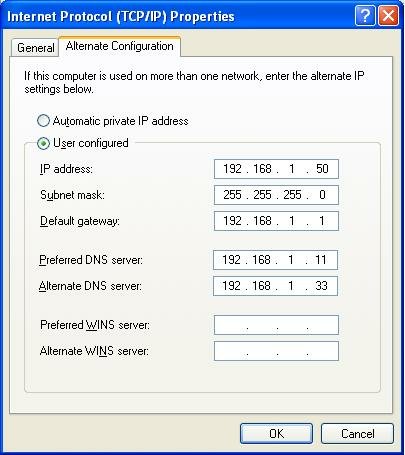
If you selected Obtain an IP address automatically, you'll have an opportunity to enter alternate settings too. If no DHCP server is available, you'll have static network settings, aka APIPA. This will let you connect with other computers on your immediate network (that are also using APIPA), and possibly other networks (with a gateway on the APIPA subnet).


>> Top

TCP/IP Properties - Advanced

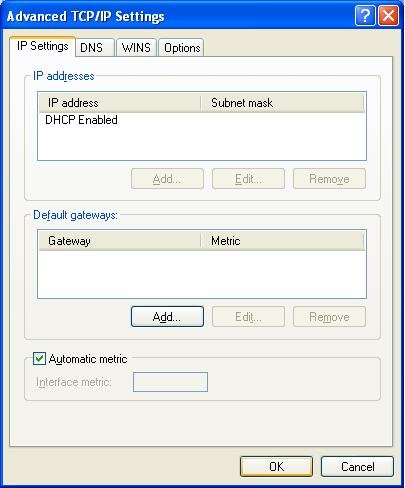
Sometimes you will need to make settings beyond the basic 5 on the TCP/IP Properties window. From TCP/IP Properties, hit the Advanced button at the bottom. This opens the Advanced TCP/IP Settings wizard.


If you selected Use the following IP address, you'll be able to have your computer use multiple IP addresses.

With either automatic or manual IP addresses, you'll have a chance to specify multiple gateways. If the default gateway isn't available, your computer will try an alternate gateway, automatically.

And here, you can adjust the metric for this connection. If you have multiple network connections, and one is faster or more reliable, you can influence IP routing. These selections are reflected in the static route table. This is important with a computer with multiple network connections.


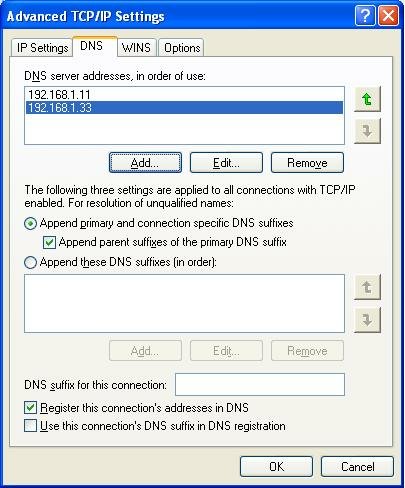
On the DNS tab, you have the ability to define more than 2 DNS servers. And additional DNS settings.


On the WINS tab, you will find the most frequently checked and set selection - the NetBIOS setting, aka NetBT.
  • If your LAN has a DHCP server (not a NAT router), you can select "Default", and control the setting from a setting in the DHCP server.
  • If you have a domain, and use DNS for name resolution, you can select "Disable", and use Direct Hosted SMBs.
  • If you don't know what any of this means, or if you have a small LAN without a DNS server, select "Enable".


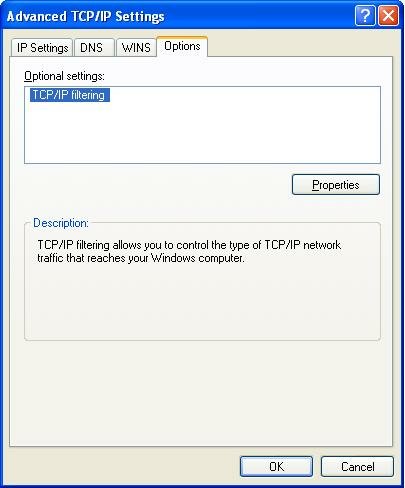
On the Options tab, you can set various TCP/IP filtering options.


>> Top

Finding, and Tracking, Computers On Your Network

Many people (and most of those who read these articles) have more than one computer. After a while, some of us even forget what computers we have. I know I do - my memory escapes me sometimes. So what can we do?

The most obvious answer is to make a list. But what if you forget to update the list?

So the next answer is to let your computer track your computers. If you can find one computer (and if you can't, your problem exceeds the scope of PChuck's Network for help), you can run one of these free utilities, and find the others.


Angry IP Scanner, and SoftPerfect Network Scanner, provide quick, one time IP scans of the local network, and give you a neat tabulation of all addressable devices, that respond to pings, on that network.

The Dude, on the other hand, will do an auto discovery scan of any subnet of interest, using multiple protocols - IMAP4, IP, and SNMP. And it will monitor connectivity, on an ongoing basis, of all discovered (or manually defined) devices, using those protocols and more - DNS, HTTP, IMAP4, IP, and NetBIOS. If you're tired of checking your server every couple of hours, to see if it's up, use The Dude, with its customisable polling intervals, to watch your server for you, and notify you when it doesn't respond to polling on any relevant protocol.

Maybe a couple of years ago, you would use tools like these at work, and pay well for them. These tools are free, and your home network can probably benefit from their use.

All three of these tools have a permanent place in my toolbox.

>> Top