Diagnosing Network Problems Using PingPlotter

Many network problems, given enough test cases, can be diagnosd by simple observation and comparison. If you can access Computer C from Computers A and B, but you can't from Computer D, better look at Computer D. If Computer A can access Websites 1 and 2, but can't access Website 3, what's different about Website 3?

What if the problem comes and goes - now you can access with no problem, and now you can't? Maybe Computer A doesn't work now, but it's working later when Computer B stops working? Or if Website 1 is accessible, but Website 2 isn't, how do you identify the problem? How do you even track the problem, without having assistants to help you watch all of the computer involved?

I start with PingPlotter. PingPlotter combines a traceroute (traditionally a single timed ping of all addressed hosts between one computer and another) with repetitious pinging, and an interactive GUI display. PingPlotter lets you look for geographical problems (showing that you have connectivity between your computer and the first router, but not the second), or for repetitous problems (showing when you lose connectivity, whether chronic, cyclical, or randomly).

Let's say that you are losing connection with the Internet, on all computers on your LAN, periodically. By running PingPlotter on your computers, you can note whether the problem is with your router (if all computers show loss of connectivity with that router), with your ISP (if all computers show loss of connectivity with your ISPs gateway, but no problem with your router), or with a given server on the Internet. If the problem is intermittent, the PingPlotter display will show when the problem happens - and if its a chronic problem which includes loss of connectivity with your ISP, having a PingPlotter display may be worth a thousand words.

Since PingPlotter shows ping times for every host between you and your target, when there is a break in connectivity somewhere, it will show the break. You will see a red ping display for any hosts that do not respond at all, and the host that is causing the problem will probably be the closest one showing as red.

A PingPlotter display is interactive too. If there are a dozen hosts between you and a given website, maybe you only want to examine connectivity details with 4 hosts - yours, your ISPs gateway, your ISPs border, and the target server. You can selectively configure PingPlotter to show only those hosts, saving valuable screen space for other tasks. At any time, you can add any of the other hosts to the display, and the past history for those hosts will be visible too.

You can also vary the time scope of the display. You can look at an entire 48 hours in a 6 inch horizontal display, or zoom in on any 5 minutes, and look at those 5 minutes in detail. Or you can select any of 8 other scales in the display.

The paid version of PingPlotter can even be set to trigger alerts when certain definable network conditions occur, and to contact you by text messaging, or by email. So you need not be at your desk, watching the display, to be notified of a chronic problem.

All in all, PingPlotter is one network diagnostic that has a place in my toolbox. The paid version, PingPlotter Pro, is well worth the expense.

>> Top

The Network Adapter Settings Wizard

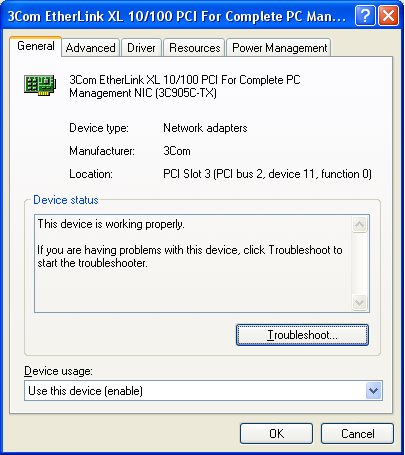
The drivers for every network adapter produced allow various settings to be changed, to suit your idea of how you would like your network to perform. Modern network adapters let you change your settings thru a wizard, generally accessed thru the (Local Area) Connection Properties Wizard.

From the Connection Properties Wizard, hit Configure.

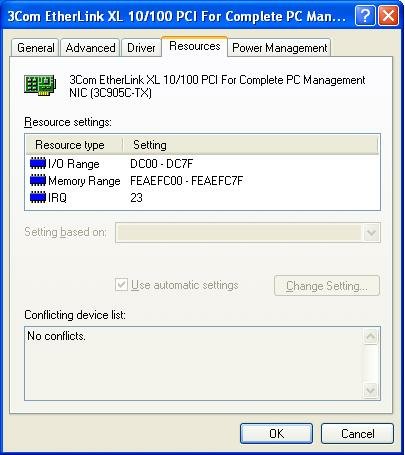
This gives you a whole array of selections, which will vary according to to vendor, and how the configuration driver, for your network adapter, is constructed.

My adapter here is a 3Com Etherlink XL 10/100. Your adapter, and the settings, may differ.


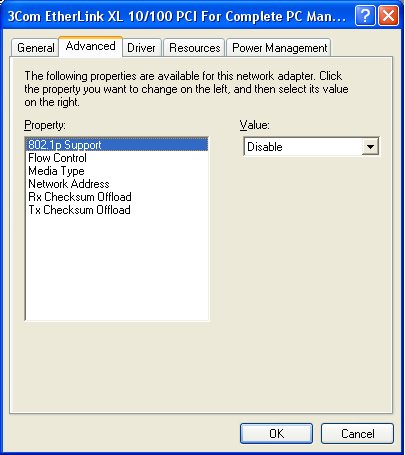
On the advanced tab, you will find most of the settings which will help you.


  • Media Type
    • 10M Full duplex
    • 10M Half duplex
    • 100M Full duplex
    • 100M Half duplex
    Most networks will work fine with Auto Select enabled. If your network is slow, it may be because of errors, caused by either network adapter, or by the the cable / WiFi channel connecting the two. Changing it to 10M Half duplex may eliminate speed related errors, and stabilise things. Or, it may run better with 100M Full duplex explicitly enabled.
  • Network Address. Here you can change the MAC address.
  • If you change any of these settings, be prepared to restart the computer.


Consider carefully if the possible inconvenience is worth the minor power savings. Power consumption, by the typical desktop Ethernet NIC, is neglible. With a WiFi adapter on a portable computer, if the computer is running on battery power, this may not be the case. Consider both cases carefully.


>> Top

Process Explorer

Microsoft Windows gives us the ability to run multiple processes simultaneously - it's called multitasking. Some processes we start intentionally - we call them applications or programs. Other processes are started by the system - we call them services. Keeping track of all of the processes running, at any time, is a major activity.

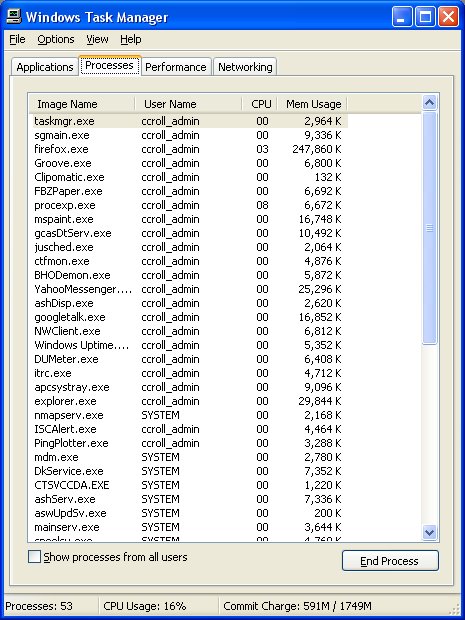
Microsoft gives us Task Manager, to track the processes. Task Manager lets us choose a total of 25 items that we can learn about each process. This is the original tool that you might use, in watching what your computer is doing.

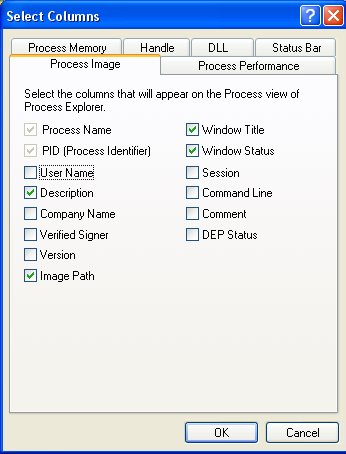
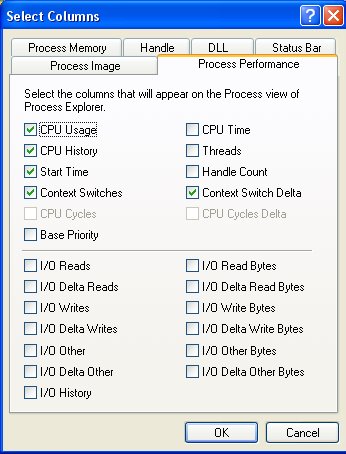
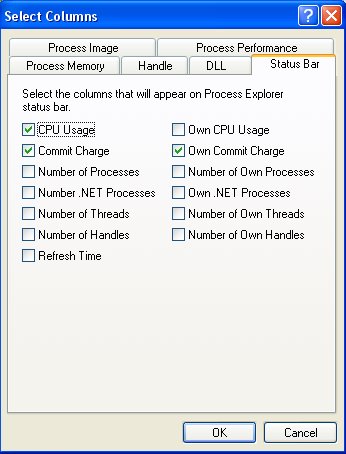
SysInternals (now another division of Microsoft, but that's another story) gives us Process Explorer, which lets us choose, in a tabbed menu

  • DLL - 15 items.
  • Handle - 6 items.
  • Process Image - 14 items.
  • Process Memory - 14 items.
  • Process Performance - 24 items.
  • Status Bar - 13 items.

There are 3 Process (Image, Memory, and Performance) tabs. The complement of 52 items selectable there is comparable to the complement of 25 items selectable for Task Manager.

Task Manager


This is how I use Task Manager.


You can choose any of 25 items here for display.


Process Explorer


This is how I use Process Explorer.


You can choose from 14 items in Process Image.


You can choose from 14 items in Process Memory.


You can choose from 24 items in Process Performance.


You can choose from 13 items in Status Bar.


You can choose from 15 items in DLL.


You can choose from 6 items in Handle.


>> Top

Dealing With Technical Support

Everybody who reads PChuck's Network will eventually experience a problem that, regrettably, can't be fixed by reading PChuck's Network. As will the majority of the world's population, those who don't read PChuck's Network.

So you will eventually have to deal with Technical Support, for the product or service that isn't performing properly.

Now support techs have heard everything, so yelling at them, in any way, will cut no ice. Just be very calm and objective, but don't take no for an answer. Be persistent.

Sometimes even persistence doesn't produce results.

I spent half an hour on the phone discussing the problem. I was very polite, and the tech on the other end was likewise. But it was obvious, to me anyway, that we were getting nowhere.

So I closed the conversation. I played a little dirty here.

May I please speak to a supervisor?

Please hold.

(A minute on hold)
I'm sorry, we don't have anyone available today.

(WTH? They work without supervision?)
OK, I guess we will have to work on this tomorrow?

(a few seconds for the tech to start closing the ticket)
May I have a ticket number?

Thank you. Are you filling out the ticket? Did you indicate how polite I was?
Good.

Please indicate in the ticket that the customer was very polite, but indicated at the end that he was extremely pissed off.

Please hold.

(5 minutes on hold, and I waited patiently)
And I got a senior supervisor, that had some ability to deal with the problem.

Be very objective and polite, don't take no for an answer, and hit them hard when they don't expect it.

There are other ways to deal with them too. If you have a connectivity problem, for instance, using a tool like PingPlotter, to identify a time pattern, and / or where the loss of connectivity is occurring, is a good start.

If this is your first call to a given Tech Support group, go prepared to ask and answer questions. Get a ticket number, and be prepared to contact them again with more information.

If this is your second (or more) call, you know (sort of) what to expect. Documentation, or an organised description of the problem, can go a long way towards making them listen to you. As will an objective demeanour.

Most tech support people really would like to solve your problem. Try and meet them half way, but make it clear to them that you expect results. Work with them, and both of you may be pleasantly rewarded.

>> Top

What Is A CrossOver Cable, and Why Do I Need One

In any conversation between two people or computers, you speak and the other listens. Or it speaks, and your computer listens. This means that your mouth has to connect to the ear on the other end. This is called cross-over.

If you look at any hub / switch / router 10 years ago, you would probably see the various ports labeled "X-1", "X-2", "X-3"... This meant those were cross-over ports. Your computer would speak (transmit) thru a pair of wires in the Ethernet cable. When the connection went into the router port at the other end, the cross-over function connected the transmit wire pair from your computer to the receive port at the other end, and the receive pair from your computer to the transmit pair at the other end.

If you had to connect a pair of routers directly to each other, you would have a cross-over port at one end connecting to a cross-over port at the other end. This would cause a cancellation of the cross-over function, so you would use a cross-over cable.

If you connected a pair of computers directly, you would similarly need a cross-over cable.

This meant that everybody with a computer network had to have cross-over cables handy.

To eliminate the need for using cross-over cables, router manufacturers developed Auto-MDIX. A router port with Auto-MDIX will listen to see if it is connected to another cross-over port, and switch itself to non-cross-over mode if necessary. Some computers, likewise, have Auto-MDIX. If you connect a pair of computers directly, and one (or both) have Auto-MDIX, you can use a straight-thru (aka patch) cable, and they will connect just fine.

Auto-MDIX is a significant development, in the networking world. Having said that, I don't believe that Auto-MDIX can be relied upon, as a complete solution. I will still advise you to have a cross-over cable, or connector, handy for diagnosing network problems.

>> Top